
In today’s fast-paced digital world, efficiency and convenience are paramount. Google Assistant emerges as a powerful tool, offering a seamless voice-activated interface to manage tasks, access information, and control your smart home devices. This comprehensive guide delves into the capabilities of Google Assistant, revealing how this personal voice-activated helper can streamline your daily life and unlock unprecedented levels of productivity. From setting reminders and sending messages to controlling your smart thermostat and playing your favorite music, Google Assistant is poised to revolutionize how you interact with technology.
Discover the full potential of Google Assistant and learn how to personalize it to meet your unique needs. This article will explore the various features and functionalities of Google Assistant, providing practical tips and tricks to maximize its effectiveness. Whether you’re a seasoned tech enthusiast or new to voice-activated assistants, this guide will empower you to harness the power of Google Assistant and integrate it seamlessly into your daily routine, making your life simpler and more efficient. Uncover the true potential of your personal voice-activated helper and embark on a journey towards enhanced productivity and convenience.
Setting Up Google Assistant on Your Device
Setting up Google Assistant is a straightforward process. Most modern Android devices come with Google Assistant pre-installed. To check, press and hold the home button or say “Hey Google.” If it’s not already enabled, you’ll be prompted to set it up.
For Android devices without pre-installation, or if you’ve disabled it previously, you can download the Google Assistant app from the Google Play Store. Once installed, launch the app and follow the on-screen instructions to configure your settings. This typically involves granting necessary permissions and linking your Google account.
On iOS devices, you’ll need to download the standalone Google Assistant app from the App Store. After installation, open the app, sign in with your Google account, and grant the required permissions.
Key permissions typically required include access to your microphone for voice commands, location for location-based services, and calendar for managing your schedule.
Basic Voice Commands and Interactions
Interacting with Google Assistant starts with a simple phrase: “Hey Google” or “OK Google.” Once activated, you can issue a variety of voice commands. Clarity and natural language are key for effective communication.
For instance, asking “What’s the weather today?” will provide you with the current local forecast. Need directions? Simply say “Navigate to [destination].” Google Assistant can also set reminders, alarms, and timers. Just say “Set a timer for 10 minutes” or “Remind me to call John tomorrow at 2 PM.”
Managing your schedule is also easy. You can add events to your calendar by saying “Create a calendar event for dinner with Sarah on Friday at 7 PM.”
Beyond these basics, Google Assistant can answer general knowledge questions, perform calculations, play music, and even control compatible smart home devices.
Managing Your Google Assistant Settings and Preferences
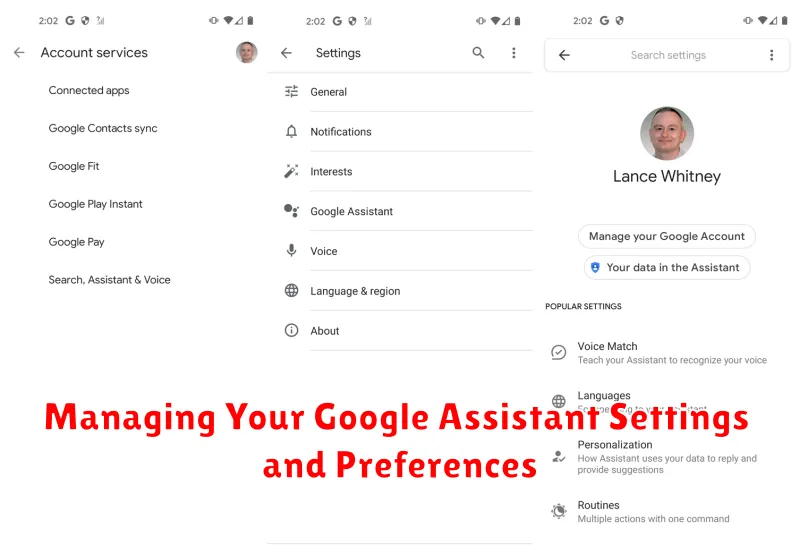
Customizing Google Assistant to align with your needs is simple. Access settings through the Google app or by saying, “Assistant settings.” Within the settings menu, you’ll find various options to personalize your experience.
Voice Match allows you to train the Assistant to recognize only your voice, enhancing security and personalization. You can also adjust the Assistant’s speaking speed and choose a preferred voice from a selection of options. These preferences ensure the Assistant communicates in a way that best suits you.
Managing your data and activity is also crucial. Google Assistant saves your interactions to personalize results and improve functionality. You can review and delete this activity through the “My Activity” section within settings. This allows you to maintain control over your data privacy and manage the information Google Assistant uses.
Notification preferences are another essential aspect of managing your Assistant. You can control which notifications you receive from the Assistant and from linked apps and services. This ensures you’re only informed about what matters most to you.
Using Google Assistant for Everyday Tasks
Google Assistant seamlessly integrates into your daily routine, simplifying mundane tasks and boosting productivity. Use voice commands to manage your schedule effectively.
Scheduling and Reminders
Create calendar entries, set reminders for appointments, and check your daily agenda with simple voice prompts. Ask Google Assistant “What’s on my schedule today?” or “Remind me to call the dentist tomorrow at 2 PM.”
Communication
Hands-free communication is made easy. Use voice commands to make calls, send text messages, and even draft emails. For example, say “Call Mom” or “Send a text to John saying I’ll be late.”
Information Retrieval
Quickly access information on a wide range of topics. Ask Google Assistant about the weather forecast, traffic conditions, or the latest news headlines. You can even perform quick calculations or currency conversions.
Entertainment Control
Control your smart home devices and entertainment systems with voice commands. Play music, adjust the volume, or dim the lights with ease. Streamlining these everyday interactions frees up your time and simplifies your life.
Integrating Google Assistant with Other Apps and Services
Google Assistant’s power expands significantly when integrated with other apps and services. This connectivity allows you to control and interact with a vast ecosystem of tools directly through voice commands. Connecting services is generally done through the Google Home app or, in some cases, the third-party app itself.
Music Streaming: Control playback on Spotify, YouTube Music, Pandora, and other music services. Request specific songs, artists, or playlists using simple voice commands. For example, “Hey Google, play classical music on Spotify.”
Smart Home Devices: Integrate with smart home platforms like Philips Hue, Nest, and Samsung SmartThings to control lights, thermostats, and other connected devices. Instructions such as “Hey Google, turn off the living room lights” become effortless.
Productivity Tools: Link Google Assistant with apps like Google Calendar, Keep, or any to-do list manager to streamline your daily tasks. Create reminders, set appointments, and manage lists hands-free.
Third-Party Integrations: Explore the numerous third-party actions available for Google Assistant, extending its capabilities even further. These can range from food delivery services to news updates and games.
Advanced Google Assistant Features and Tips
Beyond the basics, Google Assistant offers a wealth of advanced features to streamline your daily life. Proactive notifications can alert you to upcoming appointments, traffic delays, and even flight changes.
Routines allow you to automate multiple actions with a single command. For instance, saying “Good morning” can trigger turning on your lights, adjusting the thermostat, and playing your favorite news podcast.
Custom commands offer even greater personalization. Create your own phrases to trigger specific actions, like “Dim the lights to 50%” or “Start my workout playlist.”
Interpreter mode facilitates real-time translation during conversations, bridging language barriers with ease.
Explore the “Explore” tab within the Google Assistant app to discover more features and compatible services. This hub showcases the full potential of your voice-activated helper.
Troubleshooting Common Google Assistant Issues
Occasionally, you might encounter issues with Google Assistant. Here are some common problems and solutions:
Assistant Not Responding
If Google Assistant doesn’t respond to “Hey Google,” ensure your microphone is working correctly. Check your device’s volume and mute settings. Restarting your device can also resolve temporary glitches.
Incorrect Responses or Misinterpretations
If Google Assistant misinterprets your requests, try rephrasing your command using clearer, more concise language. Speaking clearly and directly into the microphone can also improve accuracy. Check your language settings to ensure they are correctly configured.
Connectivity Problems
A stable internet connection is crucial for Google Assistant to function properly. If you’re experiencing connectivity issues, check your Wi-Fi or mobile data connection. Try restarting your router or modem.
Smart Home Device Issues
If you’re having trouble controlling smart home devices, ensure they are properly linked to your Google Assistant. Check the device manufacturer’s instructions for specific troubleshooting steps. Sometimes, unlinking and relinking the device can resolve connection problems.
Staying Up-to-Date with Google Assistant Updates
Google Assistant is constantly evolving, with new features and improvements released regularly. Staying informed about these updates ensures you’re maximizing the potential of your voice-activated helper.
One of the easiest ways to stay updated is by regularly checking the Google Assistant settings within the Google app on your phone. Here, you’ll often find notifications about new features or changes.
Following official Google blogs and social media channels dedicated to Assistant can provide valuable insights into upcoming releases and helpful tips. These sources often offer in-depth explanations and tutorials.
Additionally, keeping your Google app and operating system up-to-date is crucial. Updates often include essential components for Assistant functionality and performance improvements.
By taking these simple steps, you can ensure you’re always leveraging the newest features and enhancements that Google Assistant has to offer.
