
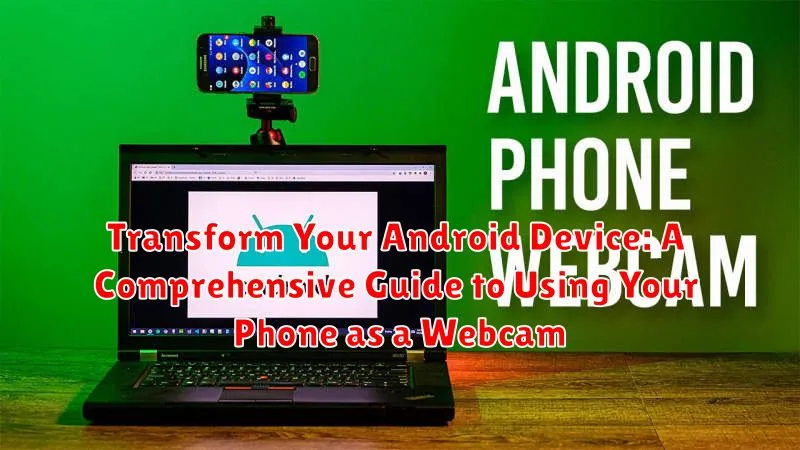
Unlock the full potential of your Android device with this comprehensive guide on transforming your phone into a high-quality webcam. Whether you’re looking for a webcam upgrade for video conferencing, live streaming, or simply capturing better video, using your Android phone as a webcam offers a versatile and cost-effective solution. Learn how to seamlessly integrate your Android device with your computer, maximizing its advanced camera features and unlocking a world of possibilities for all your video needs. This guide covers everything from choosing the right software and connecting your phone to optimizing video quality and troubleshooting common issues.
Elevate your video experience with the superior camera technology already in your pocket. This guide provides a step-by-step approach to setting up your Android phone as a webcam, regardless of technical expertise. Explore the advantages of using your Android device, including its portability, high-resolution capabilities, and the variety of available apps. Discover how to easily connect your Android phone to your computer, whether through USB or Wi-Fi, and harness the power of your Android phone’s camera for enhanced video calls, professional-looking live streams, and improved video content creation. Transform your Android device into a versatile webcam and experience the difference today.
Setting Up Your Android as a Webcam
Transforming your Android device into a webcam involves a few key steps. First, you’ll need to choose a compatible webcam app. Several options exist, each with varying features and functionalities. Consider factors like ease of use, video resolution support, and additional features like background blurring or special effects when making your selection.
Once you’ve chosen your app, install it on your Android device. Grant the necessary permissions, such as access to your camera and microphone. These permissions are essential for the app to function correctly as a webcam.
Next, you’ll need to install the corresponding client software on your computer. Most webcam apps require a desktop client to facilitate the connection between your phone and computer. Follow the app’s instructions for installing and setting up the client software. Ensure both your Android device and computer are connected to the same network, either via Wi-Fi or a USB connection. The specific connection method will depend on the app you choose.
Finally, launch the webcam app on both your phone and computer. The app should automatically detect and connect the devices. You may need to select your Android device as the webcam input within your desired application, such as a video conferencing platform or streaming software.
Choosing the Right Webcam App for Your Needs
Selecting the appropriate webcam app is crucial for a seamless experience. Consider these factors when making your choice:
Operating System Compatibility: Ensure the app supports both your Android version and your computer’s operating system (Windows, macOS, or Linux).
Features: Different apps offer various features. Some provide basic webcam functionality, while others include advanced options like video filters, adjustable resolution, and special effects. Determine which features are important for your specific needs.
Ease of Use: The app should be intuitive and easy to navigate. Look for a clean interface and straightforward setup process.
Connection Method: Apps typically connect via USB or Wi-Fi. Choose the method that best suits your setup and network capabilities. USB generally offers a more stable connection, while Wi-Fi provides greater flexibility.
Reviews and Ratings: Check user reviews and ratings on app stores to gauge the app’s performance, reliability, and user satisfaction. This can help you identify potential issues and choose a reputable app.
Connecting Your Android Webcam to Your Computer
After installing the chosen webcam app on your Android device and its corresponding desktop client, the next step is establishing the connection. There are two primary methods to connect your Android device as a webcam: USB and Wi-Fi.
Connecting via USB
A USB connection generally offers lower latency and is less susceptible to network interference. Plug your Android device into your computer using a USB cable. Ensure your device is set to “File transfer” or “USB tethering” mode. The desktop client should automatically detect your device. Select your Android device from the list of available cameras within the client software.
Connecting via Wi-Fi
Connecting wirelessly provides greater flexibility. Ensure both your computer and Android device are connected to the same Wi-Fi network. Launch the webcam app on your phone and the desktop client on your computer. The app will typically display an IP address or QR code. Enter the IP address or scan the QR code in the desktop client to establish the connection.
Troubleshooting Common Webcam Connectivity Issues
Encountering problems while using your Android as a webcam? Don’t worry, it’s often a simple fix. Here’s a breakdown of common issues and how to resolve them:
Connection Problems
If your computer isn’t detecting your phone, ensure the USB debugging is enabled on your Android device. Also, try a different USB cable and port on your computer. A faulty cable or port can often be the culprit.
App Crashes or Freezes
App crashes or freezes can disrupt your stream. Ensure you’re using a reputable webcam app and that it’s up-to-date. Restarting both your phone and computer can also resolve temporary software glitches.
Lagging Video or Audio
Lag can be caused by a weak Wi-Fi connection if using a wireless method. Switch to a wired USB connection for better stability. Closing unnecessary background apps on your phone can free up resources and reduce lag.
No Audio
If you’re not getting any audio, double-check that the correct audio input is selected in your computer’s settings. Also, ensure the webcam app has necessary microphone permissions on your Android device.
Optimizing Video and Audio Quality for Webcam Streaming
Achieving high-quality video and audio is crucial for a professional webcam setup. Here’s how to enhance your stream using your Android device.
Video Optimization
Lighting is paramount. Ensure adequate and even lighting on your face, avoiding backlighting. Natural light is ideal, but a softbox or ring light can significantly improve image quality. Within your webcam app, adjust the exposure, brightness, and contrast settings to fine-tune the video output. Experiment with these settings until you find the optimal balance for your environment. Choose a stable mounting position for your phone to prevent shaky footage. A tripod or secure stand is recommended.
Audio Enhancement
Using a dedicated external microphone significantly improves audio quality compared to your phone’s built-in microphone. Consider a lavalier microphone for close-proximity recording. If an external microphone isn’t feasible, position yourself in a quiet environment to minimize background noise. Within your webcam app, explore audio settings to reduce echo and adjust the input volume. Testing your audio setup before important streams is vital to ensure clear and understandable communication.
Advanced Webcam Features and Settings
Once you’ve established a basic webcam connection, exploring advanced features and settings can significantly enhance your video conferencing and streaming experience. These options often reside within the webcam app you’re using on your Android device and the desktop software receiving the feed.
Resolution and Frame Rate: Adjusting the resolution and frame rate directly impacts video quality. Higher resolutions offer more detail, while higher frame rates create smoother motion. Be mindful of your internet bandwidth limitations when making these adjustments. A lower resolution and frame rate can conserve bandwidth and improve performance on slower connections.
Focus and Exposure: Manual control over focus and exposure can dramatically improve image clarity, especially in challenging lighting conditions. Experiment with these settings to optimize your video output.
Orientation and Rotation: Ensuring your webcam feed is correctly oriented is crucial. Most apps provide options to rotate or flip the image, allowing you to correct any discrepancies between your phone’s physical orientation and the displayed image.
Audio Input Selection: If your chosen webcam app allows, select the preferred audio input. You might choose to utilize your phone’s built-in microphone or an external microphone for improved audio quality.
Creative Uses for Your Android Webcam
Beyond standard video calls, your repurposed Android device opens doors to a variety of creative applications. Live streaming becomes readily accessible, whether you’re sharing a hobby, broadcasting a performance, or documenting an event.
Stop-motion animation projects gain a flexible and high-quality camera source. Capture frame-by-frame sequences easily, using your phone’s readily available screen as a viewfinder.
Security monitoring is another practical use. Position your phone strategically to monitor pets, check on your home while away, or create a makeshift baby monitor.
Time-lapse photography takes on new possibilities. Document the growth of a plant, the construction of a project, or the changing cityscape from your window with a steady, readily available camera.
