
In today’s digitally interconnected world, privacy has become a paramount concern. Our smartphones, particularly our iPhones, hold a wealth of personal information, including our precise location. While location services can be useful for apps like maps and navigation, they can also pose a risk to your privacy. This step-by-step guide provides clear and concise instructions on how to turn off location services on your iPhone, empowering you to take control of your digital footprint and protect your sensitive information. Learning how to manage and disable these services is crucial for anyone concerned about data security and protecting their privacy.
This guide will walk you through the process of completely disabling location services, customizing settings for individual apps, and understanding the implications of each choice. Whether you’re concerned about targeted advertising, data breaches, or simply prefer to keep your movements private, understanding how to control location services on your iPhone is an essential aspect of maintaining your digital privacy. Follow along with these simple steps and reclaim control over your location data. Protecting your privacy is more important than ever, and this guide will give you the tools you need to take charge.
Understanding Location Services on iPhone
Location Services is a core feature on your iPhone that allows apps and websites to access your device’s location. This location data can be used for a variety of purposes, from providing directions and personalized recommendations to enabling location-based features in social media apps. Understanding how this feature works is the first step in effectively managing your privacy.
Your iPhone uses various technologies to determine your location, including GPS, Bluetooth, Wi-Fi hotspots, and cellular towers. The accuracy of the location data depends on which technologies are available and enabled at any given time.
It’s important to distinguish between apps actively using your location and those that simply have permission. While granting an app access to your location doesn’t mean it’s constantly monitoring your whereabouts, it does allow the app to request your location when needed.
Completely Disabling Location Services
Completely disabling location services prevents any app from using your iPhone’s location. This offers the strongest level of location privacy, but it also means features like Maps, Find My, and location-based reminders won’t function correctly. Carefully consider the trade-offs before proceeding.
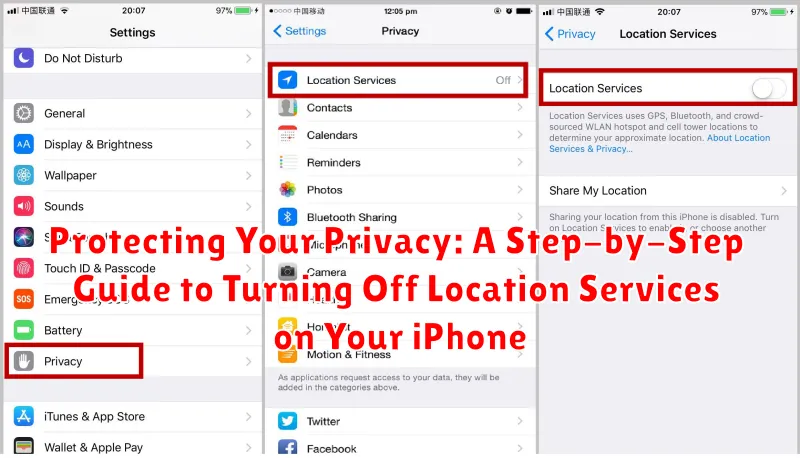
To completely disable Location Services, follow these steps:
- Open the Settings app.
- Scroll down and tap on Privacy & Security.
- Tap on Location Services at the top of the menu.
- Toggle the Location Services switch to the off position (greyed out).
After completing these steps, no apps will be able to access your location data. You can re-enable Location Services at any time by following the same steps and toggling the switch back on.
Managing Location Access for Individual Apps
Instead of completely disabling Location Services, you can control which apps have access to your location data. This allows you to balance functionality with privacy. Granular control over location access is crucial for protecting your privacy while still enjoying the benefits of certain location-aware apps.
To manage individual app access:
- Open the Settings app.
- Scroll down and tap on Privacy & Security.
- Tap on Location Services.
You’ll see a list of apps that have requested or currently have access to your location. For each app, you can choose from several options:
- Never: The app will never have access to your location data.
- Ask Next Time Or When I Share: The app will prompt you each time it needs your location.
- While Using the App: The app can only access your location while you’re actively using it.
- Always: The app will have constant access to your location, even when not in use (use this option cautiously).
Carefully review each app’s location permissions and adjust them according to your comfort level. Remember to periodically review these settings as apps may update and request additional permissions.
Using Location Services While Respecting Privacy
While completely disabling location services offers maximum privacy, it also limits the functionality of many apps. It’s possible to achieve a balance by selectively managing location access and employing privacy-preserving features.
Precise Location: Many apps request precise location, which pinpoints your exact whereabouts. Consider toggling this off in favor of “Approximate Location” when precise data isn’t essential. This provides enough information for location-based services without revealing your specific location.
Grant Location Access Only When Needed: Instead of “Always Allow,” choose “While Using the App” or “Ask Next Time” for location permissions. This minimizes background location tracking and gives you more control. Review location access periodically for apps you no longer use or where continuous tracking isn’t necessary.
Location Services for System Services: Under “System Services” in the Privacy settings, you can fine-tune location usage for specific system features. Evaluate these settings and disable any that don’t align with your privacy preferences, such as location-based suggestions or significant locations.
Understanding the Impact of Location Services on Battery Life
Location Services, while providing useful functionalities, can consume a significant amount of battery power. This is because the iPhone’s GPS receiver needs to be active to pinpoint your location, a process that demands energy. The extent of battery drain depends on the frequency and accuracy with which apps request location data.
Apps that constantly track your location, like navigation apps, will naturally use more battery than apps that only periodically check your location. Similarly, apps requiring high-accuracy location data will drain the battery faster than those needing only an approximate location.
By understanding how Location Services affect battery life, you can make informed decisions about their usage. Limiting background location access, disabling location services for infrequently used apps, and reducing the required location accuracy when possible can help extend your iPhone’s battery life.
Troubleshooting Location Services Issues
Occasionally, you might encounter issues with Location Services on your iPhone. Here are some common problems and their solutions:
Location Services Not Working at All
If Location Services aren’t functioning whatsoever, first ensure they are enabled globally. Go to Settings > Privacy & Security > Location Services and verify the main toggle is on. If it is, try restarting your iPhone. A simple restart can often resolve minor software glitches.
Location Services Inaccurate
Inaccurate location data can stem from various factors. Ensure you have a strong internet connection, as Wi-Fi and cellular data assist in pinpoint accuracy. Additionally, check if Location Services are enabled for the specific app experiencing issues. Go to Settings > Privacy & Security > Location Services and scroll down to locate the app. Ensure it’s set to “While Using the App” or “Always,” depending on your preference.
App Unable to Access Location
If a specific app is having trouble accessing your location, check its permissions. Navigate to Settings > Privacy & Security > Location Services and locate the app. Verify its access is not set to “Never.” You might also need to check within the app’s settings to ensure location access is enabled there as well.
Best Practices for Location Service Management on Your iPhone
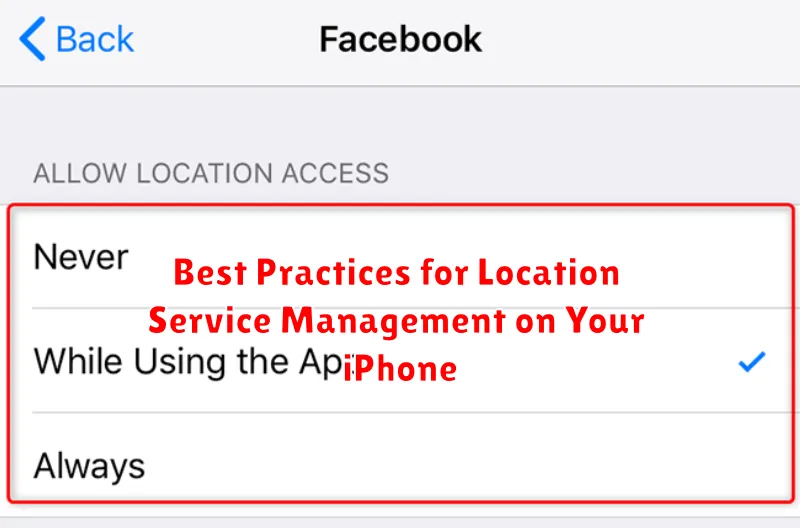
Managing location services effectively is crucial for balancing functionality and privacy. Regularly review your location permissions is a key practice. Go to Settings > Privacy > Location Services and examine which apps have access. Consider if each app truly needs your location to function. If not, switch the permission to “Never” or “While Using the App.”
Pay attention to the precision of your location data shared with apps. Some apps may only require an approximate location. In these cases, granting “Precise Location” access is unnecessary. Disabling this feature provides an extra layer of privacy protection.
Be mindful of location-based system services. These services utilize location data for features like Find My iPhone and location-based alerts. While often helpful, review them in Settings > Privacy > Location Services > System Services. Disable any services you deem unnecessary.
Utilizing Location Sharing Features Safely
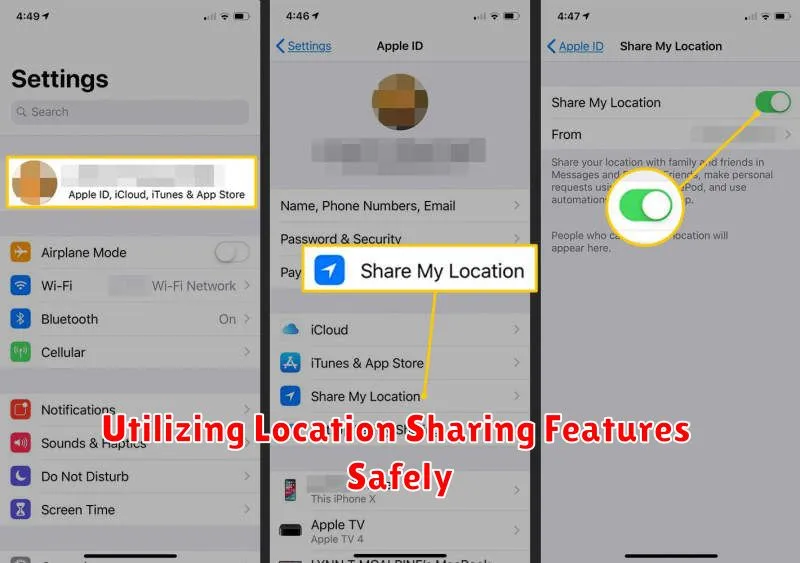
While location services offer convenience, sharing your location requires careful consideration. Sharing your real-time location with apps or contacts exposes sensitive information about your whereabouts. Be selective about which apps and individuals have access to this data.
Review app permissions regularly. Disable location access for apps that don’t genuinely require it. Consider granting temporary access only when necessary, instead of “Always.” This reduces the risk of unwanted data collection in the background.
When sharing your location with contacts, set time limits. Instead of continuous sharing, choose specific durations. This prevents your location from being accessible indefinitely. Be mindful of who you share your location with and for what purpose.
Utilize the “Find My” feature cautiously. While helpful for locating devices and contacts, ensure you understand the privacy implications. Review the settings and choose sharing options that align with your comfort level.
