
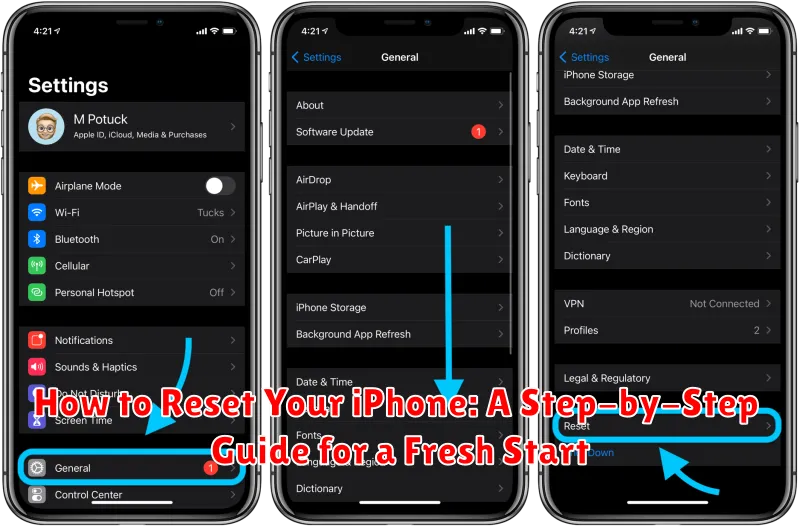
Is your iPhone acting up? Experiencing persistent glitches, a sluggish interface, or stubborn apps that refuse to cooperate? A factory reset can often resolve these issues and breathe new life into your device. This comprehensive guide provides a step-by-step walkthrough on how to reset your iPhone, offering a clean slate and a fresh start. Whether you’re preparing to sell your iPhone, troubleshooting problems, or simply want to improve performance, this guide will equip you with the knowledge to safely and effectively reset your device.
Learn how to reset your iPhone to its factory settings using various methods, including through the settings menu, iTunes (for older devices), or by using recovery mode for more complex situations. We’ll cover the crucial steps to back up your important data before initiating the reset, ensuring you don’t lose valuable photos, contacts, and other information. This guide will also highlight the differences between a soft reset, a factory reset, and a restore, empowering you to choose the best approach for your specific needs. Follow these instructions carefully to successfully reset your iPhone and enjoy a revitalized user experience.
Understanding Different Types of iPhone Resets
Before you reset your iPhone, it’s crucial to understand the different types of resets available and choose the one that best suits your needs. A reset can range from a simple restart to a complete data wipe.
A soft reset, also known as a forced restart, is the simplest form of reset. It quickly resolves minor software glitches and freezes without affecting your data.
A factory reset, also referred to as a hard reset or master reset, erases all data and settings on your iPhone, returning it to its factory default state as if it were brand new. This is typically done before selling or giving away your device, or as a last resort for troubleshooting significant software problems.
Backing Up Your Data Before Resetting
Before you reset your iPhone, it’s crucial to back up your data. This ensures you don’t lose important information like photos, contacts, and app data. There are two primary methods for backing up your iPhone: iCloud and using a computer with Finder (macOS Catalina or later) or iTunes (Windows and earlier macOS versions).
iCloud Backup
iCloud Backup is a convenient, wireless option. Ensure you have sufficient iCloud storage. Go to Settings > [Your Name] > iCloud > iCloud Backup and toggle it on. Tap “Back Up Now” to initiate a backup.
Computer Backup
Connect your iPhone to your computer and open Finder or iTunes. Select your device. In the General tab, choose “Back Up Now.” This creates a local backup on your computer.
Remember to back up regularly to keep your data safe. After the reset, you can restore your iPhone from either of these backups.
Steps to Perform a Soft Reset
A soft reset, also known as a restart, is the simplest way to troubleshoot minor software glitches on your iPhone. It doesn’t erase any data and is often the first step in resolving common issues like freezing or unresponsiveness. The steps to perform a soft reset vary slightly depending on your iPhone model.
For iPhones with Face ID (iPhone X and later):
- Quickly press and release the Volume Up button.
- Quickly press and release the Volume Down button.
- Press and hold the Side button until the Apple logo appears.
For iPhones with a Home button (iPhone 8 and earlier):
Press and hold the Side (or Top) button and the Home button simultaneously until the Apple logo appears.
Once the Apple logo appears, release both buttons and allow your iPhone to restart. This process usually takes a few seconds. Your iPhone will boot up as normal, and hopefully, the minor issue you were experiencing will be resolved.
How to Factory Reset Your iPhone Through Settings
A factory reset, also known as a master reset, erases all data and settings on your iPhone, returning it to its original factory state. This is useful for troubleshooting persistent issues or preparing the device for sale or trade-in. Ensure you have a backup before proceeding, as this action is irreversible.
To perform a factory reset through your iPhone’s settings, follow these steps:
- Open the Settings app.
- Tap on General.
- Scroll down and tap Transfer or Reset iPhone.
- Select Erase All Content and Settings.
- You may be prompted to enter your Apple ID password or device passcode for security verification.
- Confirm your choice by tapping Erase iPhone. This will begin the reset process.
Your iPhone will restart and display the Apple logo during the reset process. Once complete, the setup assistant will guide you through the initial device configuration.
Restoring Your iPhone from a Backup
After resetting your iPhone, you can restore your data from a previously created backup. This allows you to retrieve your apps, photos, messages, and other settings. There are two main ways to restore your iPhone: from an iCloud backup or from a computer backup created with Finder (macOS Catalina and later) or iTunes (earlier macOS versions and Windows).
Restoring from an iCloud Backup
During the iPhone setup process after a reset, select the option to restore from an iCloud backup. You’ll need to sign in with your Apple ID and choose the relevant backup. Ensure you have a stable Wi-Fi connection as this process can take time depending on the backup size.
Restoring from a Computer Backup
Connect your iPhone to the computer that contains your backup. Open Finder (macOS Catalina and later) or iTunes (earlier macOS versions and Windows). Locate your iPhone in the application and select the “Restore Backup” option. Choose the desired backup and follow the on-screen instructions. Keep your iPhone connected until the restore process completes.
Important: Ensure your computer has the latest version of iTunes or macOS for optimal performance.
Troubleshooting Common Reset Issues
Sometimes, the reset process doesn’t go as smoothly as planned. Here are some common issues and how to address them:
iPhone Not Responding During Reset
If your iPhone freezes during the reset, try a forced restart. This varies depending on your iPhone model. Consult Apple’s support documentation for the correct procedure for your specific device.
“Connect to iTunes/Finder” Error
If you encounter this error, ensure you are using the latest version of iTunes or Finder. Also, try a different USB cable or port. A corrupted software update could also be the cause. Try reinstalling the latest iOS version through iTunes/Finder.
iPhone Won’t Turn On After Reset
Make sure your iPhone has sufficient battery charge. Leave it connected to power for at least an hour. If it still doesn’t turn on, try a forced restart. If the problem persists, you may need to contact Apple support for further assistance.
Resetting Your iPhone with iTunes/Finder
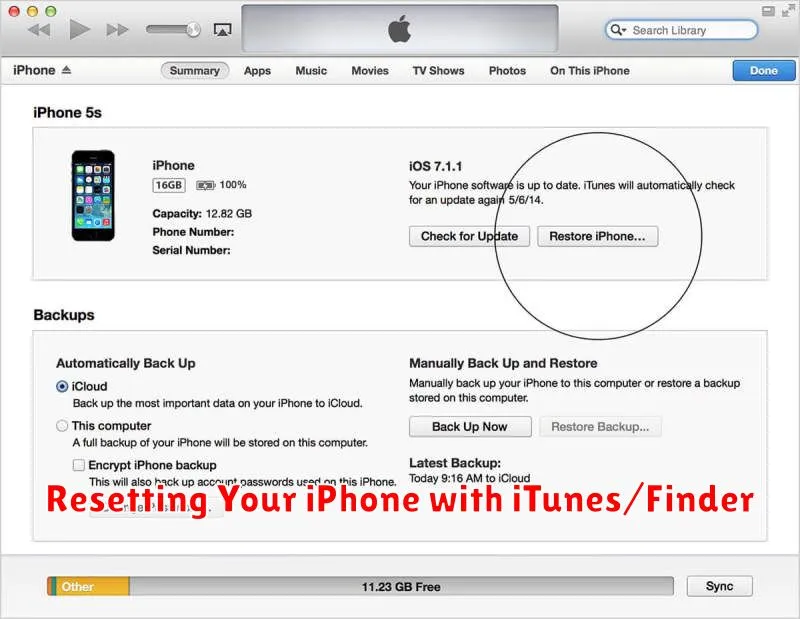
This method involves using your computer to reset your iPhone. Ensure you have the latest version of iTunes (for Windows or older macOS) or Finder (for macOS Catalina and later) installed. This process will erase all data and settings on your iPhone.
Steps:
-
Connect your iPhone to your computer using a USB cable.
-
Open iTunes or Finder. Your iPhone should be recognized.
-
Locate your iPhone within iTunes or Finder (typically in the sidebar or top bar).
-
Select the “Restore iPhone” option. You may see a “Restore Backup” option; ensure you choose “Restore iPhone” for a full reset.
-
Confirm your choice. Your computer will download the latest iOS software and install it on your iPhone, completing the reset process.
Important: This process can take some time, depending on your internet connection. Do not disconnect your iPhone from your computer during the reset.
When to Reset Your iPhone
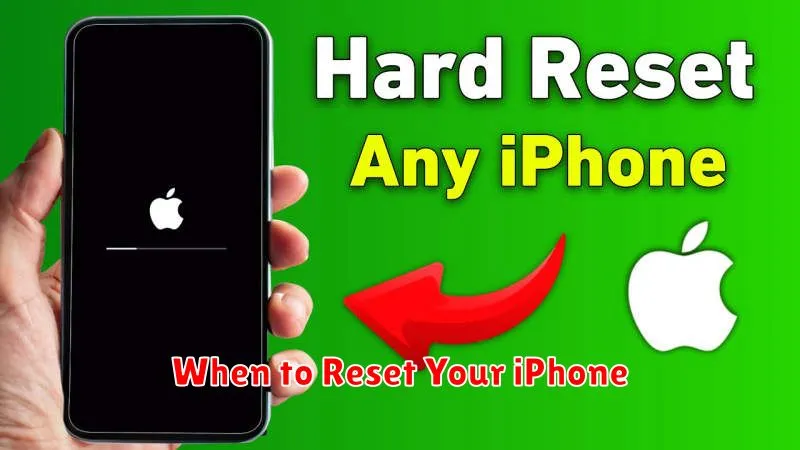
Resetting your iPhone can be a powerful solution for various software-related problems or when preparing your device for sale or transfer. Understanding the right situations to perform a reset is crucial.
Troubleshooting Software Issues
If your iPhone is experiencing persistent software glitches, such as frequent crashing, freezing, or unresponsiveness, a reset might be necessary. Before resorting to a reset, ensure you’ve tried less drastic measures like restarting your device or updating the iOS software.
Preparing for Sale or Transfer
Before selling or giving away your iPhone, a reset is essential to protect your personal data. Resetting your device erases all your information and settings, returning it to its factory default state. This ensures the new owner receives a clean device and your private data remains secure.
Addressing Performance Issues
Sometimes, a reset can help resolve performance issues like slowdowns or lagging. If you’ve noticed a significant decline in your iPhone’s performance, a reset can be a viable troubleshooting step. Be sure to back up your data before proceeding.
