
Is your phone constantly reminding you about low storage? Are you tired of deleting precious photos and videos just to make space for new apps? You’re not alone. Many smartphone users struggle with limited internal storage. Fortunately, there’s a simple solution: moving apps to your SD card. This guide provides a comprehensive, easy-to-follow approach to maximizing your phone’s storage by transferring apps to your SD card, freeing up valuable space on your device.
Learn how to identify which apps can be moved, the steps involved in transferring them, and the benefits of utilizing your SD card for app storage. This guide will empower you to take control of your phone’s storage, allowing you to install more apps, capture more memories, and optimize your device’s performance. Say goodbye to low storage warnings and hello to a more efficient and spacious smartphone experience.
Why Move Apps to an SD Card?
Running low on internal storage can significantly impact your phone’s performance. Moving apps to an SD card is a practical solution to free up valuable space on your device. This allows you to install more apps, take more photos, and download more files without constantly worrying about hitting storage limits.
Reclaim Internal Storage: Your phone’s internal storage is primarily used for the operating system and pre-installed apps. Moving less frequently used apps to the SD card frees up this space for essential system functions, potentially improving overall performance.
Accommodate Large Apps and Games: Many modern apps, especially games, can consume significant amounts of storage. Transferring these large apps to your SD card prevents them from monopolizing your internal storage.
Easy Management of Data: Moving apps to an SD card also simplifies data management. If you need to reset your phone or upgrade to a new device, your apps are conveniently stored on a removable card, making it easier to transfer them.
Checking SD Card Compatibility
Before moving apps, verify your phone and SD card support this feature. Not all devices allow app transfers to external storage. Consult your phone’s user manual or manufacturer’s website for definitive compatibility information. This is crucial to avoid potential issues later on.
Most modern Android phones support SD cards, but the ability to move apps can vary. Some manufacturers customize the Android operating system, and these customizations might remove the app transfer function.
Once you’ve confirmed your phone’s compatibility, check the SD card itself. Ensure it is properly inserted and recognized by your phone. You can usually verify this in your phone’s storage settings.
Formatting Your SD Card for App Storage
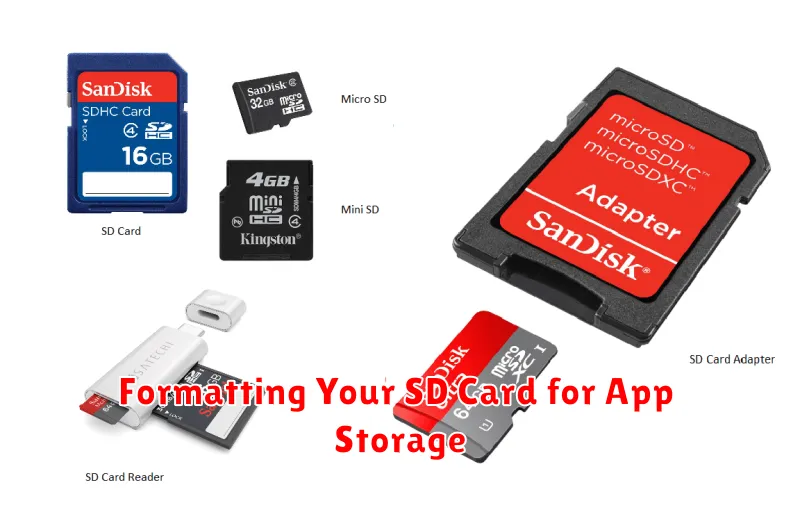
Before moving apps, you must format your SD card correctly. This process prepares the card for app storage and may erase existing data. Back up any important files from your SD card before proceeding.
There are two main format options: portable storage and internal storage.
Portable Storage
Formatting as portable storage allows you to use the SD card on other devices, but limits its functionality for app storage. Only some apps may allow transfer, and media files are the primary storage focus.
Internal Storage
Formatting as internal storage configures the SD card as an extension of your phone’s internal memory. This typically offers broader app transfer compatibility. However, the card becomes linked to your specific device and might not work seamlessly on others. This process erases all existing data on the card.
Your phone’s settings menu generally guides you through the formatting process. Usually, this can be found in the storage or SD card section. Select the correct SD card from the list of storage devices and choose the desired format option. Follow the on-screen prompts to complete the formatting.
Moving Apps to the SD Card: A Step-by-Step Guide
Once your SD card is prepared, you can begin transferring apps. The process may vary slightly depending on your phone’s manufacturer and Android version, but the general steps remain similar.
Step 1: Access App Settings: Open your phone’s Settings app. Locate and select Apps or Applications (the wording may differ).
Step 2: Select an App: Choose the app you wish to move to the SD card. Keep in mind that not all apps can be moved.
Step 3: Check Storage Options: Look for a section labeled Storage or Storage Used. Tap on it.
Step 4: Change Storage Location: You should see a button or option to Change or Move to SD Card. Tap this. The transfer process will begin. The time this takes will depend on the size of the app.
Step 5: Repeat for Other Apps: Repeat steps 2 through 4 for each app you want to transfer to your SD card.
Potential Issues and Troubleshooting
While moving apps to your SD card can be beneficial, you might encounter some issues. Here’s a breakdown of common problems and how to address them:
App Malfunction
Some apps might not function correctly after being moved to an SD card. This is often due to app developers restricting this functionality. If an app behaves erratically, try moving it back to internal storage.
SD Card Removal Issues
If you remove your SD card while apps are stored on it, these apps will become inaccessible. Reinserting the card should restore access. Ensure your phone recognizes the card after reinsertion.
Slow App Performance
SD cards are generally slower than internal storage. Moving demanding apps, like games, might result in reduced performance. If you experience noticeable slowdowns, consider moving these apps back to internal storage.
Corrupted SD Card
A corrupted SD card can prevent apps from functioning correctly or even cause data loss. Regularly backing up your SD card data is crucial. If you suspect corruption, try reformatting the card (after backing up your data) or replacing it.
Managing Apps on Your SD Card
Once you’ve moved apps to your SD card, managing them effectively is crucial for maintaining optimal performance and storage organization. This involves understanding how to view which apps reside on the card, moving them back to internal storage if needed, and handling app updates.
Most Android devices provide a way to view storage locations within the app settings. Typically, you can navigate to an app’s information page and see its storage location listed (either internal storage or SD card). This allows you to easily identify which apps have been transferred.
The process for moving apps back to internal storage is usually similar to the initial transfer process. Locate the app in your settings, select it, and look for the “Change storage location” option. Choose internal storage as the destination.
App updates can sometimes present a challenge. The default behavior for updated apps might be to install on the internal storage, even if the original app was on the SD card. Be sure to check app storage locations periodically and move them back to the SD card as needed after updates.
Benefits of Moving Apps to External Storage
Moving applications to your SD card offers several key advantages, primarily centered around increased storage space on your device’s internal memory. This is particularly beneficial for devices with limited internal storage capacity.
Transferring large applications, especially games or media-heavy apps, frees up valuable space for other essential files, such as photos, videos, and downloaded documents. This can improve overall device performance by reducing internal storage strain.
Using an SD card provides a cost-effective solution for expanding storage compared to purchasing a new device with higher internal memory. SD cards are readily available and offer varying storage capacities to suit individual needs.
