
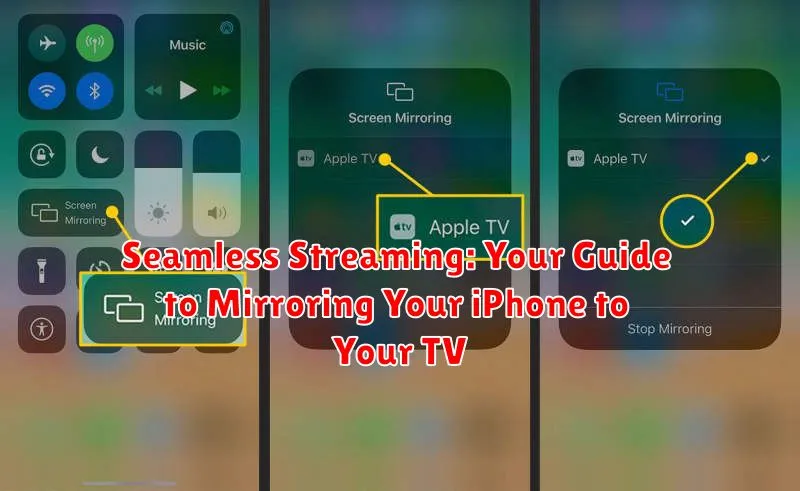
Want to enjoy your favorite movies, shows, and photos on the big screen? Seamless streaming is now easier than ever! This comprehensive guide provides everything you need to know about mirroring your iPhone to your TV. Whether you’re looking to share vacation photos, give a presentation, or simply enjoy a larger viewing experience, learning how to mirror your iPhone opens up a world of possibilities. We’ll cover different methods, from using AirPlay to wired connections, ensuring a seamless and enjoyable streaming experience.
This guide will walk you through various techniques for mirroring your iPhone to your TV, catering to different setups and preferences. Learn how to utilize AirPlay for seamless streaming to Apple TV and compatible smart TVs. We’ll also explore alternative options for connecting your iPhone to your TV if you don’t own an Apple TV, guaranteeing a smooth and hassle-free setup for all your mirroring needs. Get ready to supersize your iPhone content and enjoy seamless streaming on the big screen!
Understanding Screen Mirroring and Its Benefits
Screen mirroring replicates your iPhone’s display onto a larger screen, like your TV. Everything you see on your iPhone, from apps and photos to videos and games, is shown in real-time on the television.
This simple technology offers a range of benefits:
- Enhanced Viewing Experience: Enjoy photos, videos, and games on a much larger display, perfect for sharing with friends and family.
- Productive Presentations: Deliver impactful presentations by mirroring your iPhone’s screen for a larger audience.
- Convenient Streaming: Easily stream movies and TV shows from your iPhone’s apps to your television.
- Improved Gaming Experience: Play mobile games on a bigger screen for a more immersive and engaging experience.
Understanding the capabilities of screen mirroring allows you to leverage its potential for both entertainment and productivity.
Different Methods for Mirroring Your iPhone to Your TV
Several methods allow you to mirror your iPhone’s display to your television, each with its own advantages and requirements. Choosing the right method depends on your existing equipment and technical preferences.
The most common approaches involve using Apple’s AirPlay technology with an Apple TV or AirPlay 2-compatible smart TV, or utilizing a wired connection with an HDMI adapter. For TVs lacking AirPlay 2 support, third-party wireless mirroring solutions offer alternative pathways for screen sharing.
These different methods offer varying levels of convenience, video quality, and latency. Understanding the distinctions between these methods will help you determine the optimal solution for your specific needs.
- AirPlay: Seamless wireless streaming for Apple TV and supported Smart TVs.
- HDMI Adapter: A wired connection for reliable, high-quality mirroring.
- Third-Party Wireless Solutions: Alternatives for non-AirPlay 2 compatible TVs.
Using AirPlay with Apple TV or AirPlay 2-Compatible Smart TVs
AirPlay offers the most seamless screen mirroring experience for iPhone users with an Apple TV or an AirPlay 2-compatible smart TV. It leverages your existing Wi-Fi network for a wireless and convenient connection.
Steps to Mirror with AirPlay:
- Ensure your iPhone and Apple TV or AirPlay 2-compatible smart TV are connected to the same Wi-Fi network.
- Open Control Center on your iPhone. On iPhone X or later, swipe down from the top-right corner of the screen. On iPhone 8 or earlier, swipe up from the bottom edge.
- Tap the Screen Mirroring icon.
- Select your Apple TV or AirPlay 2-compatible smart TV from the list of available devices.
- If an AirPlay passcode appears on your TV screen, enter it on your iPhone.
To stop mirroring, open Control Center, tap the Screen Mirroring icon, and then tap “Stop Mirroring.”
Connecting Your iPhone to Your TV with an HDMI Adapter
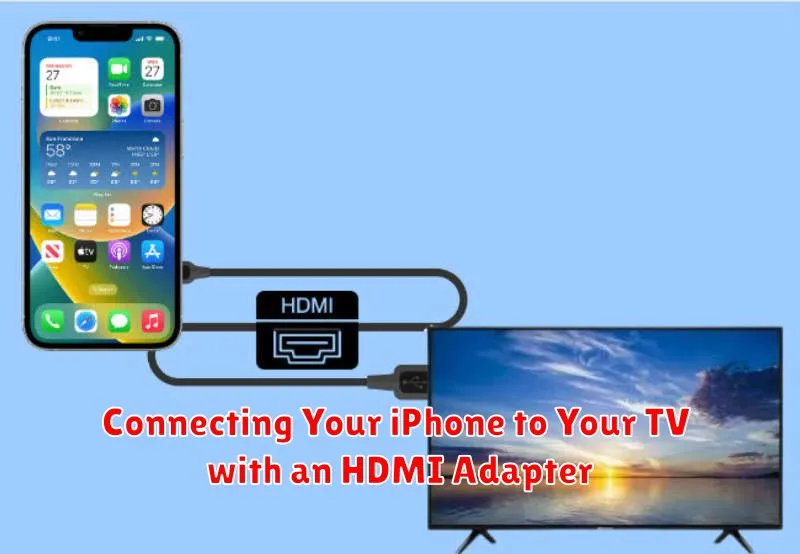
Using an HDMI adapter is a reliable and generally lag-free method to mirror your iPhone to your TV. This involves a physical connection, ensuring a stable connection, particularly beneficial for activities like gaming or streaming high-quality video. You’ll need a Lightning Digital AV Adapter, which is an Apple accessory. This adapter has a Lightning connector for your iPhone and an HDMI port for connecting to the TV.
To set this up, simply connect the Lightning end of the adapter to your iPhone and the HDMI end to an available HDMI port on your television. Next, switch your TV’s input to the HDMI port you used. Your iPhone’s screen should be mirrored on your TV. The adapter also usually includes an additional Lightning port, allowing you to charge your iPhone while mirroring.
Wireless Mirroring Solutions for Non-Apple TVs
If you don’t own an Apple TV or an AirPlay 2-compatible smart TV, several wireless mirroring solutions allow you to stream content from your iPhone to your non-Apple TV. These options generally involve using third-party apps and devices.
Screen mirroring apps are available for various smart TV platforms (e.g., Roku, Fire TV, some Samsung TVs). These apps often require installation on both your TV and iPhone. Ensure both devices are connected to the same Wi-Fi network. Functionality and performance can vary significantly between apps, so research and compare before choosing one.
Streaming devices like Chromecast and Roku offer another avenue for wireless mirroring. While not directly mirroring, they allow you to “cast” supported apps from your iPhone to the streaming device connected to your TV. This method typically works well for media apps but may not support mirroring the entire iPhone screen.
DLNA apps can facilitate streaming media files stored on your iPhone to DLNA-certified TVs. These apps enable sharing photos, videos, and music over your home Wi-Fi network.
Troubleshooting Common Mirroring Issues
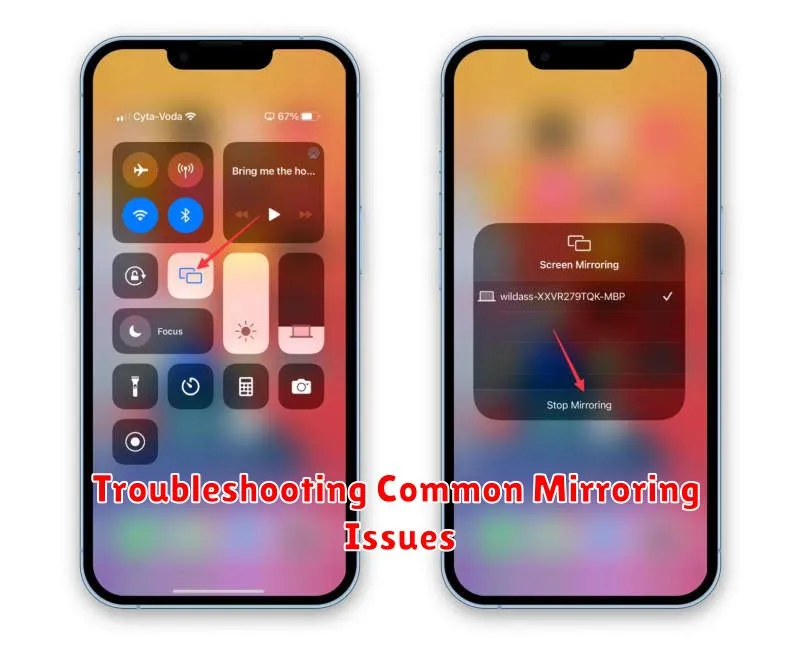
Experiencing problems mirroring your iPhone to your TV? Don’t worry, it’s often a simple fix. Here are some common issues and how to resolve them:
No Connection
If your TV doesn’t appear as an AirPlay destination, ensure both devices are connected to the same Wi-Fi network. Restarting your iPhone and TV can also resolve connection problems. Check that your TV’s firmware is up-to-date.
Lagging or Buffering
Poor network performance can cause lag. Try moving your router closer to your devices or minimizing the number of devices using the network simultaneously. Closing unnecessary apps on your iPhone can also free up resources and improve performance.
Audio/Video Out of Sync
While less common, audio/video sync issues can occur. Restarting both devices is often the most effective solution. If the problem persists, check for available updates for your iPhone and TV.
Black Screen on TV
A black screen usually indicates a compatibility issue or a problem with the content being mirrored. Ensure your TV supports AirPlay. Try mirroring a different app or content to see if the issue is specific to a particular app.
Optimizing Your iPhone and TV Settings for the Best Mirroring Experience
A few tweaks to your iPhone and TV settings can significantly enhance your mirroring experience. Ensure both devices are updated to their latest software versions for optimal compatibility and performance. This simple step often resolves underlying software conflicts that can hinder mirroring.
Network Optimization: A strong and stable Wi-Fi network is crucial for seamless mirroring. Connect both your iPhone and your smart TV or streaming device to the same Wi-Fi network. For the best results, consider using the 5GHz band if your router supports it, as it offers faster speeds and less interference. If you’re experiencing lag or buffering, try moving closer to your router or minimizing other devices using the network.
TV Settings: Ensure your TV’s AirPlay settings are correctly configured. Consult your TV’s user manual for specific instructions on enabling and optimizing AirPlay. Some TVs might require you to enable a specific input or streaming mode for AirPlay to function correctly.
iPhone Settings: While usually automatic, double-check your iPhone’s AirPlay settings. You can access these through the Control Center by swiping down from the top right corner (or up from the bottom on older iPhones). Ensure AirPlay is enabled and that you’ve selected the correct output device (your TV).
Exploring Advanced Mirroring Features and Apps
Beyond basic screen mirroring, several advanced features and apps can enhance your iPhone-to-TV streaming experience. AirPlay 2, for example, allows for multi-room audio streaming while mirroring, letting you play audio from your iPhone on your TV and other AirPlay 2 compatible speakers simultaneously.
Certain apps offer specific mirroring enhancements. Some video streaming apps provide optimized playback controls directly on your iPhone while mirroring to your TV, creating a dedicated remote control experience. Gaming apps might leverage the TV screen for the main gameplay while utilizing the iPhone’s display as a secondary screen for maps, inventory, or other interactive elements.
Third-party mirroring apps can offer extended functionality like custom resolutions, aspect ratio adjustments, and enhanced streaming protocols for smoother playback. These apps can also sometimes bridge compatibility gaps between older devices or non-standard TV setups.
