
In today’s interconnected world, our smartphones have become repositories of sensitive information, from personal conversations and financial details to private photos and confidential work documents. Protecting this data is paramount, and one powerful tool at our disposal is the app lock. App locks provide an additional layer of security, allowing users to individually lock specific apps with passwords, PINs, or biometric authentication. This introspective article will explore the importance of app locks in safeguarding your privacy and offer a comprehensive guide to implementing them effectively on your phone.
Privacy is a fundamental right, and app locks empower you to take control of your digital privacy. By utilizing app locks, you can prevent unauthorized access to sensitive apps, even if your phone is unlocked. This is particularly crucial if you share your device with others or are concerned about potential data breaches. This article will delve into the myriad benefits of using app locks, discuss the various types available, and guide you through the process of selecting and configuring the optimal app lock solution for your specific phone and privacy needs. Learn how to effectively “Lock It Down” and protect your valuable information.
Exploring the Benefits of App Locking
In today’s digital age, our smartphones house a treasure trove of personal information, from private conversations and financial details to sensitive photos and work emails. App locking provides an additional layer of security, allowing you to selectively protect specific apps with a chosen authentication method. This proactive approach to privacy offers a multitude of benefits.
Enhanced Privacy: App locking acts as a safeguard against prying eyes, preventing unauthorized access to your sensitive data. This is particularly crucial if you share your device with others or if it’s ever lost or stolen.
Data Protection: Beyond privacy, app locking offers vital data protection. By securing apps that contain financial information or access to online accounts, you reduce the risk of identity theft and financial fraud.
Peace of Mind: Knowing your private information is locked away provides valuable peace of mind. You can confidently lend your phone without worrying about someone accessing personal conversations, photos, or other sensitive content.
Built-in App Lock Features: Utilizing Your Phone’s Security Settings
Many modern smartphones offer integrated app locking functionalities directly within their security settings. This eliminates the need for third-party apps and leverages the built-in security of your device. These features can usually be found in the “Security,” “Privacy,” or “Lock screen and security” sections of your phone’s settings. The specific location and terminology may vary slightly depending on the manufacturer and operating system.
Typically, built-in app locks offer protection through PINs, patterns, or biometric authentication (fingerprint or facial recognition). This allows you to control access to sensitive apps like messaging platforms, banking apps, or social media. Using these features can provide a basic level of privacy protection without the need for additional software.
Third-Party App Lock Solutions: Enhanced Security and Customization
While built-in app lock features offer a basic level of protection, third-party app lock solutions provide enhanced security measures and greater customization options. These apps offer a wider range of locking methods, including fingerprint, facial recognition, PIN, and pattern locks.
Advanced features offered by some third-party apps include:
- Intruder selfies: Capture photos of unauthorized users attempting to access locked apps.
- Fake crash screens: Disguise locked apps with a fake error message.
- Customizable lock themes: Personalize the look and feel of your lock screen.
- Time-based locks: Automatically lock apps during specific times or locations.
Third-party app locks allow for granular control over which apps are protected. You can selectively lock individual apps, preventing unauthorized access to sensitive information without restricting access to your entire device.
Selecting a reputable app lock solution is crucial. Consider user reviews, ratings, and the app’s privacy policy before installation.
Setting Up App Locks: A Step-by-Step Guide
Setting up app locks is generally a straightforward process, though it may vary slightly depending on your chosen method. Here’s a generalized guide to help you get started.
Using Built-in Phone Features:
Navigate to Settings: Open your phone’s settings menu. Look for “Security” or “Privacy” options.
Locate App Lock: The name of this feature might vary (e.g., “App lock,” “App pinning,” “Privacy lock”).
Select Apps: Choose the apps you wish to protect.
Set Lock Method: You’ll be prompted to choose your preferred locking method (PIN, pattern, biometrics).
Using Third-Party App Lockers:
Install the App: Download and install your chosen app locker from the app store.
Grant Permissions: Allow the necessary permissions requested by the app.
Select Apps and Set Lock: The app will guide you through selecting apps and setting your preferred lock method.
Remember to choose a strong and memorable lock, especially for sensitive apps.
Choosing the Right Lock Method: PIN, Pattern, or Biometrics
Selecting the right lock method for your app lock is crucial for balancing security and convenience. Each method offers a different level of protection and ease of use. Consider these factors when making your choice:
PIN (Personal Identification Number)
PINs utilize a numerical code, offering a good balance between security and memorability. A longer PIN provides stronger security. Avoid easily guessed numbers like birthdays or repeated digits.
Pattern
Patterns involve connecting dots on a grid. They are generally faster to input than PINs but can be less secure, especially if the pattern is simple or predictable. Smudges on the screen can sometimes reveal the pattern.
Biometrics (Fingerprint, Facial Recognition)
Biometrics offer the greatest convenience. Unlocking apps with a touch or glance is quick and effortless. However, biometric systems can be susceptible to certain vulnerabilities depending on the specific technology implemented. Consider the security level of your phone’s biometric hardware and software.
Managing Locked Apps and Settings
Effectively managing your locked apps and settings ensures seamless access when needed while maintaining robust privacy. Most app lock applications provide a centralized dashboard or menu to control which apps are locked. This interface usually lists all installed apps, allowing you to selectively lock and unlock them with a simple toggle.
Modifying Locked Apps: Adding or removing apps from the locked list is usually straightforward. Access the app lock settings and locate the list of installed applications. Check or uncheck the boxes next to the apps you want to protect or unprotect, respectively. Changes are typically applied instantly.
Settings Control: Beyond individual apps, some app locks provide granular control over specific device settings. This could include locking access to system settings, installation of new apps, or even making in-app purchases. Explore your app lock’s settings to understand the extent of its control over system functionalities.
Password and PIN Management: Most app locks require a password, PIN, or pattern to unlock protected apps and settings. It is crucial to choose a strong and unique passcode. Many app locks also provide options for changing this passcode periodically for enhanced security. Review your app lock’s settings for password management features.
Troubleshooting App Lock Issues
Occasionally, you might encounter issues with your app lock. Here are some common problems and solutions:
App Lock Not Working After Update
Sometimes, after a system or app update, the app lock might malfunction. Reinstalling the app lock is often the most effective solution. Ensure you choose a reputable app lock from a trusted source.
Forgotten PIN/Pattern
Forgetting your unlock method can be frustrating. Most app locks provide a recovery mechanism, such as a security question or a linked email address. Check the app’s settings for these recovery options.
Accessibility Conflicts
Certain accessibility services can sometimes interfere with app locks. Temporarily disabling these services might resolve the conflict. If the issue persists, check the app lock’s compatibility information.
Performance Issues
If you’re experiencing slowdowns or crashes after enabling the app lock, check for conflicting apps. Having multiple security apps running simultaneously can sometimes lead to performance degradation.
Best Practices for App Locking: Maintaining Security and Privacy
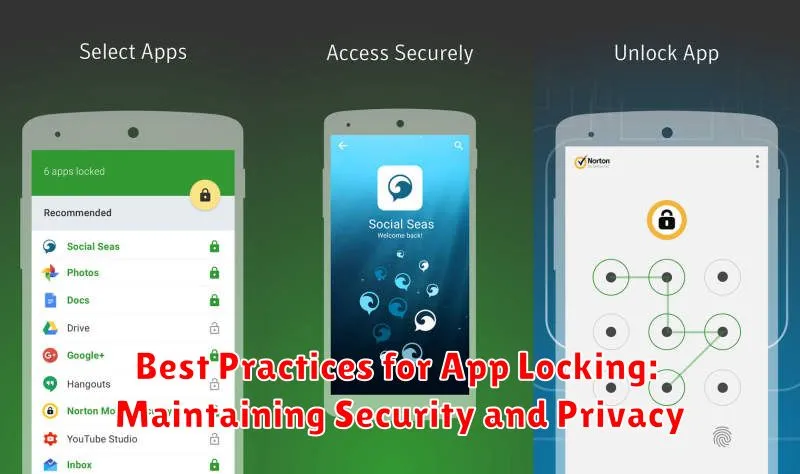
Employing app locks effectively requires adherence to certain best practices. Strong, unique PINs or passwords are crucial. Avoid easily guessable sequences like “1234” or birthdates. Consider using a different PIN/password for your app lock than you use for your phone’s main lock screen.
Regularly review your locked apps. Uninstall apps you no longer use and ensure newly installed apps with sensitive information are promptly locked. Keep your app lock software updated to benefit from the latest security patches and features. Be mindful of the security questions you set up for app lock recovery; ensure they are not easily answerable by others.
Finally, consider the lock timeout settings. A shorter timeout means more frequent unlocking, but significantly enhances security if your device is left unattended.
Advanced Features: Intruder Detection and Lock Timeout Customization
Some app lock solutions offer advanced features that enhance security and provide greater control over access to your apps. Intruder detection is a valuable feature that can capture images or videos of unauthorized attempts to access your locked apps. This helps identify individuals who may be trying to breach your privacy.
Lock timeout customization allows you to define the duration before the app lock re-engages. This feature offers flexibility, allowing you to adjust the timeout period based on your individual needs and usage patterns. For instance, you may prefer a short timeout when in public areas, while a longer timeout may be suitable at home. Some apps even offer the convenience of “re-lock policies,” like requiring authentication only after the screen is turned off.
Unlocking Convenience: Using Fingerprint or Face Recognition
While app locks provide enhanced security, constantly entering PINs or patterns can become tedious. Biometric authentication options like fingerprint and face recognition offer a convenient alternative.
Most app lock applications integrate seamlessly with your device’s built-in biometric sensors. This allows you to quickly unlock protected apps with a touch or a glance. Enabling this feature usually involves a simple toggle within the app lock settings.
Fingerprint unlocking offers a strong balance of security and convenience. The unique nature of fingerprints makes them difficult to replicate, providing reliable protection against unauthorized access. Simply register your fingerprint with your device and enable the option within your chosen app lock.
Face recognition, while generally faster than fingerprint scanning, can vary in security depending on the device and implementation. More advanced systems utilizing 3D depth mapping offer stronger security than basic camera-based solutions. Consider your device’s capabilities when choosing this option.
