
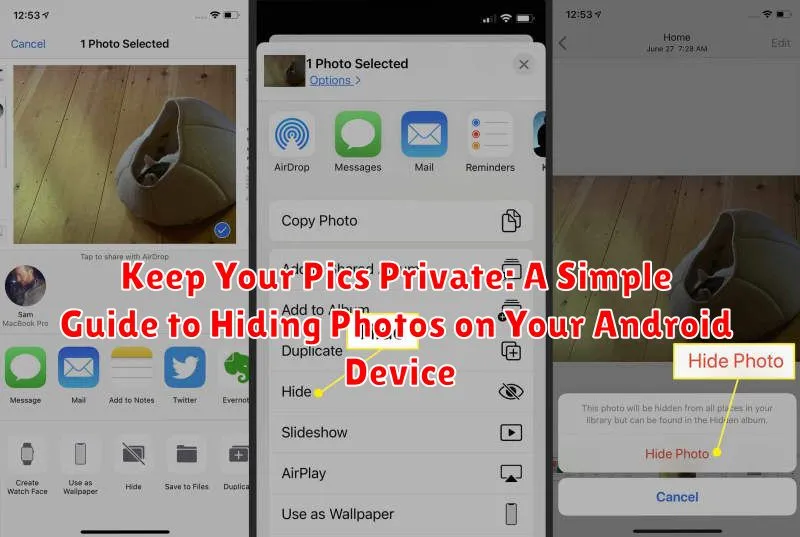
Concerned about your privacy and want to keep your personal photos safe from prying eyes? You’re not alone. Many Android users seek ways to hide photos on their devices, securing sensitive images from unauthorized access. This guide provides simple, step-by-step instructions to help you hide pictures on your Android, ensuring your private photos remain just that – private. We’ll explore various built-in Android features and trusted third-party apps designed specifically to hide photos and enhance your mobile security.
Whether you’re looking to hide photos from family members borrowing your phone or seeking enhanced security against potential data breaches, understanding how to protect your private pictures is essential. Learn how to effectively use the private photo features available on your Android device and discover the advantages of using dedicated apps for hiding pictures. This guide offers practical advice and empowers you to take control of your photo privacy and mobile security.
Built-in Options for Hiding Photos
Many Android devices offer built-in features to hide photos without needing third-party apps. These options often involve creating private albums or secure folders directly within the default Gallery app. While the specific steps may vary slightly depending on your device’s manufacturer and Android version, the general principle remains the same.
Typically, you can select multiple photos within your Gallery app and look for an option like “Move to,” “Hide,” or “Add to Private Album.” This action often moves the selected photos to a separate, protected area of your gallery that might require a PIN, password, or biometric authentication to access.
Important Note: The effectiveness of built-in hiding features can vary. Some might simply move the files to a different folder that can be easily found by a determined individual, while others offer more robust protection. Always check your device’s documentation for specific details about the security offered by these built-in features.
Using Third-Party Apps for Enhanced Privacy
If built-in options aren’t enough, numerous third-party apps offer enhanced privacy features for your photos. These apps often provide more sophisticated methods of hiding and protecting your images.
Many apps utilize encryption to secure your photos, adding another layer of protection. This means your photos are scrambled into unreadable code without the correct password or PIN. Some apps even offer cloud storage integration, allowing you to back up your hidden photos securely online.
When selecting a third-party app, consider features like:
- Military-grade encryption: Ensures the strongest possible protection for your files.
- Multiple vault options: Lets you categorize and organize hidden content.
- Break-in alerts: Notifies you of unauthorized access attempts.
- Decoy vaults: Creates a secondary, less secure vault to protect your primary hidden photos.
Remember to research and choose reputable apps with positive user reviews and strong security track records. Carefully assess the permissions requested by the app and ensure they align with your privacy expectations.
Moving Photos to a Secure Folder
Many Android devices offer a secure folder feature, a protected space separate from your regular file system. This is an excellent option for storing sensitive photos. The process may vary slightly depending on your device’s manufacturer and Android version, but generally involves the following:
First, locate the secure folder option. This might be within your device’s Settings menu, often under Biometrics and security or a similar category. Once you find it, you’ll likely need to set up the secure folder using your preferred security method, such as a PIN, password, or biometric lock.
After the secure folder is set up, you can move photos into it. This is typically done through your device’s file manager or gallery app. Select the photos you want to move, choose the “Move to” or “Copy to” option, and then select your secure folder as the destination. Once moved, these photos will be hidden from your main gallery and only accessible within the secure folder after authentication.
Encrypting Your Photos for Maximum Security
For the highest level of protection, consider encrypting your photos. Encryption scrambles your image data, making it unreadable without a decryption key. This adds an extra layer of security should someone gain access to your device or storage.
Several methods exist for encrypting photos on Android. Some devices offer full-disk encryption in the security settings. This encrypts everything on the device, including photos, but requires entering a password or PIN every time you power on your device.
Alternatively, you can use file-based encryption apps. These apps allow you to select specific files or folders to encrypt. They often use strong encryption algorithms, offering robust security. Look for apps that offer features like secure password management and biometric authentication.
Cloud storage services sometimes offer encryption options as well. Be sure to understand the specifics of the service, such as whether the encryption keys are managed by you or the service provider.
Tips for Keeping Your Hidden Photos Safe
While hiding photos provides a layer of privacy, implementing additional security measures strengthens protection against unauthorized access. Regularly update your device’s operating system and apps to patch security vulnerabilities.
Choose strong passwords or PINs for your phone and any app used for hiding photos. Avoid easily guessable combinations. Consider using a password manager to generate and securely store complex passwords. Enable two-factor authentication whenever possible for an added layer of security.
Be mindful of your phone’s physical security. Avoid leaving your device unattended in public places. Be cautious about who has physical access to your device.
Periodically review the methods you’re using to hide your photos. Ensure the chosen method still aligns with your privacy needs and that the features remain up-to-date.
Protecting Your Privacy with Additional Security Measures
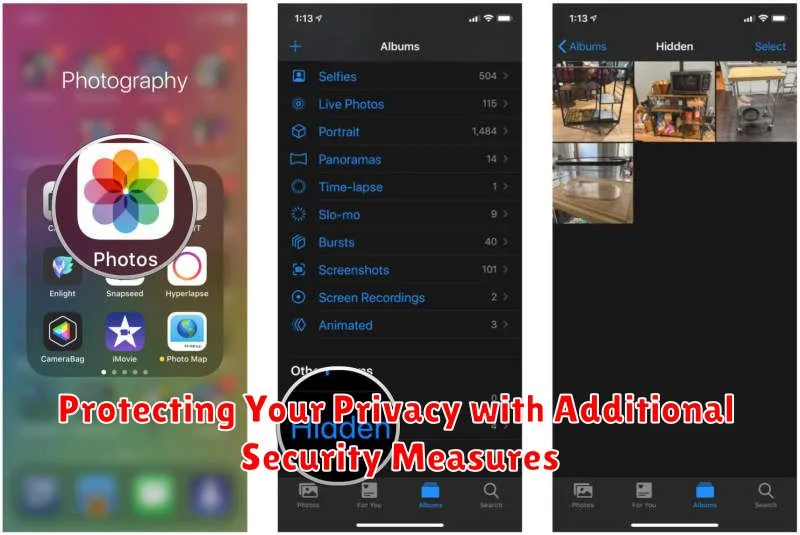
While hiding photos offers a basic level of privacy, consider implementing additional security measures for stronger protection. A robust approach involves layering these strategies.
Screen Lock & Biometrics
Enabling a strong screen lock is paramount. Utilize a complex PIN, password, or pattern. Biometric authentication, like fingerprint or facial recognition, adds another layer of security, making unauthorized access more difficult.
Device Encryption
Encrypting your device ensures that all data, including hidden photos, is scrambled and unreadable without the decryption key (your screen lock). This safeguards your information even if your device is lost or stolen.
Security Apps
Explore reputable security apps offering features like app locks. These allow you to add an extra password or biometric lock specifically to your photo gallery or file manager apps, further restricting access to sensitive content.
Common Mistakes to Avoid When Hiding Photos

Thinking hiding is encrypting. Many built-in phone hiding features simply move files to a different folder, offering minimal security. Someone with access to your phone could still potentially find them. Encryption, on the other hand, makes the files unreadable without a key or password.
Forgetting app-specific hidden folders. Some gallery or social media apps have their own hiding mechanisms. Remember that these hidden files might not be protected if someone gains access to that particular app.
Ignoring cloud backups. If you use cloud backup services, hidden photos might get backed up as well, negating the purpose of hiding them locally. Carefully review your backup settings.
Using obvious naming conventions. If using file manager-based hiding methods, avoid naming hidden folders with obvious names like “.hidden” or “private”.
Not setting up lock screen security. A hidden photo feature offers little protection if your phone itself isn’t locked. Use a strong PIN, password, or biometric lock.
