
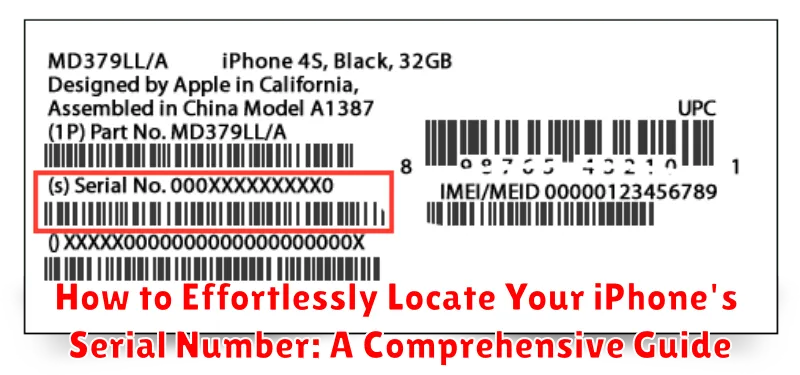
Locating your iPhone’s serial number is often essential for various tasks, such as verifying warranty information, registering for Apple services, troubleshooting device issues, or even reporting a lost or stolen device. This comprehensive guide will provide you with straightforward, step-by-step instructions on how to effortlessly locate your iPhone’s serial number, regardless of whether you have access to the device itself, its original packaging, or your Apple ID account. Understanding where to find this important identifier can save you valuable time and effort.
Finding your iPhone’s serial number might seem daunting, but it’s remarkably simple. This guide will demystify the process, offering multiple methods to access your iPhone’s serial number quickly and easily. Whether your iPhone is readily available or not, we present a range of options to ensure you can retrieve this crucial information whenever you need it. From checking directly on the device to utilizing your Apple ID account or examining the original packaging, you’ll discover how to find your iPhone’s serial number without any hassle.
What is an iPhone Serial Number and Why You Might Need It
Every iPhone has a unique serial number, a distinctive alphanumeric code that acts like its fingerprint. This number identifies your specific device and differentiates it from all other iPhones. It’s crucial for various reasons, both for Apple and for you as the owner.
Understanding your iPhone’s serial number is important for several scenarios:
- Verifying warranty coverage: Apple uses the serial number to determine the warranty status and eligibility for repairs or replacements.
- Identifying your device: In case of loss or theft, the serial number can help track and identify your iPhone.
- Technical support: When contacting Apple support, providing the serial number helps them quickly access your device’s information and provide tailored assistance.
- Trade-in or resale: When trading in your iPhone or selling it to a third party, the serial number helps determine its value and authenticity.
- Insurance claims: If you need to make an insurance claim for a lost, stolen, or damaged iPhone, the serial number is essential for processing the claim.
Knowing where to find your iPhone’s serial number is therefore essential. It empowers you to manage your device effectively and ensures you have the necessary information at your fingertips when needed.
Checking Your iPhone’s Serial Number Through Settings
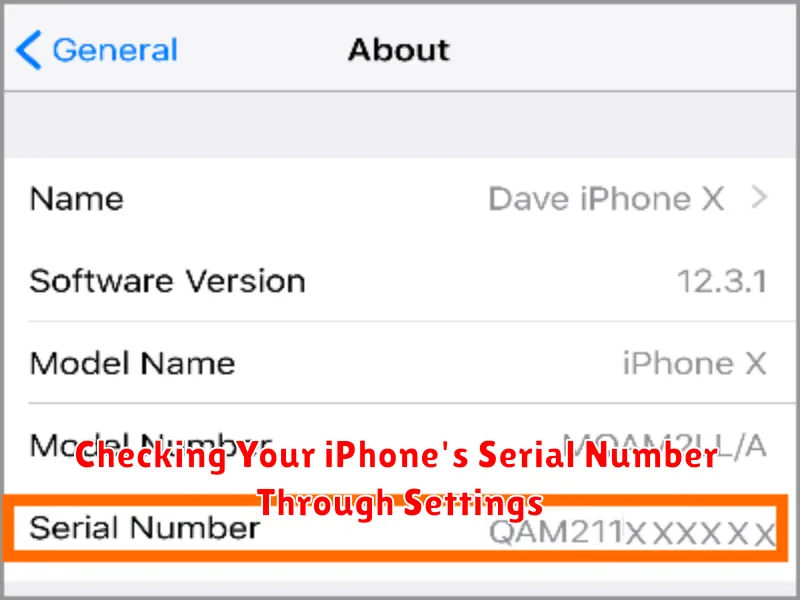
The most straightforward method to find your iPhone’s serial number is through the device’s Settings app. This method works regardless of whether your iPhone is activated or not, making it a versatile solution.
First, open the Settings app on your iPhone. It’s the icon with gray gears, typically found on your home screen.
Next, tap on General. This section contains a variety of system-level settings.
Then, tap on About. This section provides detailed information about your device, including the serial number.
Locate the entry labeled “Serial Number“. This will display your iPhone’s unique serial number. You can tap and hold on the number to copy it for use elsewhere, such as registering your device or requesting support.
Finding Your iPhone Serial Number on the Physical Device
If your iPhone isn’t readily accessible to check the Settings, the serial number is also etched directly onto the device itself. The location, however, varies slightly depending on the model.
For older iPhone models (pre-iPhone X):
Look on the back of your iPhone. The serial number is typically printed in small font towards the bottom, below regulatory markings.
For iPhone X and later models (including iPhone XS, XR, 11, 12, 13, and 14 series):
Because the back of these devices is largely glass, the serial number has been moved to the SIM tray. Eject the SIM tray using the provided tool or a small paperclip. The serial number will be printed on the tray itself. Ensure adequate lighting to clearly read the small print.
Locating Your iPhone Serial Number on the Original Packaging
If you’ve retained the original packaging your iPhone came in, it can serve as a convenient source for locating your serial number. Apple typically prints this information on a barcode sticker affixed to the box.
This sticker often includes other details like the IMEI/MEID and part number, but the serial number is clearly labeled. Look for a string of alphanumeric characters typically identified as “Serial No.,” “S/N,” or similar.
The placement of the sticker can vary slightly depending on the iPhone model and packaging design. Common locations include the bottom or side of the box. Carefully inspect all sides to locate the sticker.
Retrieving Your iPhone Serial Number from Apple’s Website or Support
If you no longer have access to your iPhone or its packaging, you can often retrieve the serial number through your Apple account. This method relies on having previously registered your iPhone with Apple.
Apple ID Website: Sign in to your Apple ID account page. In the “Devices” section, locate your iPhone. Selecting it will reveal details, including the serial number.
Apple Support: If you encounter difficulties finding the serial number online, contact Apple Support directly. Be prepared to provide proof of purchase or other identifying information to verify ownership.
Using iTunes or Finder to Find Your iPhone’s Serial Number
If your iPhone is synced with your computer, iTunes (for older macOS versions and Windows) or Finder (for macOS Catalina and later) can reveal your device’s serial number. This method works even if the device itself is unavailable.
Using Finder (macOS Catalina and later):
Connect your iPhone to your Mac. Open a Finder window and select your iPhone from the sidebar under Locations. The serial number will be displayed in the main window, providing information such as capacity and phone number. If you’ve previously synced your iPhone, you can access this information even if your device isn’t currently connected.
Using iTunes (Older macOS and Windows):
Connect your iPhone to your computer and open iTunes. Click on the device icon that appears near the top left of the iTunes window. Your iPhone’s summary page will display, revealing various information including the serial number. Similarly, if your iPhone has been previously synced, the information will be available even if the device isn’t plugged in.
Other Methods for Finding Your iPhone Serial Number
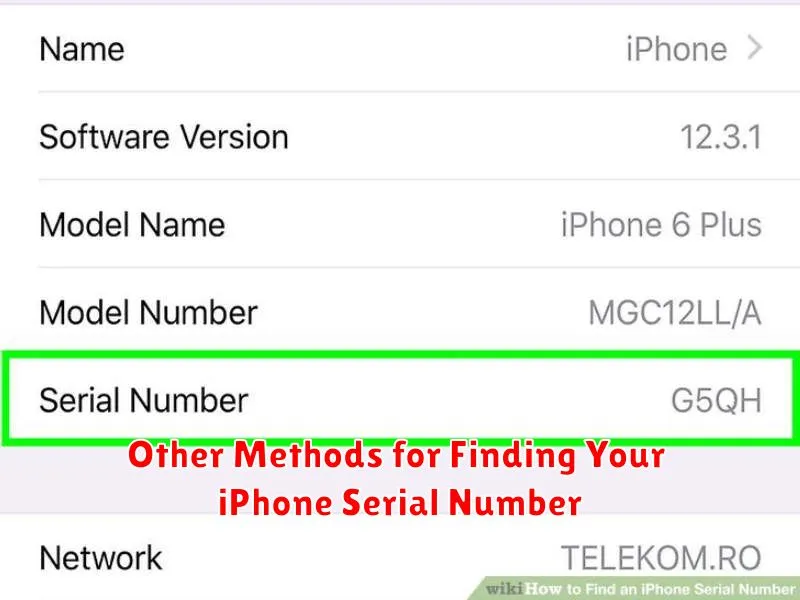
If your iPhone is unavailable or you can’t access a computer, there are still ways to find your serial number. These methods rely on having previously synced your device or having access to its original packaging.
Check Your iPhone’s Original Packaging
The original box your iPhone came in contains a sticker displaying key information, including the serial number. Look for a barcode label, and the serial number will be printed near it.
Find the Serial Number on Your Apple Account
If you’ve synced your iPhone with your Apple ID, you can find the serial number through your account settings. On a Mac, iPad, or another iPhone, go to Settings, tap your Apple ID at the top, then select Name, Phone Numbers, Email. Scroll down and tap on the entry for your iPhone. The serial number will be displayed.
Check Your Receipt or Invoice
Your purchase receipt or invoice from when you bought your iPhone will likely list the serial number. This is another convenient way to find the information if you have retained these documents.
