
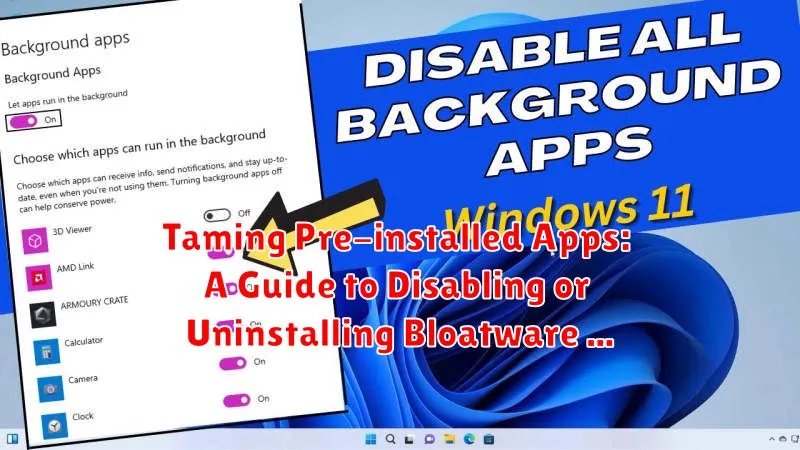
Tired of unwanted pre-installed apps clogging up your Android device? These often unnecessary applications, commonly known as bloatware, can consume valuable storage space, drain battery life, and clutter your app drawer. This comprehensive guide will equip you with the knowledge and tools to effectively tame pre-installed apps, allowing you to disable or even uninstall them, ultimately reclaiming control over your Android experience and optimizing your device’s performance. Whether you’re dealing with stubborn system apps or carrier-specific bloatware, we’ll explore various methods to address this common Android frustration.
From utilizing built-in Android settings to exploring more advanced techniques, you’ll learn how to identify, disable, and potentially uninstall these pesky pre-installed apps. This guide will cover various approaches, catering to different Android versions and manufacturer customizations, ensuring that you can effectively tame bloatware regardless of your device. Learn how to free up precious storage, enhance battery life, and declutter your app drawer. Take control of your Android experience and reclaim your device from unwanted pre-installed apps.
Understanding Pre-installed Apps and Their Impact
Pre-installed apps, often referred to as bloatware, are applications that come pre-loaded on your Android device by the manufacturer or carrier. These apps can range from useful utilities to carrier-specific services or third-party applications. While some pre-installed apps might offer valuable functionality, others can be redundant or even detrimental to your device’s performance.
The impact of these apps can vary. Resource consumption is a key concern. Bloatware can consume valuable storage space, RAM, and processing power, potentially slowing down your device and impacting battery life. Unnecessary data usage is another potential issue. Some pre-installed apps might run in the background, consuming mobile data even when not in use. Finally, privacy concerns can arise if pre-installed apps collect and share user data without explicit consent.
Understanding the nature of pre-installed apps and their potential impact is crucial for managing your device’s performance and protecting your privacy. You can reclaim valuable resources and improve your overall Android experience by carefully managing these applications.
Identifying Pre-installed Apps on Your Device

Pinpointing pre-installed apps is usually straightforward. Look for apps you didn’t personally install. These often include carrier-specific apps, manufacturer add-ons, or duplicate apps (like a second music player or web browser). Pay close attention to app names and icons, noting anything unfamiliar.
You can usually identify pre-installed apps through your device’s app settings. Most Android devices offer an app management section where you can view all installed applications. Some may even categorize apps by source, making it easier to differentiate between user-installed and system apps. Look for any indication of system app status or similar labeling within the app info screen.
Another way to identify potential bloatware is to consider app usage. If you’ve never opened an app, and it’s not a core system component, it might be a candidate for disabling or removal.
Disabling Pre-installed Apps Through Settings
Disabling pre-installed apps is often the simplest way to deal with bloatware. This method hides the app, prevents it from running in the background, and reclaims some storage space. While not as thorough as uninstalling, it’s a safe and effective solution for most users.
The process typically involves these steps:
- Open your device’s Settings app.
- Navigate to the Apps or Application Manager section (the wording may vary depending on your Android version and manufacturer).
- Locate the pre-installed app you wish to disable from the list of installed applications.
- Tap on the app to view its details.
- If the option is available, tap the Disable button. A confirmation prompt may appear, outlining the potential effects of disabling the app.
Important Note: Disabling certain system apps can negatively impact the functionality of your device. Exercise caution and research thoroughly before disabling any app you’re unsure about.
Uninstalling Pre-installed Apps (If Possible)
In some cases, you might be able to completely uninstall pre-installed apps, freeing up storage space and eliminating unwanted software entirely. This is more common on devices with less restrictive manufacturer overlays or those running custom ROMs. The availability of this option varies depending on your device’s manufacturer, Android version, and the specific app itself.
To check if an app can be uninstalled:
- Open your device’s Settings app.
- Navigate to Apps or Application Manager (the naming may vary slightly).
- Locate the pre-installed app you wish to remove.
- If an Uninstall button is present, you can proceed with the removal. If only a Disable option is available, full uninstallation may not be possible through standard means.
Important Consideration: Exercise caution when uninstalling pre-installed apps. Removing essential system apps can lead to instability or malfunctions. Thoroughly research the app’s function before proceeding with uninstallation.
Using ADB to Remove System Apps
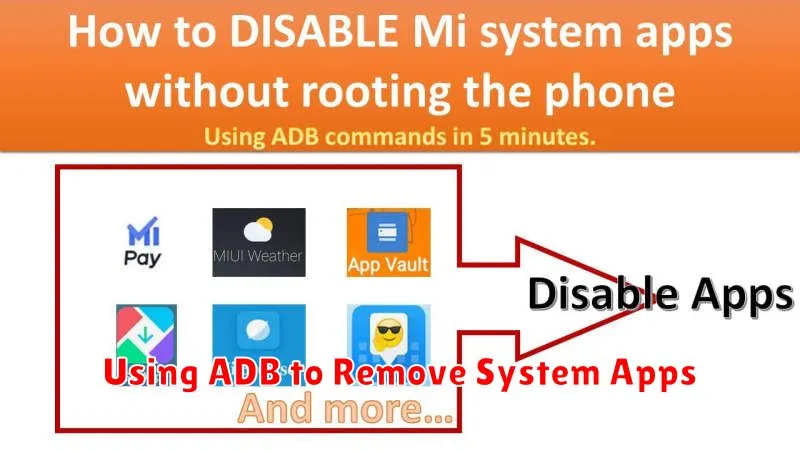
For users comfortable with a more technical approach, the Android Debug Bridge (ADB) offers a powerful method to remove system apps. This method requires a computer with ADB installed and your device’s USB debugging enabled. Proceed with caution, as improper use of ADB can negatively impact your device’s functionality. Always back up your device before making any changes with ADB.
After setting up ADB, connect your device to your computer via USB. Open a command prompt or terminal window on your computer and verify the connection by entering adb devices. Your device should be listed. Then, identify the package name of the app you wish to remove. You can find this using a package name viewer app or by inspecting your device’s file system.
Once you have the package name, use the following command to uninstall the app:
adb shell pm uninstall -k --user 0 <package_name>Replace <package_name> with the actual package name of the app. The -k option keeps the app’s data and cache directories, while --user 0 specifies the primary user profile. Be aware that some essential system apps cannot be removed using this method.
Exploring Alternative Launchers to Hide Apps
If rooting your device isn’t an option, alternative launchers offer a less invasive way to manage pre-installed apps. While they don’t technically uninstall bloatware, launchers effectively hide unwanted apps from your app drawer and home screen, creating a cleaner, more personalized user experience.
Launchers act as a replacement for your device’s default home screen and app drawer interface. By installing a new launcher, you gain control over which apps are visible and how they are organized. Most launchers allow you to simply exclude specific apps from appearing in the app drawer, effectively hiding them from view.
Numerous launchers are available on the Google Play Store, each offering unique customization options. When choosing a launcher, consider features like customization flexibility, performance impact, and user reviews to find one that suits your needs. Experimenting with different launchers can help you discover the best way to declutter your Android experience.
Rooting Your Phone for Advanced App Management
Rooting your Android device provides significantly more control over pre-installed applications. While disabling bloatware through standard methods often only hides the app, rooting allows for complete uninstallation, freeing up valuable storage space and system resources. It also grants access to powerful system tools that can modify app behavior and permissions at a deeper level.
However, rooting is an advanced procedure and comes with inherent risks. It can void your device’s warranty and potentially expose it to security vulnerabilities if not performed carefully. Additionally, improperly uninstalling essential system apps can lead to instability or even brick your device, rendering it unusable. Therefore, thorough research and careful consideration are crucial before attempting to root your phone.
If you choose to root your device, numerous tools and resources are available online, specific to your phone model. These resources often provide step-by-step instructions and support from experienced users. After rooting, you’ll gain access to apps designed specifically for managing system applications, enabling complete removal of bloatware.
Potential Risks and Considerations When Disabling Apps
Disabling pre-installed apps can offer benefits, but it’s essential to proceed with caution. System instability is a primary concern. Disabling crucial system apps can lead to unexpected errors, malfunctions, or even boot loops. Thoroughly research an app’s function before disabling it.
Loss of functionality is another potential risk. Some apps might be interconnected, and disabling one could affect others. Features tied to the disabled app might become unavailable. Consider this before disabling seemingly unimportant apps.
Manufacturer updates can sometimes re-enable previously disabled apps. Be prepared to disable them again after a system update. Additionally, some core functionalities like specific hardware features might be linked to pre-installed apps. Disabling them could render those features unusable.
Recommended Apps for Managing Bloatware
While some bloatware can be disabled through system settings, dedicated apps can offer more advanced management options. These tools can simplify the process, particularly for users unfamiliar with Android’s inner workings.
It’s important to note that app availability and functionality might vary depending on your device’s manufacturer, Android version, and root status. Always research an app before installing it and be aware of its required permissions.
Popular Bloatware Management Apps (Examples):
- App Name 1: This app may provide features like disabling multiple apps at once, backing up disabled apps, and identifying system apps that are safe to disable.
- App Name 2: Another potential option, this app could offer functionality like uninstalling user-installed apps and clearing app cache and data.
Remember, some apps might require root access to offer full functionality, such as uninstalling pre-installed system apps completely.
