
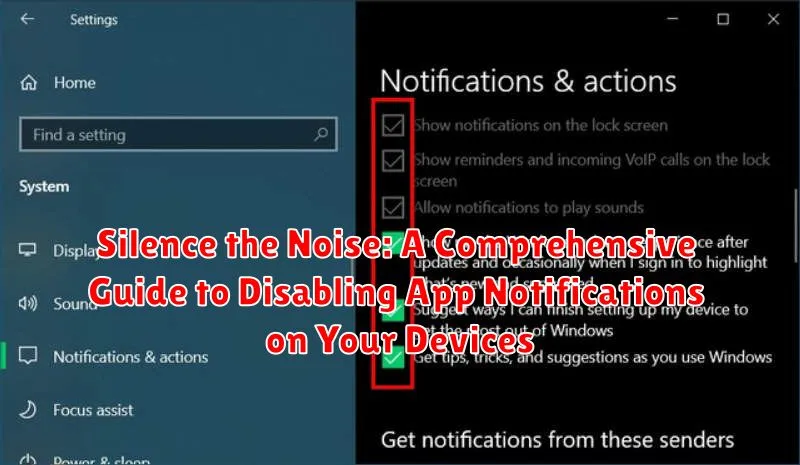
In today’s hyper-connected world, our devices are constantly vying for our attention with a barrage of app notifications. From social media alerts and breaking news updates to email reminders and game requests, these digital interruptions can significantly impact our productivity, focus, and overall well-being. Disabling app notifications is crucial for reclaiming control over our digital lives and fostering a more peaceful and productive environment. This comprehensive guide will provide you with step-by-step instructions on how to effectively silence the noise and manage notifications across a variety of devices and operating systems, empowering you to prioritize what truly matters.
Whether you’re seeking respite from the constant buzz of app notifications or simply aiming to cultivate more mindful digital habits, understanding how to customize and control your notification settings is essential. This guide covers a wide range of platforms, including iOS, Android, Windows, and macOS, providing clear and concise instructions for disabling app notifications, managing specific app alerts, customizing notification sounds and behaviors, and ultimately, taking charge of your digital well-being. Learn how to silence the noise and create a more focused digital experience.
Understanding App Notifications and Their Impact
App notifications are designed to keep you informed about updates, messages, and activity related to specific applications on your devices. While they can be useful, excessive or irrelevant notifications can quickly become overwhelming, leading to distractions and a decline in productivity.
The constant barrage of notifications can interrupt your focus, whether you are working, studying, or trying to relax. This can contribute to stress and a feeling of being constantly connected. Managing notifications effectively is crucial for maintaining a healthy digital balance and reclaiming control over your attention.
Understanding the impact of notifications on your focus and well-being is the first step towards managing them effectively. By learning to control and customize your notification settings, you can create a more peaceful and productive digital environment.
Different Types of App Notifications You Can Control
App notifications come in various forms, each designed to convey specific information or prompt particular actions. Understanding these different types is crucial for effectively managing your digital well-being.
Badges: These are the small red circles that appear on app icons, indicating the number of unread notifications. While not strictly notifications themselves, they serve as a visual cue that something requires your attention.
Banners: Banners briefly appear at the top of your screen, displaying a short message. They are designed to be minimally disruptive and often disappear automatically after a few seconds.
Alerts: Alerts require immediate interaction. They pop up on your screen and demand a response, whether it’s to open the app, dismiss the notification, or choose from a set of actions.
Sounds: Many apps use distinct sounds to signal incoming notifications. These auditory cues can be helpful, but can also become overwhelming if not managed properly. Vibrations: Similar to sounds, vibrations provide a tactile notification. They’re particularly useful in silent mode or for users who prefer discreet alerts.
Disabling Notifications on a Per-App Basis
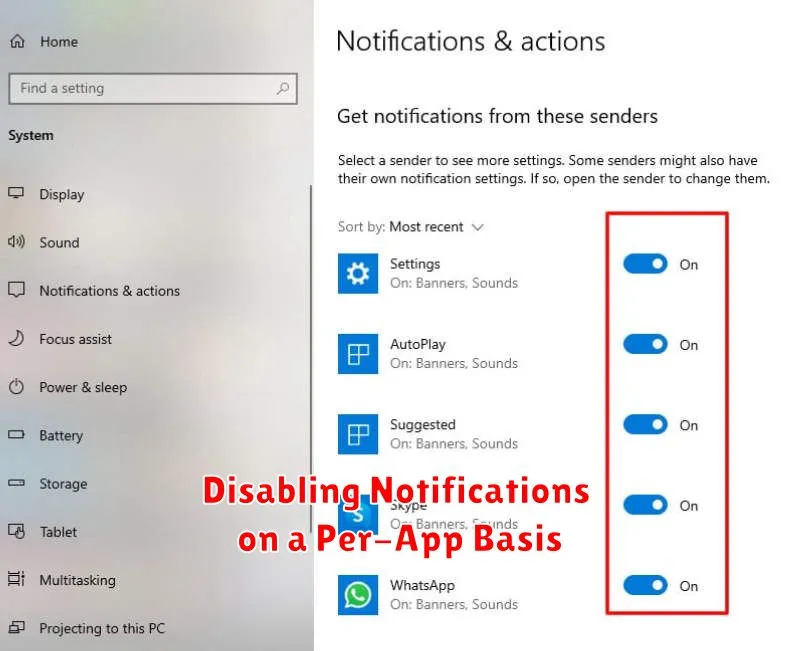
Often, the most effective way to manage notifications is by controlling them individually for each app. This allows you to silence noisy apps while still receiving important alerts from others. Most operating systems provide streamlined methods for per-app notification control.
Typically, you can access these settings through the system’s main settings menu. Look for a section dedicated to notifications or apps. Once there, you should find a list of installed applications. Selecting an app from this list will reveal its specific notification settings.
Within each app’s notification settings, you’ll typically find a master toggle. This allows you to completely enable or disable all notifications for that specific app. This is a quick way to silence an app entirely. Remember to review these settings periodically as new apps are installed or updated.
Customizing Notification Settings for Specific Apps
Beyond simply enabling or disabling all notifications for an app, most devices offer granular control over how each app presents its alerts. This allows you to prioritize important notifications while minimizing distractions from less critical ones.
Typically, you can customize the following aspects of an app’s notifications:
- Alert Style: Choose how notifications appear, whether as banners, alerts, or simply badges on the app icon.
- Sounds: Select a specific sound for an app or mute notifications entirely. Some systems let you customize notification sounds further.
- Badges: Control whether or not an app displays notification badges (number indicators) on its icon.
- Lock Screen Visibility: Specify if notifications from a particular app should be visible on the lock screen, hidden, or only show a generic notification without revealing the content.
- Notification Grouping: Enable grouping similar notifications together for a cleaner notification center experience. This is especially useful for apps with frequent updates, such as email clients or social media platforms.
These customization options let you fine-tune your notification experience to suit your individual preferences and needs for each app.
Managing System-Wide Notification Preferences
Beyond individual app settings, your device offers system-wide controls to manage notifications. These settings allow you to define general notification behaviors, impacting how all apps present alerts.
Access these controls through your device’s settings menu. Typically, you’ll find a “Notifications” or “Sound & Notifications” section. Within this section, you can adjust various parameters.
Do Not Disturb Mode
Do Not Disturb mode is a powerful tool to silence all notifications, except those you specifically allow. You can schedule Do Not Disturb for specific times, such as overnight, or enable it manually as needed. Customize exceptions for calls from certain contacts or repeated calls.
Notification Sounds & Vibration
System-wide settings also control overall notification sounds and vibration patterns. You can choose a default notification tone, adjust its volume, and enable or disable vibration for all notifications.
Using Focus Modes to Silence Notifications Temporarily
Focus modes offer a streamlined approach to silencing notifications without permanently disabling them. These modes allow you to curate which apps and contacts can send notifications during specific times or activities.
Most modern operating systems offer built-in focus modes. For example, on iOS and macOS, Do Not Disturb, Driving, and Sleep are pre-configured options. You can customize these or create entirely new focus modes tailored to your needs, like “Work” or “Exercise.” Within each focus mode, you specify allowed notifications, ensuring only crucial alerts break through.
Android offers similar functionality through Focus mode. You select apps to pause, silencing their notifications for a defined period. This allows you to concentrate on specific tasks without the constant distractions of incoming messages and alerts.
Activating and deactivating focus modes is generally straightforward, often accessible through quick settings menus or control centers. This makes them ideal for temporarily silencing notifications when you need focused time.
Troubleshooting Common Notification Issues
Sometimes, despite your best efforts, notifications can behave erratically. This section addresses common issues and their solutions.
Notifications Not Appearing
If you’re not receiving expected notifications, ensure the app’s notifications are enabled both within the app and your device’s settings. Check your device’s Do Not Disturb or Focus mode isn’t active. Also, verify the app’s notification settings haven’t been inadvertently customized to a silent mode.
Delayed Notifications
Delayed notifications can result from poor network connectivity. Ensure you have a stable internet connection. Background app refresh settings can also influence notification delivery. Confirm these are enabled for the specific app.
Duplicate Notifications
Receiving duplicate notifications can indicate a software glitch within the app itself. Try reinstalling the app or checking for updates. If the issue persists, contacting the app developer might be necessary.
Best Practices for Managing App Notifications for a Healthier Digital Life
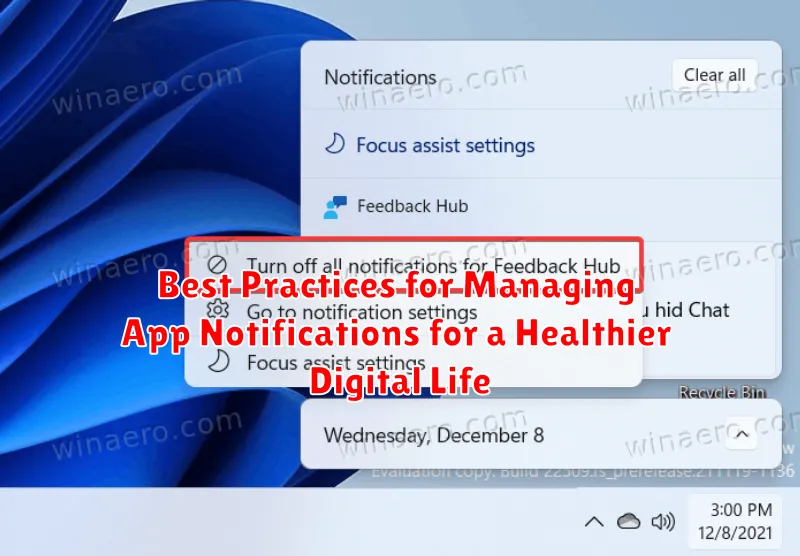
Prioritize notifications. Determine which apps truly require immediate attention and disable notifications for the rest. Consider whether a notification adds value or simply creates distraction.
Schedule downtime. Establish specific times during the day, such as evenings or weekends, to silence all non-essential notifications. This helps create boundaries between your digital life and personal time.
Regularly review app notification settings. Periodically audit the notifications you receive. New apps may default to sending numerous notifications, and your needs for existing apps might change.
Utilize built-in notification management tools. Take advantage of features like notification categories and delivery time settings. These tools provide granular control over what and when you are notified.
Practice mindful engagement. When you do receive notifications, avoid immediately reacting. Take a moment to assess its importance and decide if immediate action is truly necessary.
