
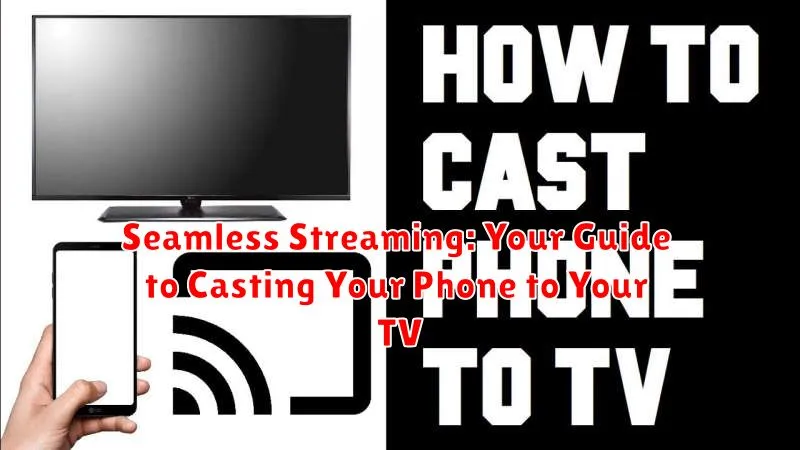
In today’s digitally driven world, seamless streaming has become an integral part of our entertainment experience. The ability to effortlessly cast content from our phones to the larger screen of our televisions opens up a world of possibilities, from enjoying mobile games on a grander scale to sharing cherished photos and videos with family and friends. This guide will provide you with a comprehensive understanding of the various methods for casting your phone to your TV, ensuring a smooth and trouble-free viewing experience. Whether you’re looking to stream movies, music, or simply mirror your phone’s display, we’ll cover the essential techniques and technologies involved in seamless streaming.
Casting your phone to your TV offers unparalleled convenience and versatility. No longer confined to the small screen of your mobile device, you can unlock the true potential of your media and enjoy a more immersive and shared viewing experience. This guide will delve into the intricacies of seamless streaming, outlining the advantages and disadvantages of different casting methods, and providing step-by-step instructions for various platforms and devices. Learn how to optimize your setup for seamless streaming and troubleshoot common issues to ensure that casting your phone to your TV is always a smooth and enjoyable process.
Understanding Different Casting Methods
Casting your phone’s screen to your TV opens up a world of entertainment possibilities. But before you dive in, it’s crucial to understand the different methods available, as each offers unique advantages and compatibility considerations.
Wi-Fi Direct: This establishes a direct connection between your phone and TV, eliminating the need for a shared Wi-Fi network. It offers excellent performance for gaming and video streaming due to low latency. However, compatibility can be limited.
DLNA: Digital Living Network Alliance (DLNA) allows devices on the same network to share media. This method excels at streaming stored media like photos and videos, but may not be ideal for screen mirroring or gaming.
Miracast: Similar to Wi-Fi Direct, Miracast provides a direct wireless connection with minimal lag. It supports screen mirroring and media playback, but may not be compatible with all devices.
AirPlay: Developed by Apple, AirPlay allows seamless streaming between Apple devices and Apple TV or compatible smart TVs. It’s known for its ease of use and high-quality streaming.
Chromecast built-in: This technology allows you to “cast” content from compatible apps on your phone to your Chromecast device or TV with Chromecast built-in. It’s a widely supported and user-friendly option.
Casting with Built-in Features: A Step-by-Step Guide
Many smart TVs and streaming devices offer built-in casting capabilities, simplifying the connection process. This usually involves using technologies like Miracast or AirPlay, depending on your device’s operating system. Here’s a general guide to get you started.
Step 1: Preparation. Ensure both your phone and TV are connected to the same Wi-Fi network. This is crucial for successful casting.
Step 2: Activate Casting on Your TV. Navigate to your TV’s input or source menu and select the casting option. The name might vary (e.g., Screen Mirroring, Screen Sharing). Your TV will then be ready to receive the cast.
Step 3: Initiate Casting from Your Phone. Open your phone’s settings and locate the casting feature. The name and location may vary depending on the operating system (e.g., Cast, Screen Mirroring, Wireless Display). Select your TV from the list of available devices.
Step 4: Enjoy Your Content. Your phone’s screen should now be mirrored on your TV. You can play videos, view photos, or even browse the web, all displayed on the larger screen.
Third-Party Apps for Enhanced Casting
While built-in casting features often suffice, third-party casting apps can offer extended functionality and support for a wider range of devices. These apps can bridge the gap when standard methods are unavailable or present compatibility issues.
Popular third-party casting apps often specialize in specific media types or offer advanced features such as improved streaming quality, subtitle support, and playlist management. Consider exploring these options if you require features beyond basic screen mirroring.
Choosing the right app depends on your specific needs and the devices you use. Research app reviews and compatibility information before installing. Ensure the chosen app supports both your phone’s operating system and your smart TV or streaming device.
Using a third-party casting app typically involves installing the app on both your phone and your TV (if the TV’s app store supports it) or using a compatible streaming device. Once installed, connect both devices to the same Wi-Fi network and follow the in-app instructions to initiate casting.
Troubleshooting Common Casting Issues
Experiencing problems casting from your phone to your TV? Don’t worry, it’s often a simple fix. Here are some common issues and how to resolve them:
Device Compatibility
Ensure both your phone and TV support casting. Check manufacturer specifications if you’re unsure. Older devices might not be compatible with newer casting protocols.
Network Connectivity
Verify both devices are on the same Wi-Fi network. A weak or unstable Wi-Fi signal can cause interruptions. Try restarting your router or moving closer to it.
Software Updates
Outdated software can lead to casting problems. Ensure both your phone’s operating system and the casting app (if using one) are up-to-date. Check your TV’s firmware for updates as well.
Hardware Issues
Occasionally, hardware problems can interfere with casting. Try restarting both your phone and your TV. If using an external casting device, ensure it’s properly connected and powered.
Optimizing Your Network for Smooth Streaming
A strong and stable network connection is crucial for a seamless casting experience. Network congestion can lead to buffering, lag, and a degraded viewing experience. Here are some tips to optimize your network for smooth streaming:
Check Your Internet Speed
Ensure your internet plan provides sufficient bandwidth for streaming high-definition video. A speed test can help determine if your current speed meets the requirements.
Reduce Network Congestion
Minimize the number of devices actively using your network while casting. Temporarily pausing downloads, online gaming, or other bandwidth-intensive activities can significantly improve streaming performance.
Wi-Fi Channel Optimization
If using Wi-Fi, try switching to a less congested channel. Most routers offer settings to analyze and select the optimal channel.
Router Placement
Ensure your router is strategically placed for optimal coverage. Obstructions like walls and furniture can weaken the signal. Consider moving your router to a more central location or using a Wi-Fi extender.
5GHz Wi-Fi
If your router and casting device support it, connect to the 5GHz Wi-Fi band. This band typically offers faster speeds and less interference compared to the 2.4GHz band.
Tips for a Better Viewing Experience
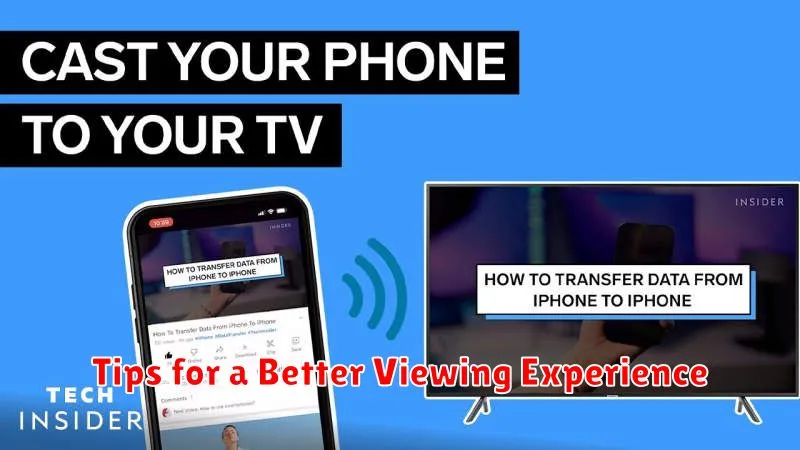
Casting can greatly enhance your entertainment, but a few key steps can elevate it further. Ensure both your phone and TV are connected to the same Wi-Fi network. A strong, stable connection is crucial for seamless streaming. Close any unnecessary apps running on your phone to free up resources and improve casting performance.
Adjusting your TV’s picture settings can also make a difference. Consider the content you’re casting and modify brightness, contrast, and sharpness for optimal viewing. Experiment with different picture modes (e.g., movie, game, vivid) to find what suits your preference.
For audio, check your TV’s sound settings and consider using external speakers or a soundbar for a richer audio experience, especially if you’re casting movies or music. Finally, minimize interruptions by activating Do Not Disturb or Airplane Mode on your phone to prevent notifications from interfering with your viewing.
Exploring Advanced Casting Options
Beyond basic screen mirroring, several advanced casting options can enhance your streaming experience. These options offer greater control and flexibility, catering to specific needs and setups.
Gaming Mode
For gamers, minimizing latency is crucial. Some casting devices and apps offer a dedicated “Gaming Mode” which prioritizes speed over visual fidelity. This reduces lag, providing a more responsive gaming experience on the big screen.
Casting to Multiple Screens
Multi-room casting, offered by certain platforms, allows you to stream content to multiple compatible displays simultaneously. This is ideal for parties or sharing content across different areas of your home.
Presentation Modes
Certain casting protocols support specific presentation modes, transforming your TV into an extended display for your phone or laptop. This enables seamless slideshows, presentations, and collaborative work sessions on a larger screen.
Customizing Streaming Settings
Explore the advanced settings within your casting app or device. These often include options to adjust streaming resolution, optimize audio quality, and personalize your casting experience further. Experimenting with these settings can often yield significant improvements in performance and quality.
