
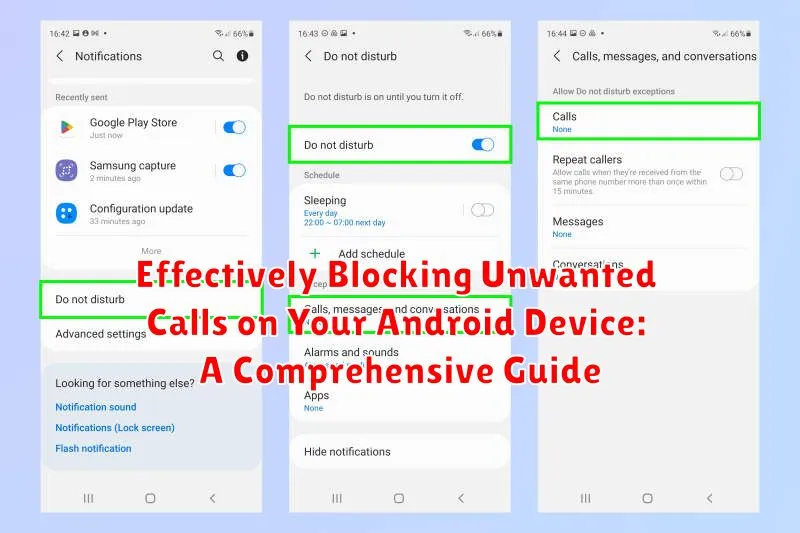
Tired of incessant robocalls, spam calls, and unwanted solicitations interrupting your day? Effectively blocking unwanted calls on your Android device is crucial for maintaining your privacy and sanity. This comprehensive guide will provide you with the essential tools and strategies to identify and block unwanted calls, allowing you to reclaim control over your phone and your time. Learn how to block numbers, utilize your phone’s built-in features, and explore third-party apps designed to effectively silence those frustrating interruptions.
Whether you are plagued by telemarketers, robocalls, or simply wish to block specific numbers, this guide offers practical, step-by-step instructions to help you navigate the various call-blocking options available on your Android device. From understanding the nuances of your phone’s built-in call blocking features to exploring the advanced functionalities of dedicated call-blocking applications, we’ll equip you with the knowledge to effectively manage and block unwanted calls, ensuring a more peaceful and productive mobile experience. Learn how to take control and finally achieve the freedom from unwanted calls you deserve.
Understanding Call Blocking on Android
Android provides a robust framework for managing and blocking unwanted calls, offering a variety of built-in features and compatibility with third-party apps. Understanding these core functionalities is crucial for effectively controlling who can contact you.
Built-in Blocking: Modern Android versions offer native call blocking features directly within the Phone app and Contacts list. These options are generally straightforward to use and effective for managing known unwanted numbers.
Carrier-Level Blocking: Some carriers provide additional call blocking services at the network level. These services may require a subscription or specific plan, but they can be more powerful in intercepting spam and scam calls before they even reach your device.
Third-Party Apps: Numerous apps specialize in call blocking and offer advanced features like spam identification, call scheduling, and community-based blacklists. These apps leverage extensive databases and algorithms to enhance blocking capabilities beyond the basic system features.
Permissions: Call blocking apps and features require specific permissions to function correctly. These typically include access to your phone, contacts, and call logs. It’s important to review and understand these permissions before granting them to any app.
Blocking Calls from Specific Numbers via the Phone App
Your phone app offers a direct method for blocking unwanted calls. The process may vary slightly based on your device’s manufacturer and Android version, but the general steps remain consistent. This method is particularly useful for blocking specific numbers that repeatedly call you.
Typically, you’ll begin by opening your Phone app. Then, locate the recent calls list or your call log. Find the number you wish to block and select it. A menu with various options should appear. From this menu, choose “Block” or “Block/report spam.”
Confirm your choice when prompted. The blocked number will no longer be able to connect with your device through regular calls. You may still see missed call notifications from the blocked number, but your phone will not ring.
Using Your Contacts List to Block Calls
Your contacts list provides a convenient way to manage unwanted calls from known numbers. By directly blocking contacts, you prevent them from reaching you via voice calls. This method is particularly useful for managing calls from individuals or businesses you no longer wish to communicate with.
The process is generally straightforward across different Android devices, although specific steps might vary slightly depending on your phone’s manufacturer and Android version. Typically, open your Contacts app, select the contact you wish to block, and then look for an option within the contact’s details to block or add them to a rejected list. This effectively prevents that contact from calling your number.
Some Android versions offer additional controls within the contact details, allowing you to choose whether to block only voice calls, or extend the block to other communication methods such as text messages or video calls. This granular control allows for more precise management of unwanted communication.
Blocking Calls from Unknown or Private Numbers
Dealing with calls from unknown or private numbers can be particularly frustrating. Fortunately, Android provides options to mitigate these unwanted interruptions. Blocking all unknown numbers is a powerful feature, but it’s important to understand its implications. While effective at silencing spam and scam calls, it can also inadvertently block legitimate calls from, say, a doctor’s office or a delivery service using a masked number.
To activate this feature, typically navigate to your phone app’s settings. Look for options like “Block unknown callers” or “Silence unknown callers.” The precise wording may vary depending on your device’s manufacturer and Android version. Enabling this setting will send all calls from numbers not in your contacts directly to voicemail.
Some Android versions offer more nuanced control. You might find settings to block only “Private” or “No Caller ID” numbers, allowing calls from unknown but visible numbers to still ring through. This can be a good compromise if you want to minimize disruption without entirely blocking potentially important calls.
Utilizing Third-Party Apps for Advanced Call Blocking
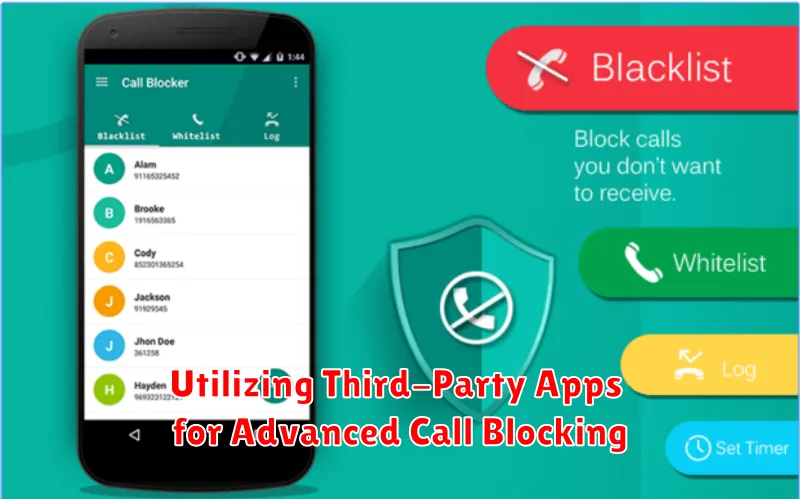
For more advanced call blocking features, consider exploring third-party apps available on the Google Play Store. These apps often provide more granular control over call filtering and blocking compared to built-in phone features.
Many reputable apps offer blacklist and whitelist functionalities, allowing you to specify numbers to always block or always allow. Some apps identify and block spam calls based on extensive databases of known spam numbers. You can often customize how these apps handle blocked calls – whether to send them directly to voicemail, hang up immediately, or provide a busy signal.
Additional features offered by some third-party call blocking apps might include:
- Scheduled blocking: Block calls during specific times of day.
- Block by area code or prefix: Block calls from specific regions or types of numbers.
- Lookup unknown numbers: Identify callers based on community-reported information.
When choosing a third-party app, be sure to review its permissions carefully and select a reputable app with positive user reviews.
Managing Your Blocked Numbers List
Efficiently managing your blocked numbers list is crucial for maintaining control over incoming calls. Your Android device provides options to view, add, and remove numbers from this list.
Accessing the blocked numbers list may vary slightly depending on your device’s manufacturer and Android version. Generally, you can find it within your phone app’s settings. Look for options like “Call settings,” “Blocked numbers,” or “Call blocking.” Some devices may place this functionality within the “Recent calls” menu, accessible via a three-dot menu icon.
Once you’ve located your blocked numbers list, you can typically add a number directly by typing it in or selecting it from your call log or contacts. Removing a number is usually as simple as selecting the entry and choosing the “Unblock” or “Remove” option.
Unblocking Numbers on Your Android Device
Occasionally, you may need to unblock a previously blocked number. The process is straightforward and varies slightly depending on your device and Android version. Here’s a general guide to help you:
Typically, you can unblock numbers directly through your phone app. Open the Phone app and access the Recent calls or Call history. Locate the blocked number and tap on the associated information icon (i). Within the contact details, you should see an option to Unblock Number or Remove from block list.
Alternatively, you can manage blocked numbers via the Phone app settings. Look for Blocked numbers or Call blocking within the settings menu. This section displays your blocked numbers list. Select the number you want to unblock and choose the corresponding option, such as Unblock or Remove.
Troubleshooting Call Blocking Issues
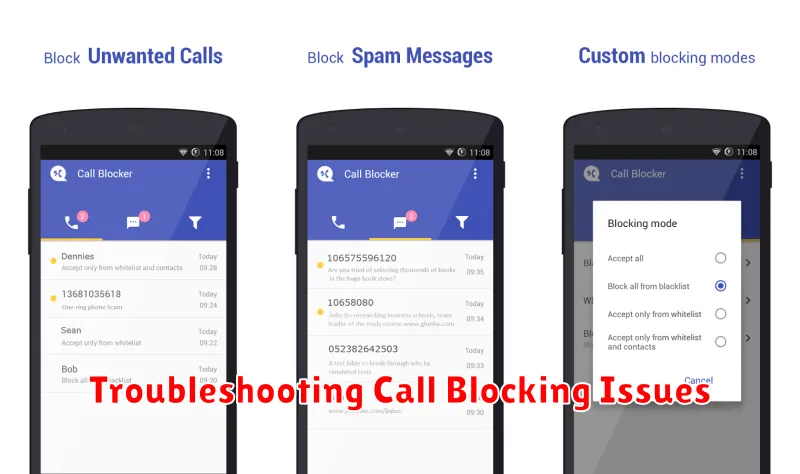
Sometimes, despite correctly configuring call blocking settings, you may still experience unwanted calls. This section provides troubleshooting steps to resolve common call blocking issues.
Call Blocking Not Working
If call blocking isn’t functioning as expected, consider these steps:
- Verify Blocking Settings: Double-check that call blocking is enabled and that the correct numbers or criteria are selected.
- Restart Your Device: A simple restart can often resolve temporary software glitches that may be interfering with call blocking.
- Check for App Conflicts: If you’re using a third-party call blocking app, ensure it’s compatible with your device and not conflicting with built-in features.
Blocked Calls Still Ringing Through
If blocked calls are still ringing, try these solutions:
- Update Your Phone’s Software: Ensure your operating system is up-to-date, as updates often include bug fixes and improvements to call blocking functionality.
- Contact Your Carrier: If the issue persists, your carrier may be able to provide assistance or identify network-related problems.
