
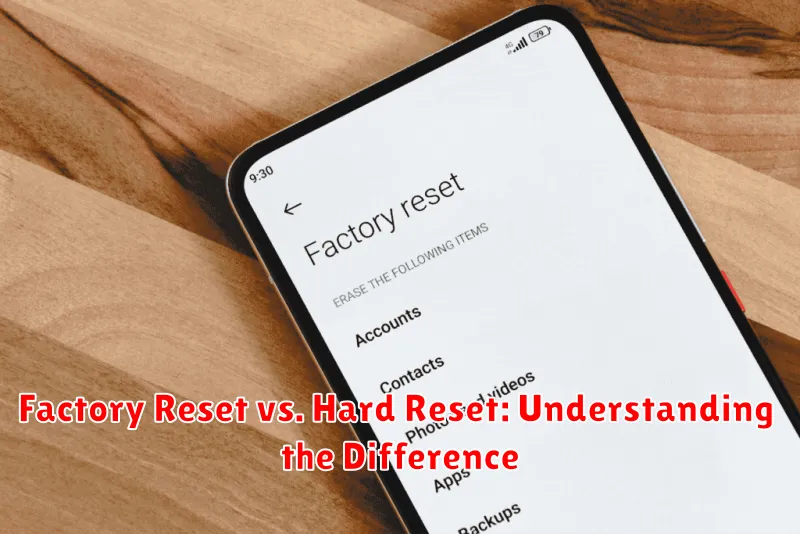
Have you ever encountered issues with your electronic devices where a simple restart just doesn’t cut it? When troubleshooting becomes necessary, you might encounter terms like “factory reset” and “hard reset.” While these terms are often used interchangeably, understanding the subtle yet important differences between a factory reset and a hard reset can save you time and potential data loss. This article will delve into the specifics of each process, clarifying their distinct purposes and helping you choose the right reset method for your particular situation. Knowing the difference between a factory reset and a hard reset is crucial for effective troubleshooting.
Whether you’re dealing with a malfunctioning smartphone, a sluggish tablet, or a problematic computer, knowing when to perform a factory reset versus a hard reset is essential. A factory reset typically returns a device to its original settings, as if it were brand new, often removing all personal data and installed applications. On the other hand, a hard reset, also known as a power reset or force restart, is a more drastic measure, usually reserved for unresponsive devices. This article will explore the nuances of each method, outlining the scenarios where each is appropriate and guiding you through the process of performing a factory reset and a hard reset on various devices.
What is a Factory Reset?
A factory reset, also known as a master reset, is a software-driven process that returns an electronic device, such as a smartphone, tablet, or computer, to its original manufacturer settings. This process erases all user data, including downloaded apps, files, and customized settings, effectively making the device like new from a software perspective.
Important Note: Performing a factory reset is irreversible. Ensure you back up any important data before proceeding.
A factory reset is typically initiated through the device’s settings menu. The specific steps vary depending on the device and operating system, but generally involve navigating to a “Backup and Reset” or similar option.
The primary purpose of a factory reset is to address software-related issues, such as persistent glitches, performance slowdown, or unwanted apps. It can also be useful when preparing to sell or give away a device, ensuring that personal data is completely removed.
What is a Hard Reset?
A hard reset, also known as a force restart or cold boot, is a more abrupt method of restarting a device. It involves cutting off power completely and then restarting it. This is typically accomplished by physically removing the battery or holding down a specific combination of buttons. Unlike a factory reset, a hard reset does not erase any data (except for volatile memory like RAM). Think of it like flipping the power switch on your computer off and then on again.
It interrupts the current power flow and forces the device to reboot from its initial startup state. This can be useful for resolving minor software glitches or when a device becomes unresponsive. Because a hard reset doesn’t alter the underlying software or settings, it’s a quicker and less intrusive troubleshooting step than a factory reset.
Key Differences Between Factory Reset and Hard Reset

While both factory and hard resets restore a device to its original state, they differ in how they achieve this and what they affect. A factory reset is a software-driven process, initiated through the device’s settings menu. It primarily removes user data and customizations, reverting the software back to its factory default settings. The operating system remains installed.
A hard reset, also known as a hardware reset or force reset, is a more drastic measure. It typically involves a combination of button presses, bypassing the software entirely. A hard reset can often resolve deeper software issues that a factory reset cannot. Depending on the device and method used, a hard reset might also reinstall the operating system, though not always. It’s important to note that some devices use the terms “factory reset” and “hard reset” interchangeably.
| Feature | Factory Reset | Hard Reset |
|---|---|---|
| Initiation | Software-initiated (settings menu) | Hardware-initiated (button combination) |
| Operating System | Retained | May be reinstalled (device-dependent) |
| Data Removal | Primarily user data and settings | Potentially more thorough |
| Troubleshooting Scope | Software glitches, user customization issues | More serious software problems, unresponsiveness |
When to Perform a Factory Reset
A factory reset is a useful tool in various situations where you need to restore your device to its original settings. Consider a factory reset when you encounter the following:
Software Glitches
If your device is experiencing persistent software problems, like frequent crashes, freezing, or unresponsiveness, a factory reset can often resolve these issues by eliminating corrupted data or settings.
Selling or Giving Away Your Device
Before selling or giving away your device, a factory reset is crucial for protecting your personal data. It removes all your accounts, files, and settings, ensuring the next user receives a clean slate.
Pre-emptive Maintenance
Occasionally, performing a factory reset can help improve a device’s performance, especially if it has become sluggish over time. This can clear out accumulated temporary files and settings that might be slowing things down.
Persistent Malware
While not always a guaranteed solution, a factory reset can sometimes help remove stubborn malware that other methods haven’t been able to eliminate. It’s important to back up any important data before doing this, as the reset will erase everything.
When to Perform a Hard Reset
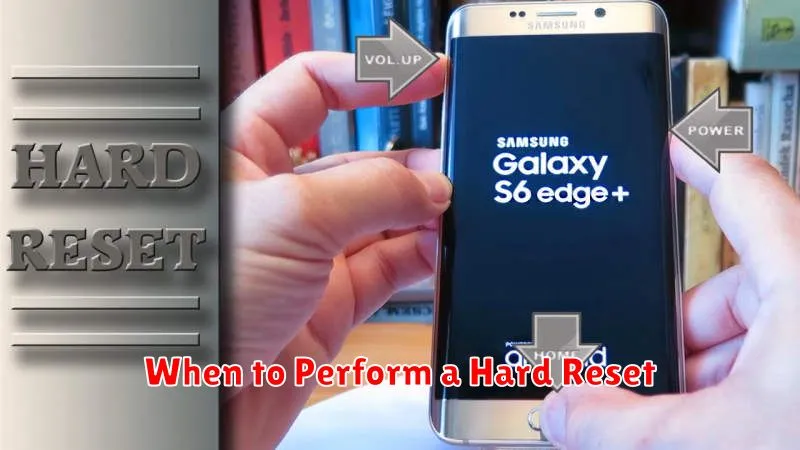
A hard reset is a more drastic measure than a factory reset and should be reserved for specific situations where a factory reset is insufficient. It’s important to understand that a hard reset completely wipes the device, including the operating system, and can potentially resolve issues a factory reset cannot.
Consider a hard reset in the following scenarios:
- Device Unresponsiveness: If your device is completely frozen, unresponsive to any input, and you cannot even access the settings menu to perform a factory reset, a hard reset may be necessary to regain control.
- Severe Software Malfunction: When a serious software glitch or corruption renders the device unusable, even after attempting a factory reset, a hard reset can sometimes resolve the underlying issue by completely reinstalling the operating system.
- Pre-Repair Procedure: Before sending a device in for repair, some manufacturers or repair services may recommend a hard reset to eliminate any potential software conflicts that could be misdiagnosed as hardware problems.
- Preparing for Device Sale or Transfer: While a factory reset is usually sufficient, a hard reset provides an even greater level of data sanitation and ensures no residual data remains on the device.
Caution: Always back up important data before performing a hard reset, as it completely erases all information stored on the device. Refer to your device’s user manual for specific instructions on how to perform a hard reset, as the process varies across different devices and manufacturers.
How to Perform a Factory Reset
A factory reset typically involves using the device’s built-in settings menu. The exact steps may vary slightly depending on the operating system (OS) and device manufacturer. However, the general process is similar across most platforms.
For smartphones and tablets:
- Open the Settings app.
- Look for options like “General Management,” “System,” or “Backup & reset.”
- Select the option related to “Reset” or “Factory data reset.”
- The device will usually display a warning about data loss. Confirm the reset by selecting “Reset,” “Erase everything,” or a similar prompt.
- The device will restart and begin the factory reset process.
For computers (Windows):
- Go to Settings and select “Update & Security.”
- Choose “Recovery” from the left-hand menu.
- Under “Reset this PC,” select “Get started.”
- Choose whether to keep your personal files or remove everything.
- Follow the on-screen prompts to complete the reset.
How to Perform a Hard Reset
A hard reset, also known as a forced restart, is a more abrupt method of restarting a device. It bypasses the operating system and directly cuts off power, then restarts it. This method is typically used when a device is completely unresponsive or frozen.
The exact steps for performing a hard reset vary significantly depending on the device type. Below are some general examples:
Computers
For desktop computers, this usually involves holding down the power button until the machine shuts off. For laptops, a similar method might be used, potentially in conjunction with a dedicated reset button. Check your device’s manual for specific instructions.
Smartphones and Tablets
Mobile devices often use a combination of buttons. A common example is holding down the power button and volume down button simultaneously. Again, consult your device’s documentation for the correct procedure.
Other Electronics
Other electronic devices, such as routers or modems, may have a dedicated reset button, often recessed to prevent accidental presses. A small pin or paperclip is usually needed to activate it.
