
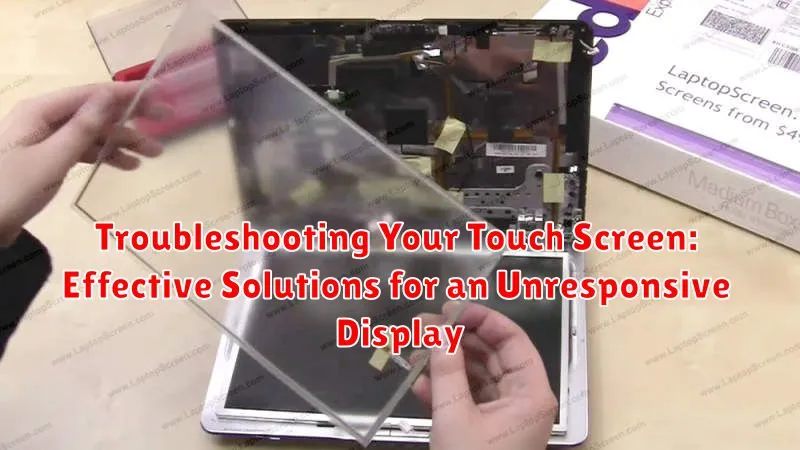
A malfunctioning touch screen can be incredibly frustrating, turning your sleek device into a brick. Whether you’re dealing with an unresponsive touch screen on your smartphone, tablet, or laptop, identifying the root cause is the first step toward finding a solution. This article provides effective troubleshooting steps and solutions to help you fix your unresponsive display and regain control of your touch screen. We’ll cover everything from simple fixes like restarting your device and cleaning your screen, to more advanced techniques for diagnosing hardware issues. If your touch screen is acting up, exhibiting phantom touches, or is entirely unresponsive, you’ve come to the right place.
From accidental spills to software glitches and hardware malfunctions, there are various reasons why your touch screen might become unresponsive. This guide will walk you through a series of diagnostic tests and troubleshooting methods to pinpoint the problem. We’ll help you determine if the issue lies with a simple setting, a problematic app, or a more serious hardware failure requiring professional repair. Learn how to effectively troubleshoot your touch screen and restore its functionality with our comprehensive guide to solutions for an unresponsive display.
Common Causes of Touch Screen Issues
Several factors can contribute to an unresponsive or malfunctioning touch screen. Understanding these common causes can help you pinpoint the source of the problem and determine the appropriate solution.
Software Glitches
Temporary software problems can interfere with the touch screen’s responsiveness. Background processes consuming excessive resources or conflicting applications can disrupt normal touch functionality.
Calibration Issues
Over time, the touch screen’s calibration may drift, leading to inaccurate or unresponsive touch input. This can manifest as the screen registering touches in the wrong location or not registering them at all.
Physical Damage
Scratches, cracks, or other physical damage to the screen surface can obstruct the touch sensor and prevent it from functioning correctly. Internal damage from drops or impacts can also disrupt the touch screen’s connection to the device’s internal circuitry.
Environmental Factors
Extreme temperatures or moisture can negatively impact touch screen performance. Dirt, dust, or other debris on the screen surface can interfere with the sensor’s ability to detect touch input.
Hardware Malfunctions
In some cases, the touch screen controller or other internal hardware components may fail, requiring repair or replacement.
Basic Troubleshooting Steps: Soft Resets and Cache Clearing
Often, minor software glitches can cause touch screen unresponsiveness. A soft reset, or restart, can often resolve these issues. The process for a soft reset varies depending on the device, but typically involves holding down the power button for a specific duration.
Clearing the cache for touch-related apps can also improve performance and resolve unresponsiveness. Locate the app settings on your device, find the affected app, and select the “clear cache” option. Note that this process will not delete app data like saved logins.
For more persistent issues, consider clearing the system cache. This process differs depending on the operating system and may involve entering a specific boot menu. Refer to your device’s documentation for instructions on clearing the system cache.
Checking for Software Updates and Compatibility
Outdated software can sometimes conflict with the touch screen’s operation. Check for operating system updates on your device. Newer versions often contain bug fixes and driver improvements that can resolve touch screen problems.
App compatibility can also be a factor. If your touch screen issues began after installing a specific app, try uninstalling it temporarily to see if that resolves the problem. If the issue is resolved, check for updates to that specific app or consider an alternative app.
Driver updates for your touch screen controller can also enhance performance and fix compatibility issues. Check your device manufacturer’s website for the latest drivers specific to your model.
Testing the Touch Functionality: Using Diagnostics Tools
If basic troubleshooting steps haven’t resolved your touch screen issues, diagnostic tools can help pinpoint the problem’s source. These tools vary depending on your device’s operating system.
For Android devices, built-in diagnostic tests are often accessible through the phone’s dialer. Consult your device’s documentation for the specific code to enter. These tests typically involve touching specific points on the screen to confirm responsiveness.
iOS devices generally don’t have built-in touch screen diagnostic tools accessible to users. If you suspect a hardware issue, contacting Apple Support or visiting an authorized service provider is recommended.
Windows devices offer several diagnostic options. The touch screen calibration tool can be accessed through the Control Panel. This allows you to recalibrate the screen if the touch input is slightly misaligned. Additionally, some manufacturers provide their own diagnostic software pre-installed on the device.
Hardware Solutions: Screen Replacement
If software troubleshooting doesn’t resolve the unresponsiveness of your touch screen, a hardware issue, most likely a damaged digitizer or screen, might be the culprit. A screen replacement is typically the necessary solution in these situations.
Professional Repair: It’s highly recommended to seek professional repair services for screen replacement. This delicate procedure requires specialized tools and expertise to avoid further damage to your device. Authorized repair centers or reputable third-party technicians are the best options.
DIY Repairs (Not Recommended): While DIY screen replacement kits are available, they are generally not recommended unless you have significant experience in electronics repair. Incorrect handling can lead to irreversible damage to the display or other internal components.
Cost Considerations: The cost of screen replacement varies depending on the device model and the chosen repair service. It’s advisable to obtain quotes from multiple sources before proceeding with the repair. Warranty: Check if your device is still under warranty. If so, a screen replacement might be covered depending on the warranty terms.
Preventive Measures to Avoid Future Issues
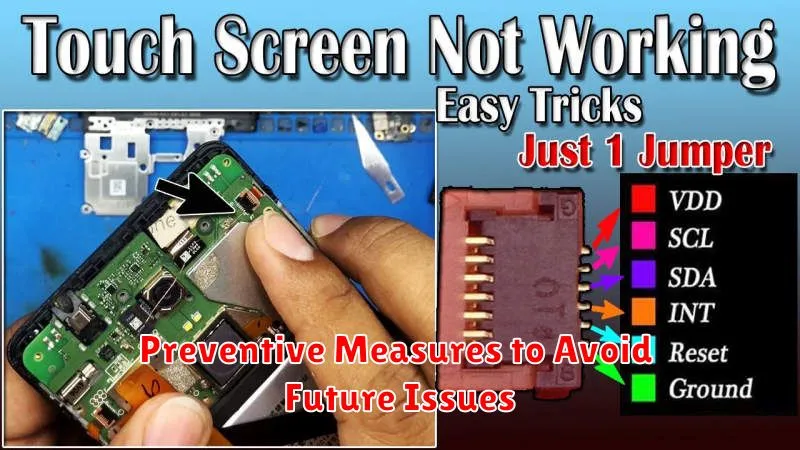
Protecting your touch screen from damage is crucial for maintaining its responsiveness. Regularly cleaning your screen with a soft, lint-free cloth can prevent the buildup of debris that can interfere with touch sensitivity. Use a screen protector specifically designed for your device to safeguard against scratches and impacts. Avoid exposing your device to extreme temperatures, as both heat and cold can negatively impact the touch screen’s functionality.
Proper storage is also essential. When not in use, store your device in a protective case or sleeve to prevent accidental damage. Avoid placing heavy objects on top of the screen or carrying the device in tight pockets or bags where it might be subjected to pressure.
Be mindful of the accessories you use with your touch screen. Using a stylus or other pointing device designed for your specific device can help minimize wear and tear compared to direct finger contact. Furthermore, ensure any charging cables or other peripherals are compatible and do not put undue strain on the connection ports, which could inadvertently affect the screen’s performance.
Seeking Professional Repair Services
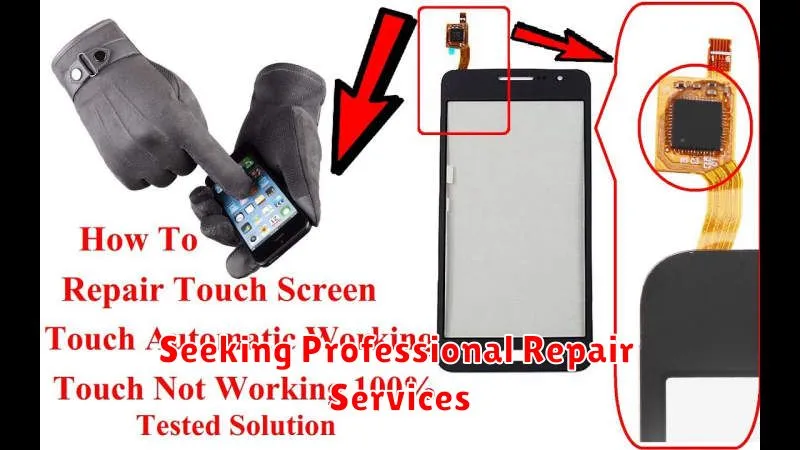
If troubleshooting steps haven’t resolved your touch screen issues, it’s time to consider professional repair services. A qualified technician possesses the expertise and specialized tools to diagnose and fix complex hardware problems.
Choosing a reputable repair service is crucial. Look for authorized service providers for your specific device brand. They often have access to original parts and follow manufacturer-approved repair procedures. Check online reviews and ratings to gauge customer satisfaction and service quality.
Before submitting your device for repair, back up your data to prevent loss during the repair process. Inquire about warranties or guarantees on the repair service to ensure you’re covered if issues reoccur. Ask for a clear explanation of the diagnostic process and estimated repair costs upfront to avoid surprises.
Depending on the severity of the damage, repairs may involve component replacement, such as the digitizer or the entire screen assembly. Be sure to understand the repair timeline provided by the service center.
