
Are you tired of the limitations of your phone’s stock operating system? Do you crave a more personalized and customizable mobile experience? Unlock your phone’s potential by exploring the world of custom ROMs. This comprehensive guide will equip you with the knowledge and tools you need to install a custom ROM, transforming your phone into a truly personalized powerhouse. We’ll delve into the advantages and disadvantages of installing custom ROMs, discuss essential prerequisites, and provide step-by-step instructions to ensure a successful installation process. Whether you’re seeking enhanced performance, increased battery life, or access to the latest Android features, this guide will illuminate the path to unlocking your phone’s true capabilities.
This guide is designed to empower both novice and experienced users with the confidence to navigate the process of installing custom ROMs. We’ll demystify key concepts such as bootloaders, recovery modes, and rooting, laying a solid foundation for a successful installation. From understanding the benefits of custom ROMs, like access to cutting-edge features and a streamlined user interface, to addressing potential risks and challenges, we’ll equip you to make informed decisions. Prepare to embark on a journey of mobile customization and unlock the full potential of your device with our step-by-step instructions, helpful tips, and troubleshooting advice.
Understanding the Benefits and Risks of Custom ROMs
Custom ROMs offer a compelling way to transform your Android experience, but it’s crucial to understand both the advantages and potential drawbacks before proceeding.
Benefits of Custom ROMs
Enhanced Performance and Customization: Custom ROMs often offer improved performance, battery life, and customization options compared to stock Android. They can remove bloatware, provide access to root privileges, and allow for deep system modifications.
Updated Software: If your device manufacturer no longer provides software updates, a custom ROM can breathe new life into it by offering newer Android versions and security patches.
Community Support: A vibrant community often surrounds popular custom ROMs, providing support, troubleshooting assistance, and ongoing development.
Risks of Custom ROMs
Bricking Your Device: Improper installation can potentially “brick” your device, rendering it unusable. Carefully following instructions is paramount.
Voiding Your Warranty: Installing a custom ROM may void your device’s warranty. Be sure to research the specific policy of your manufacturer.
Security Concerns: Some custom ROMs may introduce security vulnerabilities. It’s essential to download ROMs from reputable sources.
Choosing the Right Custom ROM for Your Device
Selecting the right Custom ROM is crucial for a positive experience. Compatibility is the most important factor. Ensure the ROM is specifically designed for your phone’s exact model. Using an incompatible ROM can lead to a bricked device.
Consider your needs and priorities. Do you prioritize stability, performance, battery life, or customization features? Different ROMs excel in different areas.
Research popular ROMs like LineageOS for a stock Android experience, Pixel Experience for Google Pixel features, or Paranoid Android for extensive customization. Read reviews and forum discussions to understand the strengths and weaknesses of each.
Pay attention to the ROM’s development status. A stable build is ideal for daily use, while nightly builds offer the latest features but may contain bugs. Check the last updated date to ensure the ROM is actively maintained.
Backing Up Your Data Before You Begin
Before embarking on the process of installing a custom ROM, creating a comprehensive backup of your existing data is paramount. This precautionary step safeguards you against potential data loss should any complications arise during the installation process.
There are several methods to back up your data:
- Built-in Backup Features: Many phones offer built-in backup solutions. Check your phone’s settings for options to back up to cloud services or to your SD card.
- Manufacturer Software: Some manufacturers provide desktop software for backing up and restoring your device.
- Third-Party Apps: Numerous third-party apps are available on app stores that facilitate comprehensive device backups.
Consider what is most important to back up. Photos, videos, contacts, and app data are commonly prioritized. Ensure your backup is stored securely and is accessible for restoration later.
Unlocking Your Bootloader: A Step-by-Step Guide
Unlocking your bootloader is a critical first step in installing a custom ROM. It allows you to modify the core software of your device. This process varies significantly between manufacturers and even specific phone models, so careful research is essential.
General Steps (Consult your device’s specific instructions):
- Enable Developer Options and USB Debugging: This typically involves tapping the build number in your phone’s settings multiple times.
- Install Necessary Drivers: Your computer needs the correct drivers to interact with your phone in bootloader mode.
- Connect Your Phone to Your Computer: Use a USB cable.
- Boot into Fastboot/Bootloader Mode: This usually involves a specific button combination while powering on the device.
- Unlock the Bootloader via Command Line: This involves using commands specific to your device’s manufacturer. Common commands include
fastboot oem unlockorfastboot flashing unlock.
Caution: Unlocking your bootloader will typically erase all data on your phone. Ensure you have a backup.
Installing a Custom Recovery (TWRP or CWM)
A custom recovery is essential for installing custom ROMs and other modifications. Team Win Recovery Project (TWRP) and ClockworkMod (CWM) are two popular options. This guide will focus on TWRP due to its user-friendly interface.
Downloading TWRP: Visit the official TWRP website and locate your specific device model. Download the appropriate .img file for your phone.
Installation Process: With your bootloader unlocked and USB debugging enabled, connect your phone to your computer. You will need to use platform-specific tools, such as ADB and Fastboot, to flash the TWRP image. The command is generally fastboot flash recovery twrp.img (replace “twrp.img” with your downloaded file name). Always double-check the exact command for your device model on the TWRP website.
Booting into Recovery: Once the flashing process is complete, you can boot into TWRP recovery. This is typically done through a button combination (e.g., Volume Up + Power) while the phone is powered off. Refer to your device’s documentation for the specific key combination.
Flashing the Custom ROM onto Your Device
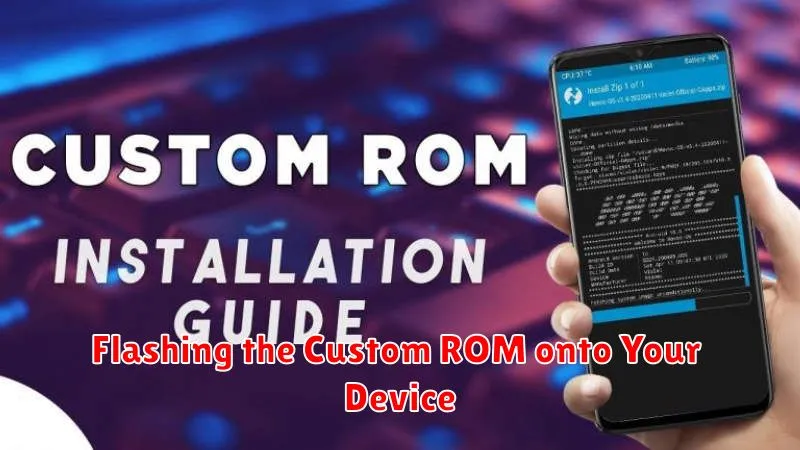
This section details the process of installing the custom ROM. Ensure you’ve followed the preparatory steps, including backing up your data and unlocking your bootloader. The exact steps might vary depending on your device, so always consult your device’s specific instructions on reputable forums like XDA Developers.
Booting into Recovery Mode: This is usually achieved by a specific key combination while powering on the device. Common combinations involve volume and power buttons.
Making a Nandroid Backup (Recommended): Within recovery mode, you should create a backup of your current system. This is a crucial safety net should anything go wrong during the flashing process.
Wiping Data/Factory Reset: This step is crucial, especially when switching between different ROMs. It cleans the system, preventing conflicts and ensuring a clean installation.
Installing the ROM: Locate the downloaded ROM zip file on your device’s storage (often the SD card). Select the “Install” option within the recovery and navigate to the ROM file. Confirm the installation.
Installing GApps (Optional): Google apps are often not included in custom ROMs. If you want Google Play Store and other Google services, you’ll need to flash a separate GApps package compatible with your ROM and Android version.
Rebooting Your Device: After the installation completes, reboot your device. The first boot after installing a custom ROM can take a while, so be patient.
Troubleshooting Common Installation Issues
Encountering problems while installing a custom ROM? Don’t worry, it’s often a simple fix. Here’s a guide to troubleshooting common issues:
Bootloop
If your device is stuck in a bootloop (constantly restarting), try re-flashing the ROM and GApps (Google Apps). Ensure you’ve wiped the cache and dalvik cache partitions. A corrupt download can also cause this, so consider re-downloading the ROM.
Error Messages
Pay close attention to any error messages displayed during installation. Status 7 errors often indicate an incompatibility between the ROM and your device. Refer to the ROM’s official forum or thread for specific solutions related to error codes.
Bricked Device
While rare, a bricked device (completely unresponsive) can occur. If this happens, attempt to enter recovery mode and restore a backup. If unsuccessful, consult your device’s specific unbricking guides online.
Essential Tips for a Smooth Custom ROM Experience
Back up everything. Before flashing a custom ROM, back up your current ROM, apps, and data. This is crucial in case anything goes wrong during the installation or if you decide to revert to your previous setup.
Verify compatibility. Ensure the chosen custom ROM is specifically designed for your phone model. Installing an incompatible ROM can lead to a bricked device.
Charge your battery fully. A full battery is essential for a successful installation. Interruptions due to low battery can cause serious problems.
Follow instructions carefully. Meticulously follow the instructions provided by the ROM developer. Skipping steps or deviating from the guide can lead to errors.
Be patient. The first boot after installing a custom ROM can take longer than usual. Allow ample time for the process to complete.
Exploring the World of Custom ROMs and Their Features
Custom ROMs offer a world of possibilities beyond the limitations of stock Android. They provide enhanced control, customization, and often, improved performance. Choosing the right ROM depends on your priorities and device compatibility.
A key advantage is feature enrichment. Custom ROMs often include features not present in stock versions, like advanced theming engines, built-in call recording, and granular permission controls.
Performance tuning is another significant benefit. ROM developers optimize system resources, resulting in smoother operation and extended battery life. Some ROMs prioritize stability, while others focus on speed.
Security enhancements can also be found in custom ROMs, often through faster updates and security patches, addressing vulnerabilities more quickly than manufacturer-provided software.
