

In today’s fast-paced digital world, staying updated is crucial, and that includes your phone’s operating system. This definitive guide explores the critical question: should you update your phone regularly? We’ll delve into the advantages and disadvantages of phone updates, examining aspects like performance improvements, security enhancements, and potential compatibility issues. Whether you’re using an Android device or an iPhone, understanding the implications of regular updates is essential for maximizing your phone’s potential and safeguarding your digital life.
Many users grapple with the decision to update their phones, often delaying or even ignoring software updates altogether. This guide will address common concerns about updates, offering clear explanations of why they are important. We’ll discuss the benefits of features like bug fixes, new features, and improved battery life that often accompany OS updates. By understanding the value of keeping your phone’s software current, you can make informed decisions about when and how to update, ensuring a seamless and secure mobile experience. This definitive guide on phone updates provides the information you need to stay ahead of the curve.
Understanding the Importance of Regular Phone Updates
Regular phone updates are crucial for maintaining a secure and optimally performing device. They are more than just optional downloads; they are essential for the ongoing health and functionality of your smartphone.
Security is a primary reason to keep your software current. Updates frequently patch newly discovered vulnerabilities that could leave your device susceptible to malware and cyberattacks. These patches safeguard your personal data, preventing unauthorized access and protecting your privacy.
Performance enhancements are another key benefit. Updates often include optimizations that improve processing speed, battery life, and overall system stability. They can also address bugs and glitches that impact the user experience.
Furthermore, updates ensure compatibility with the latest apps and services. As developers release new versions of their software, they often rely on the latest operating system features. Without updating, you may find that certain apps become unusable or perform poorly.
Exploring the Benefits of Updating Your Phone’s Software
Regularly updating your phone’s software offers a multitude of benefits that enhance performance, security, and overall user experience. Updates are crucial for keeping your device running smoothly and safely.
Enhanced Security: Software updates frequently include vital security patches that address known vulnerabilities. These patches protect your device from malware and other security threats, safeguarding your personal data.
Improved Performance: Updates often optimize the operating system, leading to improved speed and responsiveness. This can result in faster app loading times, smoother multitasking, and a more efficient user experience.
New Features: Updates often introduce new features and functionalities to your device. This can include anything from improved camera capabilities to enhanced battery life, enriching your overall phone usage.
Bug Fixes: Updates address bugs and glitches that may be present in previous versions of the software. This helps to stabilize the operating system and ensure a more consistent and reliable performance.
Application Compatibility: Keeping your software up-to-date ensures compatibility with the latest versions of apps. This avoids potential issues with app functionality and performance, allowing you to enjoy the newest features and updates from app developers.
Addressing Common Concerns About Phone Updates
Many users hesitate to update their phones due to common concerns. One frequent worry is that updates will slow down older devices. While this was sometimes true in the past, modern operating systems are often optimized to run efficiently across a range of hardware. Performance improvements are frequently included in updates, sometimes even specifically targeting older models.
Another common concern is data usage during the download process. Updates can consume significant data, particularly major version upgrades. However, most phones allow you to download updates only when connected to Wi-Fi, mitigating this issue.
Some users are apprehensive about bugs introduced by new software. While occasional issues can arise, developers work diligently to identify and fix them quickly. Delaying updates indefinitely can leave your phone vulnerable to security threats which are typically addressed in new releases. Furthermore, waiting too long can eventually make updating more complicated, as older software versions may no longer be supported.
Finally, the fear of losing data during an update is a valid concern. Back up your data regularly before installing any updates, either to the cloud or a computer. This simple precaution will protect your valuable information should any unforeseen issues arise during the update process.
How to Update Your Phone: A Step-by-Step Guide
Keeping your phone’s software current is crucial for optimal performance. This guide provides a general overview; specific steps may vary slightly depending on your phone’s operating system (OS) and manufacturer. Always consult your manufacturer’s support website for device-specific instructions.
For Android Devices:
- Open your phone’s Settings app.
- Scroll down and tap System (or Software Update, depending on your device).
- Tap Check for updates (or a similarly named option).
- If an update is available, tap Download and install.
- Your phone will restart to complete the installation process.
For iOS Devices:
- Connect your device to a reliable Wi-Fi network and plug it into power.
- Open the Settings app.
- Tap General, then tap Software Update.
- If an update is available, tap Download and Install.
- You may be prompted to enter your passcode.
Important Note: Ensure your device has sufficient battery life or is connected to a power source before initiating an update. A stable Wi-Fi connection is also strongly recommended to avoid data charges and ensure a smooth download.
Troubleshooting Update Issues: What to Do When Updates Go Wrong
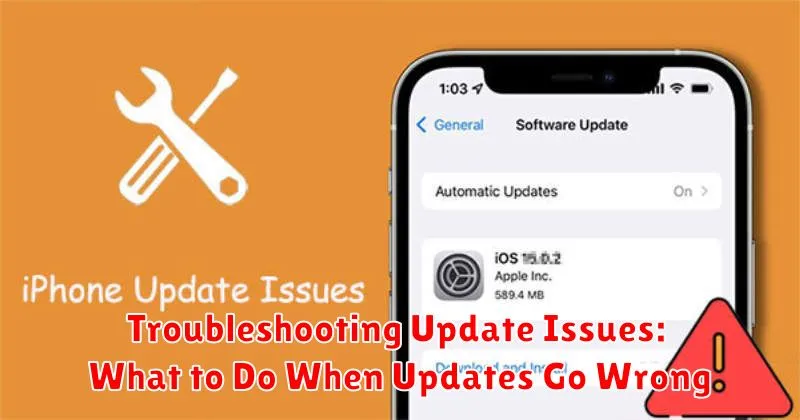
While phone updates are generally smooth, occasionally issues can arise. This section offers troubleshooting tips for common problems.
Insufficient Storage
If you encounter a “not enough storage” error, free up space by deleting unnecessary apps, photos, or videos. Clearing your browser cache can also help.
Update Download Errors
A failed download can often be resolved by checking your internet connection. Ensure you have a stable Wi-Fi or cellular data connection and try again. Restarting your phone can also resolve connectivity glitches.
Phone Freezes During Update
If your phone becomes unresponsive during the update process, don’t panic. First, wait for several minutes. If it remains frozen, try a forced restart. This process varies by phone model but typically involves holding down a combination of buttons.
Post-Update Issues
If you experience problems after an update, such as battery drain or app malfunctions, try clearing the app cache and data for the affected apps. If the problem persists, consider contacting your phone manufacturer’s support for further assistance.
Creating a Backup Before Updating Your Phone
Before embarking on any phone update, creating a backup is crucial. This precautionary step safeguards your data against unforeseen issues that may arise during the update process, such as software glitches or unexpected errors. A backup ensures that your valuable photos, videos, contacts, and other important files are preserved, allowing you to restore them to your device if something goes amiss.
There are several methods to back up your phone’s data. Many modern smartphones offer built-in backup features, often utilizing cloud storage services. These services provide a convenient and automatic way to back up your data wirelessly. Alternatively, you can back up your phone to a computer using the appropriate software provided by your phone’s manufacturer.
The backup process typically involves selecting the types of data you wish to preserve and initiating the backup procedure. Ensure your device is connected to a stable power source and a reliable Wi-Fi network (if using cloud backup) for a seamless backup experience.
Deciding When to Update: Finding the Right Update Schedule for You
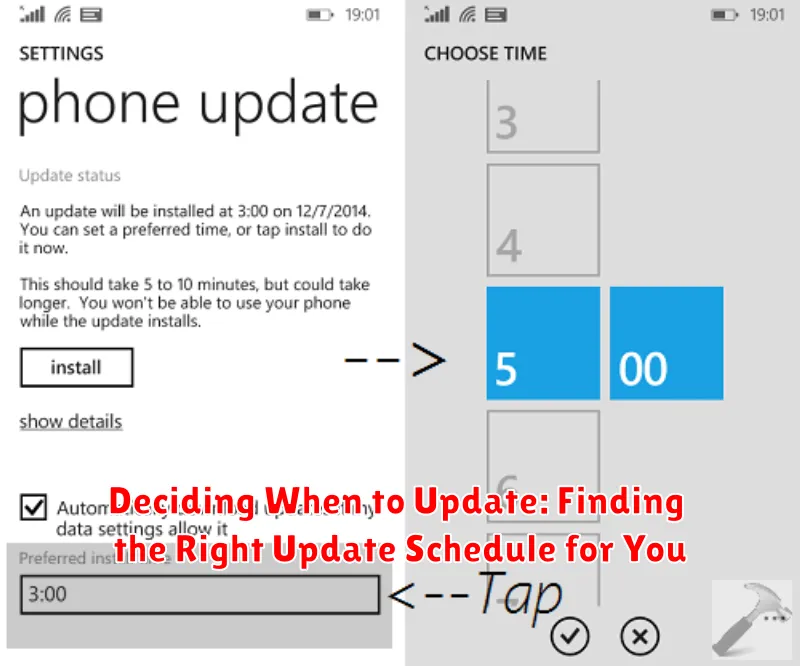
Determining the ideal update frequency depends on several factors and ultimately boils down to personal preference. There’s no single “right” answer, but understanding the implications of different approaches can help you make an informed decision.
Immediate Updates
Choosing to update as soon as releases become available ensures you have the latest features, security patches, and performance improvements. This is generally recommended for users who prioritize security and want to experience new functionalities without delay.
Delayed Updates
Alternatively, delaying updates for a short period (e.g., a week or two) allows time for any initial bugs or unforeseen issues to be reported by other users. This approach can be beneficial for those who prefer a more cautious approach, prioritizing stability over immediacy.
Infrequent Updates
While generally discouraged, some users opt to update infrequently. This strategy can be risky as it leaves your device vulnerable to security threats. If choosing this route, ensure you understand the potential risks and consider updating at least when major security patches are released.
