
Is your iPhone running slower than usual? Are you constantly running out of storage space? One often overlooked solution is to clear app cache. This simple process can free up valuable space on your iPhone and potentially boost its performance. Many apps store temporary files, commonly known as cache, which can accumulate over time and consume significant storage. By clearing this app cache, you can reclaim storage and improve the overall responsiveness of your device. This article will guide you through the steps to effectively clear app cache on your iPhone, explaining the benefits and addressing frequently asked questions.
Learning how to clear cache on iPhone is a crucial skill for maintaining optimal device performance. Clearing app cache can resolve issues such as slow loading times, app crashes, and general sluggishness. While completely uninstalling and reinstalling apps is one method to achieve this, a more convenient approach exists within the settings of most apps. We’ll delve into the specific steps for clearing cache within individual apps, allowing you to free up space and boost performance without losing app data or settings. Learn how to easily clear your iPhone’s app cache and keep your device running smoothly.
What is App Cache and Why Clear It?
App cache refers to the temporary data stored on your iPhone by applications. This data includes files like images, videos, and other elements that apps download to load content faster and enhance your user experience. Think of it as a shortcut for apps to access information quickly.
Over time, this cached data can accumulate and occupy a significant amount of storage space on your device. While cached data is designed to improve performance, excessive buildup can have the opposite effect. Clearing app cache can free up valuable storage space and potentially improve your iPhone’s performance. It can also help resolve issues with apps that are behaving erratically.
Clearing cache is different from deleting an app. Deleting an app removes the entire application and all associated data, including the cache. Clearing cache, on the other hand, simply removes temporary files while preserving the app itself and your user data, such as login details and preferences.
How to Clear App Cache for Specific Apps
Unlike Android, iOS doesn’t offer a system-wide option to clear app cache. Instead, cache clearing is managed within individual apps, if the app developer provides such a feature.
To determine if an app allows cache clearing, open the Settings app. Scroll down and select the specific app you wish to manage. Look within the app’s settings for options labeled “Clear Cache,” “Clear Data,” or similar. Be aware: The wording and availability of this option varies significantly between apps.
If the option is present, tap on it to clear the app’s cached data. This can help free up storage space on your device and potentially resolve some app performance issues.
Important Note: Some apps may not explicitly label cache clearing, instead opting for a general “Reset” or “Clear Data” option. Be cautious when selecting these options as they might delete important app data, including login information, saved progress, and preferences.
Offloading Apps to Free Up Space
Offloading apps is a useful feature that allows you to remove an app’s data while preserving its icon and associated documents and data. This can be a great way to reclaim storage space without completely deleting an app and losing your progress. When you offload an app, the app itself is removed, but your data remains on your device. This allows you to easily reinstall the app later and pick up right where you left off.
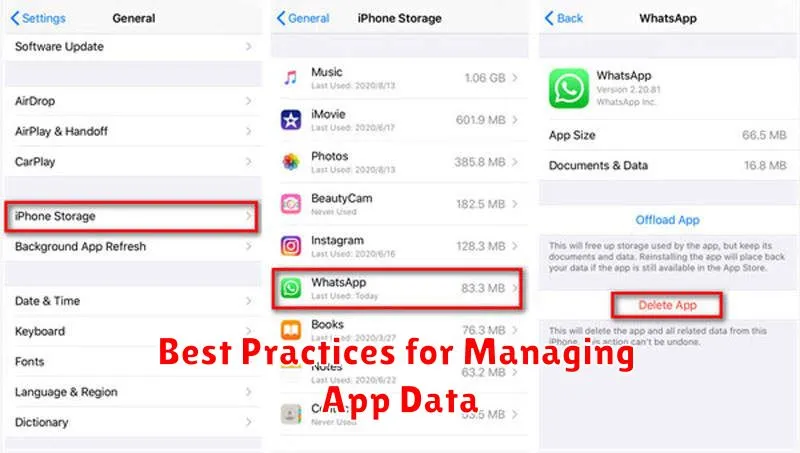
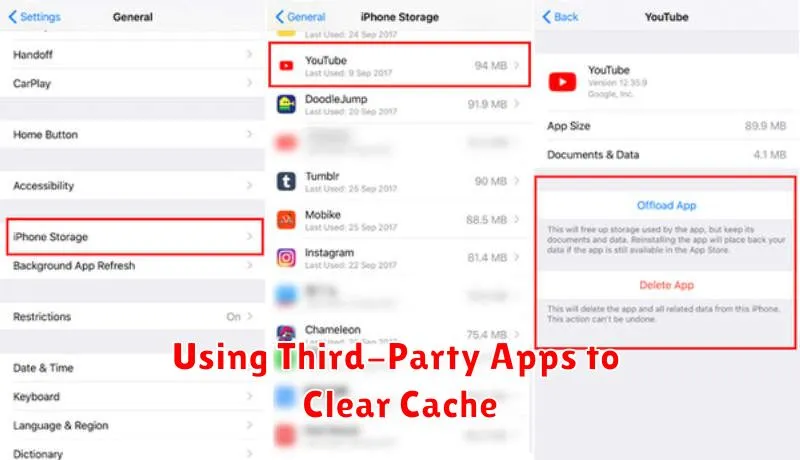
To offload an app, navigate to Settings > General > iPhone Storage. A list of your apps will appear, sorted by the amount of space they consume. Select the app you wish to offload and tap “Offload App“. Confirm your choice, and the app will be removed, freeing up space while keeping your data intact.
When you’re ready to use the offloaded app again, simply tap its icon on your home screen. The app will reinstall, and your data will be restored. This process requires an internet connection to redownload the app itself.
Clearing Safari Cache on Your iPhone
Safari, like other apps, stores data to speed up browsing. This includes cached files, cookies, and website data. Clearing this cache can free up storage space and resolve some browsing issues.
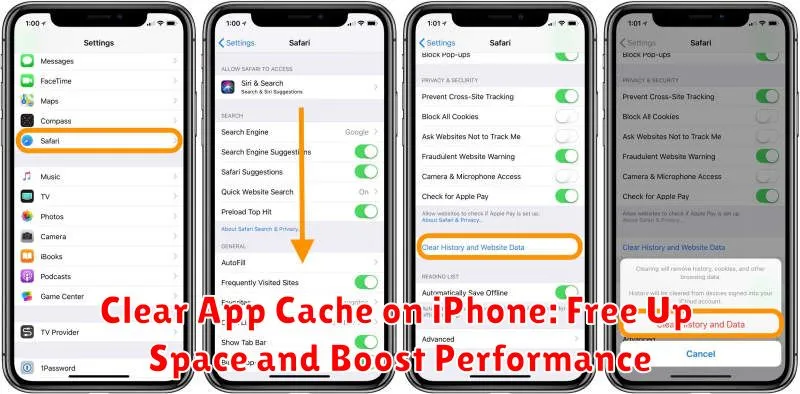
To clear your Safari cache:
- Open the Settings app on your iPhone.
- Scroll down and tap on Safari.
- Scroll down again and tap on Clear History and Website Data.
- Confirm your choice by tapping Clear History and Data in the popup window.
This action will remove your browsing history, cookies, and other website data. It’s important to note that this process affects all devices signed in to your iCloud account if Safari syncing is enabled.
The Impact of Clearing Cache on App Performance
Clearing cached data can have a noticeable impact on your iPhone’s app performance, particularly if apps have accumulated a large amount of cached data over time. Cache buildup can sometimes lead to sluggishness, longer loading times, and even app crashes.
By clearing the cache, you essentially force the app to reload fresh data. This can resolve issues caused by corrupted or outdated cached files. The result is often a snappier and more responsive app experience.
While clearing cache can improve performance, it’s important to note that it also means the app will need to download information again the next time you use it. This can temporarily increase data usage and may make the app’s initial loading time slightly longer.
Therefore, clearing the cache is most beneficial when apps are experiencing performance issues or when you’re trying to reclaim storage space.
Troubleshooting Issues When Clearing Cache
Occasionally, you might encounter issues while attempting to clear app cache. Here are some common problems and solutions:
Cache Won’t Clear
If the cache refuses to clear, try restarting your device. This can often resolve minor software glitches that may be interfering with the process. If the issue persists after restarting, check for iOS updates. Outdated software can sometimes cause unexpected behavior.
App Malfunctions After Clearing Cache
While rare, clearing cache can sometimes lead to app malfunctions. If this happens, try force-quitting the app and restarting it. If the problem continues, reinstalling the app might be necessary. Ensure you have backed up any important data within the app before reinstalling, as this process will delete all local app data.
Insufficient Storage Despite Clearing Cache
If you still have low storage space even after clearing cache, remember that cache is just one component of app data. Large files, such as downloaded videos or photos within apps, also contribute to storage usage. Review the app’s storage breakdown in iPhone Storage settings to identify other large files that can be deleted.
Best Practices for Managing App Data
Managing app data effectively can significantly improve your iPhone’s performance and maintain ample storage space. Regularly reviewing and managing app data is a crucial aspect of device maintenance.
Uninstall Unused Apps: Identify apps you no longer use and uninstall them. This frees up storage space occupied by the app itself and its associated data.
Offload Unused Apps: Consider offloading apps you rarely use. This removes the app but preserves its documents and data. If you reinstall the app later, your data will be restored.
Review App Permissions: Regularly check app permissions to ensure apps only access the data they require. This can limit data accumulation and protect your privacy. Pay particular attention to permissions related to location services and photos.
Using Third-Party Apps to Clear Cache
While iOS doesn’t offer a system-wide solution for clearing all app caches, some third-party apps claim to help manage and remove cached data. Proceed with caution when using these apps. Ensure they are reputable and have positive reviews on the App Store. Misleading apps can sometimes promise features they don’t deliver or even pose security risks.
These apps typically function by identifying and deleting temporary files, browsing history, and other data that apps store locally. However, their effectiveness varies, and they might not be able to access all cached data due to system restrictions.
Before using a third-party app, research it thoroughly. Understand its features, limitations, and user reviews. Be mindful of granting unnecessary permissions, as some apps might request access to sensitive data.
