

Is your phone acting up? Experiencing unresponsive apps, frequent crashes, or unexplained battery drain? Safe mode is a powerful troubleshooting tool that can help you diagnose and fix these common phone issues. By temporarily disabling third-party apps, safe mode isolates problems and pinpoints whether a downloaded app is the culprit or if the issue lies within the phone’s operating system. Learning how to use safe mode is essential for any phone owner seeking to resolve performance problems and restore their device to optimal functionality.
This comprehensive guide will walk you through the process of activating and utilizing safe mode on various phone platforms. We’ll cover how to identify problematic apps, troubleshoot common issues, and provide step-by-step instructions for fixing them. Whether you’re dealing with slow performance, unexpected reboots, or connectivity problems, safe mode can be your first line of defense in diagnosing and resolving these frustrating issues. Mastering this troubleshooting technique can save you valuable time and effort, empowering you to resolve many common phone problems independently.
What is Safe Mode and How Does It Work?
Safe mode is a diagnostic mode on your phone that allows it to boot up with only the essential system software and apps pre-installed by the manufacturer. It temporarily disables any third-party apps you’ve downloaded, providing a clean environment to troubleshoot issues.
By starting your phone in safe mode, you can determine if a downloaded app is causing problems like crashes, battery drain, or performance issues. If your phone operates normally in safe mode, it suggests a third-party app is the likely culprit.
How does it work? When you boot into safe mode, your phone simply doesn’t load any third-party apps. This isolation allows you to test the core functionality of your device without interference. Any customization options or settings associated with third-party apps will also be temporarily disabled.
Steps to Enable Safe Mode on Different Devices
Enabling safe mode varies depending on your phone’s manufacturer and Android version. Here’s a general guide for common methods:
Method 1: Standard Android Devices
Power off your device. Then, press and hold the power button until the manufacturer’s logo appears. Release the power button and immediately press and hold the volume down button. Continue holding it until your device boots up, and you should see “Safe mode” displayed at the bottom of the screen.
Method 2: Devices with Software Navigation Buttons
With the device powered on, press and hold the power button to access the power menu. Touch and hold the “Power off” option. A prompt to reboot into safe mode will appear. Tap “OK.”
Method 3: Samsung Devices (Some Models)
Turn off your phone. Press the power button to turn it on. When the Samsung logo appears, press and hold the volume down button. Keep holding it until the lock screen appears. You should see “Safe mode” at the bottom left.
If these methods don’t work, consult your device’s user manual or manufacturer’s website for specific instructions.
Identifying Problematic Apps in Safe Mode
Once your phone is in safe mode, observe its performance. If the issue you were experiencing is gone, it’s highly likely a third-party app is the culprit. Safe mode disables all downloaded apps, leaving only the pre-installed system apps running. This isolation helps pinpoint the source of the problem.
To identify the problematic app, start by recalling any recently installed apps before the issue began. These are the primary suspects. After exiting safe mode, try uninstalling these apps one by one, restarting your phone after each removal. This methodical approach allows you to isolate the specific app causing the conflict.
If you have numerous apps installed, the process of elimination can be tedious. Consider uninstalling apps in batches or focusing on categories of apps (e.g., games, productivity tools) to narrow down the possibilities more efficiently.
Important: Regularly updating your apps can prevent future conflicts. Keeping your operating system updated is also crucial for overall system stability.
Troubleshooting Common Phone Issues
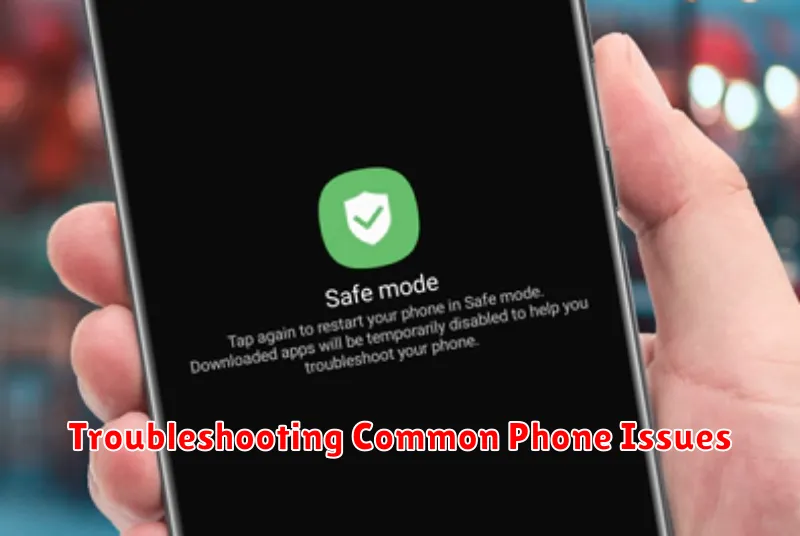
Once in safe mode, you can begin troubleshooting common phone problems. Performance issues, such as slowdowns or frequent crashes, are often caused by third-party apps. If your phone runs smoothly in safe mode, a recently installed app is likely the culprit.
Battery drain problems can also be diagnosed in safe mode. If your battery life significantly improves while in safe mode, a rogue app might be consuming excessive power in normal mode. Observe the battery usage for a period while in safe mode to confirm.
Connectivity problems, like Wi-Fi or Bluetooth issues, can sometimes be linked to problematic apps. Test these connections in safe mode. Improved connectivity suggests a third-party app interference.
Overheating can also be attributed to demanding apps. Monitor your phone’s temperature in safe mode during regular usage. If the phone remains cool, an app is likely causing the overheating issue.
How to Disable Safe Mode
Disabling safe mode typically involves a simple restart of your device. The most common method is to power off your phone completely and then turn it back on normally. This should boot the device into its standard operating mode.
If a simple restart doesn’t work, you may need to try a slightly different approach. Some devices require a modified restart. This often involves holding down the power button and volume down button simultaneously during the startup process. Your phone’s user manual or manufacturer’s website should provide specific instructions for your model if this applies.
In rare cases, persistent safe mode might indicate a hardware issue, such as a stuck button. If you’ve tried the standard methods and are still stuck in safe mode, contacting your device manufacturer or a qualified repair technician is recommended.
Using Safe Mode to Improve Phone Performance
Safe mode is a diagnostic tool that can help pinpoint performance issues caused by third-party apps. By temporarily disabling downloaded applications, safe mode allows you to observe whether your phone’s performance improves. If your phone runs smoother in safe mode, it suggests a downloaded app is likely the culprit behind slowdowns, battery drain, or other performance problems.
Testing in safe mode is a simple process. While the exact steps may vary depending on your phone’s manufacturer, it generally involves holding down the power button, then selecting the “Safe Mode” option from the power menu. Once in safe mode, you’ll notice a “Safe mode” indicator, typically at the bottom of the screen. Use your phone as you normally would for a while to see if the performance issues persist.
If your phone performs better in safe mode, the next step is to identify the problematic app. Start by uninstalling recently downloaded apps one by one, restarting your phone after each removal, and testing its performance. This process of elimination will help you isolate the app causing the issue.
Safe Mode vs. Factory Reset: Understanding the Difference
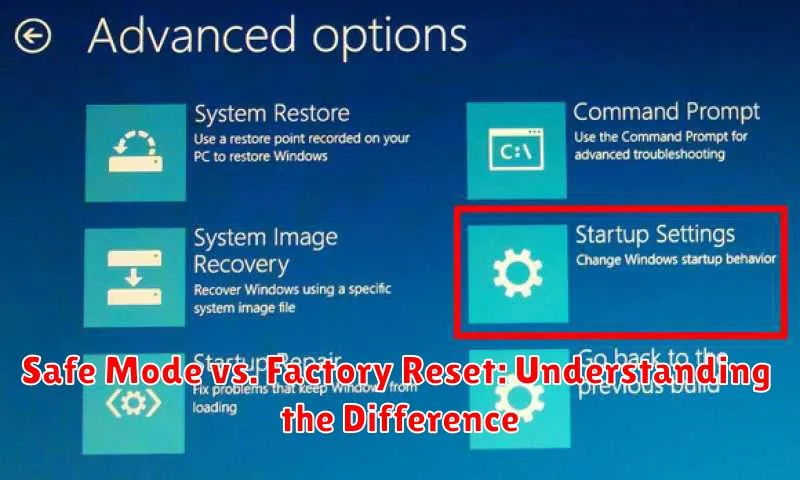
While both safe mode and factory reset can help resolve phone issues, they are distinct processes with different outcomes. Safe mode temporarily disables downloaded apps, allowing you to determine if a third-party app is causing problems. Your data remains intact.
A factory reset, on the other hand, completely erases all data and settings on your phone, returning it to its original factory state. This is a more drastic measure and should be used as a last resort.
| Feature | Safe Mode | Factory Reset |
|---|---|---|
| Data Removal | No | Yes, all data is erased |
| Third-Party Apps | Temporarily disabled | Uninstalled |
| System Settings | Retained | Restored to defaults |
| Reversibility | Easily reversible by restarting | Irreversible |
When to Seek Professional Help
While safe mode can be a valuable tool for troubleshooting, some situations require professional assistance. If you’ve exhausted troubleshooting steps in safe mode and your phone continues to exhibit problems, it’s time to consider contacting a qualified technician.
Physical damage to your phone, such as a cracked screen or water damage, necessitates professional repair. Attempting to fix these issues yourself can worsen the damage.
Complex software issues that persist even after booting into safe mode may indicate a deeper problem with the operating system or other core software components. A professional can diagnose and address these issues effectively.
If you are unsure about any aspect of the troubleshooting process or uncomfortable performing certain steps, seeking professional help is always the best course of action. It’s better to be safe than to risk further damage to your device.
