

Do you want to transform your Android device from a simple smartphone into a powerhouse of productivity and customization? Are you ready to move beyond the basic functions and delve into the world of hidden potential that lies within your Android operating system? This article, “Unlocking Hidden Potential: Uncovering Secret Android Tricks and Tips for Power Users,” will serve as your guide to mastering the art of Android. We will explore a collection of secret Android tricks and advanced tips designed to empower you with complete control over your device.
From maximizing battery life and enhancing performance to customizing the user interface and unlocking hidden features, we will unlock the secrets that can transform your Android experience. Whether you are a seasoned tech enthusiast or a curious user looking to elevate your Android skills, this comprehensive guide will equip you with the knowledge and tricks necessary to become a true Android power user. Prepare to unlock the hidden potential of your Android device and discover a world of possibilities you never knew existed.
Accessing Developer Options and Its Hidden Gems
Android’s Developer Options menu holds a treasure trove of advanced settings, hidden from casual users. Unlocking this menu grants access to powerful tools for customization and performance tweaks. To access Developer Options, navigate to Settings > About Phone > Software Information. Then, tap the Build Number repeatedly until a message confirms you are now a developer.
Once unlocked, Developer Options becomes accessible within the main Settings menu. Inside, you can find a variety of options to tailor your Android experience. For instance, USB Debugging is crucial for connecting your device to a computer for development purposes.
Advanced Settings offer control over animations. Adjusting the Window animation scale, Transition animation scale, and Animator duration scale can significantly speed up the perceived performance of your device.
Furthermore, you can limit background processes, which can improve battery life and prevent apps from consuming excessive resources. Exercise caution when modifying these settings, as improper configuration can lead to instability.
Customizing Quick Settings for Faster Access
The Quick Settings panel is your gateway to frequently used settings. Android allows extensive customization of this panel, allowing you to tailor it to your exact needs. Access the customization options by fully expanding the Quick Settings panel and tapping the pencil or edit icon.
From there, you can add, remove, and rearrange tiles. Prioritize the settings you use most often, like Wi-Fi, Bluetooth, or Airplane mode, by placing them at the top. You can also add tiles for less common but still important functions such as Hotspot, Data Saver, or Screen Recorder.
Some Android versions and manufacturers offer even more advanced customization. This may include changing the tile layout, adding custom tiles for specific apps, or even altering the panel’s color scheme. Explore these options to truly optimize your Quick Settings experience.
Using Gestures and Shortcuts for Efficient Navigation
Gestures and shortcuts can significantly enhance your Android navigation experience. Mastering these features allows for quicker access to apps and functions, streamlining your daily interactions.
Many Android devices support various gestures, such as swiping up from the bottom to go home, swiping up and holding to view recent apps, and swiping from either side edge to go back. Familiarize yourself with your device’s specific gesture options by exploring the Gestures settings.
Beyond system-level gestures, consider using app-specific shortcuts. Long-pressing app icons often reveals quick actions relevant to that app. For example, you might long-press the camera app to directly access selfie mode. This eliminates the need to open the app and navigate to the desired function manually.
Explore the Accessibility settings for additional navigation options. Features like one-handed mode and voice access can further personalize and streamline your interaction with your device.
Improving Battery Life with Hidden Power-Saving Features
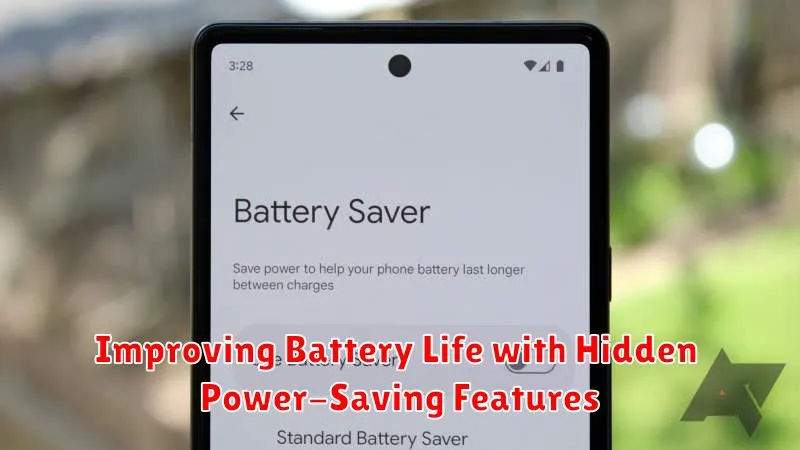
Extend your Android device’s battery life by delving into its power-saving settings. While Battery Saver mode is readily accessible, exploring further reveals hidden gems for maximizing power efficiency.
Adaptive Battery is a key feature that learns your usage patterns and prioritizes battery allocation to frequently used apps. Enabling this can significantly reduce power consumption in the background.
Fine-tune battery usage further by examining Background Restrictions. Identify apps consuming excessive power while inactive and restrict their background activity. This prevents unnecessary drain from apps you rarely use.
Additionally, consider managing Location Services. High-accuracy location consumes considerable power. Opt for “Battery Saving” location mode, utilizing Wi-Fi and mobile networks instead of GPS, for a less power-intensive approach.
Enhancing Security and Privacy with Advanced Settings
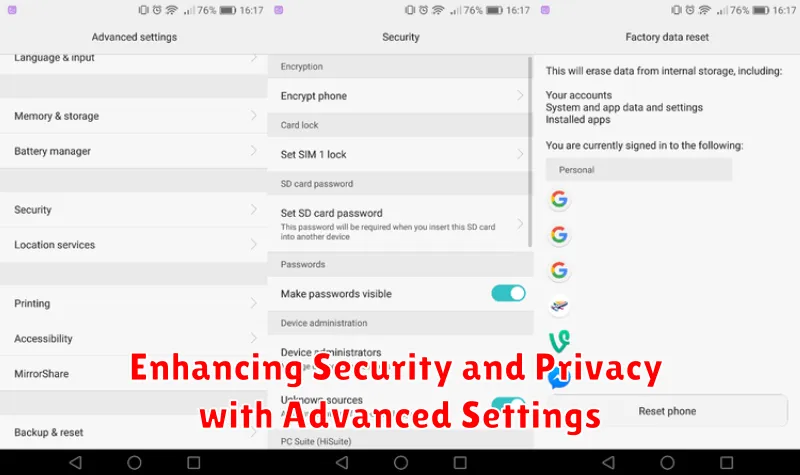
Android offers a wealth of security and privacy features often tucked away in advanced settings. Taking advantage of these options can significantly strengthen your device’s protection and safeguard your personal information.
Within the Security section of your settings, explore features like Smart Lock. This allows you to bypass your lock screen in trusted situations, such as when connected to specific Bluetooth devices or in designated safe locations. Exercise caution when configuring Smart Lock, as it can potentially reduce security if not used thoughtfully.
App permissions are crucial. Review which apps have access to your location, camera, microphone, and contacts. Revoke permissions for apps that don’t require them. This granular control can significantly enhance your privacy.
Explore the Privacy settings for options like Google Location History and Activity Controls. These settings provide insights into the data Google collects and offer ways to manage and limit data collection.
Consider enabling Find My Device. This feature can help locate your phone if it’s lost or stolen, and allows you to remotely lock or erase its contents.
Screen Recording and Screenshot Mastery
Mastering screen recording and screenshots on your Android device can significantly enhance your productivity and communication. Screen recording allows you to capture dynamic content, tutorials, or gameplay, while screenshots perfectly preserve static information.
Most Android devices offer built-in screen recording functionality. Typically, you can access this feature through the quick settings panel by swiping down from the top of the screen. Look for a “Screen recorder” or similar icon. If it’s not readily visible, you may need to customize your quick settings to add it.
Taking screenshots is equally straightforward. The most common method involves simultaneously pressing the power button and the volume down button. Some devices also offer alternative methods, such as using gestures or the quick settings panel.
Once you’ve captured a screen recording or screenshot, it’s automatically saved to your device’s gallery or photos app, ready for sharing or editing.
Split-Screen Multitasking Like a Pro
Boost your productivity by harnessing Android’s split-screen functionality. This powerful feature allows you to run two apps simultaneously, side-by-side. To activate split-screen, open your first app. Then, access the Recent Apps overview (the square or three-line icon, depending on your Android version). Tap and hold the icon of the app you want to use in split-screen. Select “Split screen” or “Open in split screen view“.
Once activated, you can resize the apps by dragging the dividing line. To exit split-screen, simply drag the dividing line all the way up or down to close one of the apps. The precise steps may vary slightly depending on your device’s manufacturer and Android version.
Explore different app combinations to discover new workflows. For example, view a webpage while taking notes, or compare products while shopping online. With practice, split-screen multitasking becomes second nature, unlocking a new level of efficiency on your Android device.
Unlocking Hidden Accessibility Features
Android offers a wealth of accessibility features designed to make the device easier to use for individuals with various needs. Many of these features are beneficial even for power users seeking enhanced control and efficiency.
Live Caption automatically generates captions for any media playing audio, useful for quiet environments or for understanding accented speech.
Magnification gestures allow you to quickly zoom in on any part of the screen. A triple tap zooms in, and a drag with two fingers pans around the magnified area.
Explore the Interaction Controls settings to manage how your device responds to touches. You can set time delays for touches and even disable specific areas of the screen to prevent accidental inputs.
The Switch Access functionality empowers users to interact with their device using switches or other external devices, providing alternative navigation options.
Exploring Google Assistant’s Advanced Capabilities
Google Assistant is more than just a voice-activated search engine. It’s a powerful tool with advanced capabilities that can significantly enhance your Android experience. Custom routines automate tasks based on triggers like time or location. Imagine having your phone automatically silence itself upon entering a meeting room, or starting your favorite playlist on your commute home. These are just a few examples of what’s possible.
Voice commands extend beyond simple searches. Control smart home devices, send messages, make calls, set reminders, and even control your phone’s settings hands-free. Experiment with complex commands to discover the full potential of Google Assistant. For example, try “Remind me to pick up groceries when I leave work” or “Turn off the living room lights.”
Pro Tip: Explore the “Explore” tab within the Google Assistant interface to discover new features, compatible apps, and helpful services. This is the central hub for unlocking hidden potential and tailoring the Assistant to your specific needs.
