

Is your phone lagging, apps crashing, or multitasking a struggle? These are common signs of low RAM (Random Access Memory). RAM is your phone’s short-term memory, essential for running apps and processes smoothly. When your RAM is full, your phone’s performance suffers. Reclaiming your phone’s RAM can significantly boost its speed and responsiveness, making for a more enjoyable user experience. This article will explore effective ways to free up memory and revitalize your device’s performance.
Learn practical strategies to manage and optimize your RAM usage, from closing unnecessary background apps to clearing cached data. Discover how to identify memory-intensive apps and effectively control them. We’ll provide you with actionable steps to free up valuable memory, leading to a noticeable boost in your phone’s performance. Whether you’re an Android user or an iPhone owner, these techniques will help you reclaim control and enjoy a faster, more responsive mobile experience.
Understanding RAM and Its Importance on Your Phone
Random Access Memory (RAM) is your phone’s short-term memory. It’s where the device stores data that actively running apps and processes need to function quickly. Think of it as your phone’s workspace; the larger the workspace, the more tasks it can handle efficiently at the same time.
Unlike storage (like your hard drive), RAM is volatile memory. This means it loses its stored data when your phone is powered off. When you turn your phone on, the operating system and necessary software load into RAM, ready for use.
Sufficient RAM is crucial for a smooth user experience. It allows you to switch between apps seamlessly, play demanding games, and perform multiple tasks without experiencing lag or slowdowns. If your phone has insufficient RAM, it can lead to frustrating performance issues, such as apps taking longer to load or even crashing.
Identifying RAM-Hogging Apps and Processes
Pinpointing which apps and processes consume the most RAM is crucial for optimizing your phone’s performance. Your phone’s operating system often provides tools to help with this.
Built-in system tools are usually the easiest way to identify resource-intensive apps. Look for options like “Running Services,” “App Usage,” or “Memory Usage” within your phone’s settings. These features often list active apps and their RAM consumption, allowing you to quickly identify the top RAM consumers.
Third-party apps designed for system monitoring can offer more detailed insights into RAM usage. These apps can often break down RAM consumption by process, showing not only which apps but also which specific tasks within those apps are using the most memory. This level of detail can be especially helpful for identifying unexpected resource hogs.
Pay attention to apps that consistently appear at the top of RAM usage lists. Social media apps, games, and streaming services are common culprits. Also, be aware of background processes that might be silently consuming substantial RAM, such as cloud synchronization services or location tracking.
Closing Unused Apps and Background Processes to free up RAM
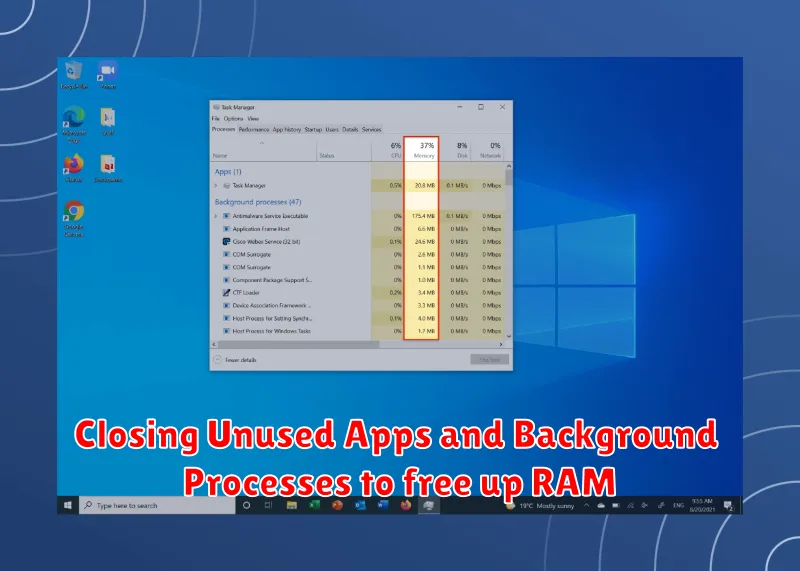
One of the most direct methods for freeing up RAM is to actively close unused applications. Many apps continue to run in the background even after you’ve switched away from them, consuming valuable memory. Regularly closing these apps can significantly improve your phone’s performance, especially if you tend to multitask and have numerous apps open simultaneously.
Most smartphones offer a way to view currently running apps, often through a dedicated button or gesture. From this view, you can force-close unnecessary apps. This action immediately terminates the app and releases the RAM it was using.
In addition to apps, background processes also consume RAM. These processes might include system services, updates, or tasks initiated by apps. While some background processes are essential, others can be managed. Check your phone’s settings for options related to background process limits or battery optimization, which can often help control how many processes are running and consuming your RAM.
Clearing App Cache and Data for optimal RAM usage
Cached data and temporary files accumulate over time, consuming valuable RAM and storage space. Clearing these can significantly improve your phone’s performance. While cache helps apps load faster, excessive cache can have the opposite effect.
Clearing the cache removes temporary files, while clearing data removes all app settings and data, essentially resetting the app to its initial state. Be mindful that clearing data will log you out of apps and require you to re-configure preferences.
Most Android phones offer a way to clear cache and data for individual apps or all apps at once. Typically, you can find these options within the Settings app, under Apps or Application Manager. Selecting an app will present options for clearing cache and data.
Using Lite Versions of Apps
Many popular apps offer “lite” versions designed specifically for devices with limited resources, including RAM. These lite apps typically have smaller installation sizes, consume less memory, and require less processing power compared to their full-featured counterparts. While some features might be omitted in lite versions, they often retain core functionalities, making them a viable option for reclaiming RAM and improving overall performance.
Switching to lite versions can be particularly beneficial for older devices or budget phones with less RAM. By reducing the memory footprint of frequently used apps, you can free up valuable RAM for other tasks and experience a smoother, more responsive device.
When considering lite apps, assess your individual needs. If the lite version offers the features you primarily use and contributes to a noticeable performance boost, it’s a worthwhile trade-off. However, if you heavily rely on the omitted features of the full version, the lite app may not be a suitable replacement.
Disabling Animations and Visual Effects
Animations and visual effects, while aesthetically pleasing, consume RAM and processing power. Disabling or reducing these effects can free up valuable memory resources and improve your phone’s overall performance. This is a relatively simple process that can make a noticeable difference, especially on devices with limited RAM.
Typically, you can find these settings within the “Developer options” or “Accessibility” menu in your phone’s settings. The exact location and names of these options might vary slightly depending on your phone’s manufacturer and Android version.
Within these menus, look for options related to “Window animation scale,” “Transition animation scale,” and “Animator duration scale.” Reducing these scales, or disabling them altogether, can significantly lessen the burden on your phone’s RAM.
By minimizing visual effects, you redirect resources towards essential tasks, resulting in a smoother and more responsive user experience. This can be particularly beneficial when running demanding applications or multitasking.
Restarting Your Phone to refresh RAM
Restarting your phone is a simple yet effective method to clear its RAM and improve performance. Over time, apps and processes can accumulate in the background, consuming valuable memory resources. A restart effectively closes all running applications and processes, giving your phone a fresh start.
This action clears the RAM, allowing the system to allocate memory more efficiently when you start using your phone again. Think of it as refreshing your computer – a quick restart often resolves minor performance hiccups.
The frequency with which you need to restart depends on your phone usage. If you notice your phone slowing down or becoming unresponsive, a restart is a good first step in troubleshooting. For many, a weekly restart is sufficient to maintain optimal performance.
How to restart: Typically, you can restart your phone by holding down the power button until a menu appears with a restart option. Select the restart option, and your phone will power off and back on automatically.
Utilizing Third-Party RAM Management Apps
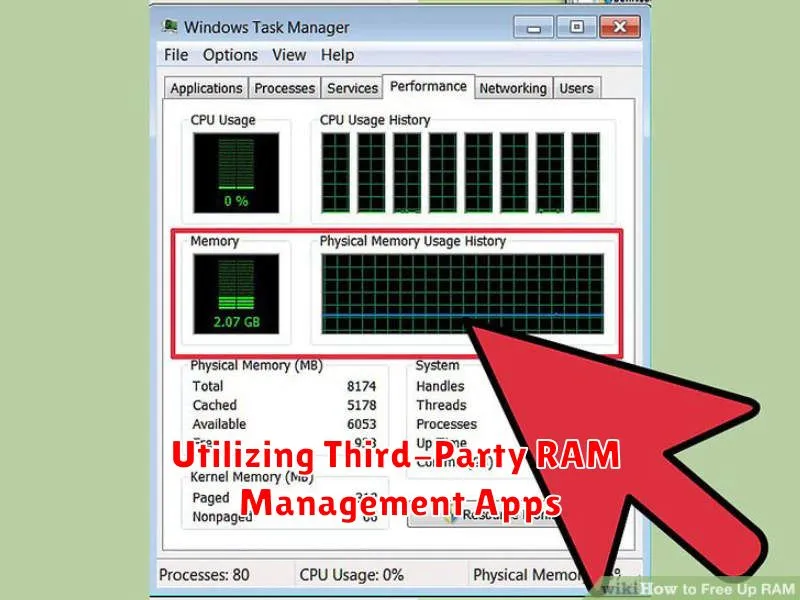
While Android and iOS have built-in memory management systems, some users opt for third-party RAM management apps to provide additional control. These apps offer various features designed to optimize RAM usage.
Key features of these apps often include the ability to identify and close memory-intensive applications. Some also offer “boost” or “clean” functionalities that terminate background processes to free up RAM. Additionally, they may provide memory usage analysis, allowing users to monitor which apps consume the most resources.
However, it’s important to exercise caution when using third-party RAM management apps. Overly aggressive optimization can hinder system performance by closing essential background processes. Furthermore, some apps may make exaggerated claims about their capabilities. It’s advisable to research and choose reputable apps from trusted sources.
Checking for and Removing Malware
Malware can significantly impact your phone’s performance, including RAM usage. Malicious apps often run in the background, consuming valuable memory and slowing down your device. Regularly scanning for and removing malware is crucial for maintaining optimal RAM levels.
Utilize a reputable anti-malware app from a trusted source. Many effective options are available on app stores. Install and run a full system scan periodically. These apps are designed to detect and eliminate various types of malware, freeing up RAM and improving overall system performance.
Exercise caution when downloading apps, especially from untrusted sources. Stick to official app stores whenever possible. Review app permissions carefully before installation to ensure they are not excessive or suspicious. Be wary of apps requesting unnecessary access to system resources or personal data.
