
Concerned about fake apps infiltrating your Android device? The Google Play Store, while generally safe, isn’t immune to malicious actors attempting to trick users with counterfeit applications. These fake apps can range from annoying adware to dangerous malware that can compromise your device security and steal sensitive data. Learning how to spot fake apps is crucial for maintaining the security of your device and protecting your personal information. This guide provides essential strategies for identifying and avoiding fake apps on the Google Play Store, empowering you to make informed decisions about the apps you download.
Protecting your device and data starts with understanding the tactics employed by creators of fake apps. They often mimic popular apps, using similar names, icons, and descriptions to deceive unsuspecting users. By carefully examining app details, scrutinizing developer information, and paying attention to user reviews, you can significantly reduce your risk of falling victim to these deceptive practices. This comprehensive guide will equip you with the knowledge and tools necessary to navigate the Google Play Store safely and confidently, ensuring a secure mobile experience.
Understanding the Risks of Fake Apps
Fake apps pose a significant threat to your device and personal data. Downloading a counterfeit app can lead to a variety of negative consequences, ranging from minor annoyances to severe security breaches. Understanding these risks is crucial for protecting yourself in the digital landscape.
Data theft is a primary concern. Fake apps often request unnecessary permissions, granting them access to sensitive information such as contacts, location, and even financial data. This information can be exploited for identity theft, financial fraud, or other malicious purposes.
Malware infections are another significant risk. Many fake apps contain hidden malware that can compromise your device’s security. This can include spyware, ransomware, and adware, leading to performance issues, data breaches, and financial losses.
Financial exploitation can occur through deceptive in-app purchases or hidden subscription fees. Fake apps may disguise themselves as legitimate services, tricking users into paying for non-existent features or subscriptions.
Common Signs of a Counterfeit App
Counterfeit apps often have telltale signs that can help you identify them. Low-quality graphics are a common indicator. Look for blurry icons, pixelated images, or an overall unprofessional design compared to the legitimate app.
Typos and grammatical errors in the app description or within the app itself are another red flag. Legitimate developers typically invest in proper editing and localization.
Pay attention to the app name. Fake apps sometimes use slightly altered names or add keywords to trick users. Carefully compare the app’s name to the official name of the app you’re looking for.
A low number of downloads or a lack of reviews, especially for a popular app, can be suspicious. While new legitimate apps may have few initial reviews, established apps should have a substantial user base and feedback history.
Checking App Permissions and Reviews
App permissions define what resources on your device an app can access. Fake apps often request excessive permissions, far beyond what their stated functionality requires. For example, a simple flashlight app shouldn’t need access to your contacts or location. Carefully review the permissions requested by an app before installation. If anything seems out of place or excessive, it’s a significant red flag.
User reviews can offer valuable insights into an app’s legitimacy. Check for patterns in negative reviews. Multiple users reporting similar issues like crashes, unusual behavior, or intrusive ads can indicate a problematic app. Pay close attention to the wording of reviews; fake reviews often sound generic or overly enthusiastic and lack specific details. While not foolproof, examining the reviews can help you identify potential fakes.
Verifying Developer Information
Scrutinizing developer information is another crucial step in identifying potentially fake apps. A legitimate developer will typically have a web presence you can verify. Look for a developer website link on the app’s Play Store page. Check if the website is professional, functional, and provides contact information.
Examine the developer’s name. Does it seem unusual or generic? A fake developer might use a name that closely resembles a known company or individual. Compare the developer name on the Play Store with the name presented on their official website, if available. Any discrepancies should raise red flags.
Pay attention to the developer’s email address. A generic, free email service (e.g., @gmail.com) might be used by smaller developers, but larger, established companies typically use their own domain for email. While not a definitive indicator, a generic email address coupled with other suspicious signs warrants further investigation.
If you’re uncertain, search online for the developer’s name or company. Legitimate developers often have an online presence beyond the app store. Look for news articles, social media accounts, or other information that confirms their legitimacy.
Using Virus Scanners and Play Protect
While the Google Play Store has built-in security measures, adding extra layers of protection is always a good idea. Virus scanners for Android devices can offer real-time protection and scan for malicious software that might slip through the cracks. Regularly scanning your device with a reputable virus scanner can help identify and remove threats before they cause harm.
Google Play Protect is a built-in security feature on Android devices that works behind the scenes to scan apps for potentially harmful behavior. It automatically scans apps installed on your device and alerts you to any suspicious activity. Ensure that Play Protect is enabled in your device’s settings. Regularly reviewing the Play Protect security reports can provide insights into potential threats and keep your device safe.
Reporting Suspicious Apps
If you encounter an app you believe is fake, malicious, or violates Google Play Store policies, reporting it helps protect other users. Reporting a suspicious app is straightforward and contributes to a safer app ecosystem.
To report an app directly through the Google Play Store, navigate to the app’s page. Look for the three vertical dots (usually in the top right corner) to access the menu. Select “Flag as inappropriate” and choose the reason that best describes your concern (e.g., “Harmful to device or data,” “Misleading description,” “Impersonation”). Provide additional details as needed and submit your report.
You can also report suspicious apps via a web browser. Visit the Google Play Help Center and follow the instructions provided for reporting inappropriate apps. This method is useful if you’ve uninstalled the app but still wish to report it.
Remember, providing specific details about the app’s behavior or your concerns strengthens your report. Examples include misleading descriptions, unexpected functionalities, requests for excessive permissions, or suspicious in-app purchases.
Best Practices for Safe App Downloads
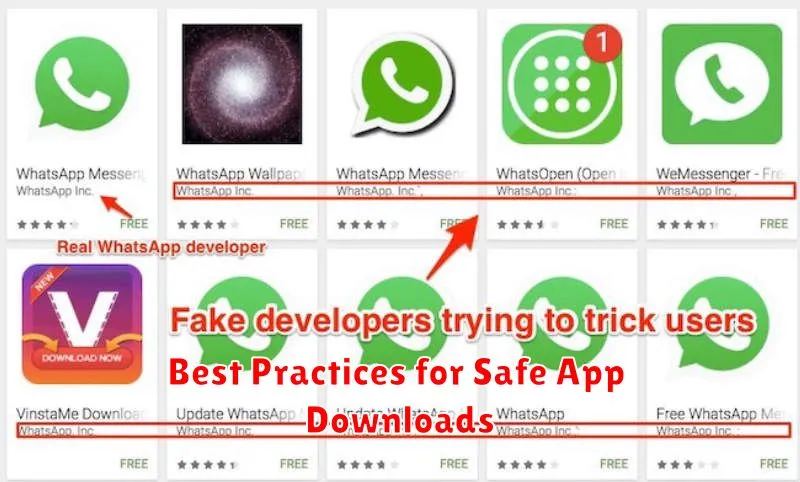
Downloading apps safely requires a proactive approach. Always scrutinize app details before hitting the install button. Pay close attention to the developer’s name and check if it aligns with the app’s official source.
Read user reviews carefully. While not foolproof, genuine user feedback can offer valuable insights into an app’s legitimacy and performance. Look for consistent themes and be wary of overly positive reviews that sound artificial.
Check app permissions. Granting unnecessary permissions can expose your data to risks. Question why a simple flashlight app needs access to your contacts or location. Be mindful of the permissions you grant.
Keep your device’s operating system updated. Regular OS updates often include security patches that address vulnerabilities exploited by malicious apps. Staying updated provides an extra layer of protection.
Additional Tips for Enhanced Security
While the Google Play Store employs security measures, adopting proactive habits further strengthens your device’s defenses. Regularly update your device’s operating system and security patches. These updates often include vital fixes against known vulnerabilities that malicious apps could exploit.
Review app permissions carefully. Be cautious of apps requesting excessive permissions not relevant to their functionality. If a simple flashlight app requests access to your contacts or location, it’s a red flag.
Consider using a reputable mobile security app. These apps can offer real-time protection against malware, phishing attempts, and other threats. They can also scan your device for potentially harmful apps, even those downloaded from the Play Store.
Back up your data regularly. In the event of a malware infection, having a backup ensures you can restore your device to a clean state without losing important information.
