
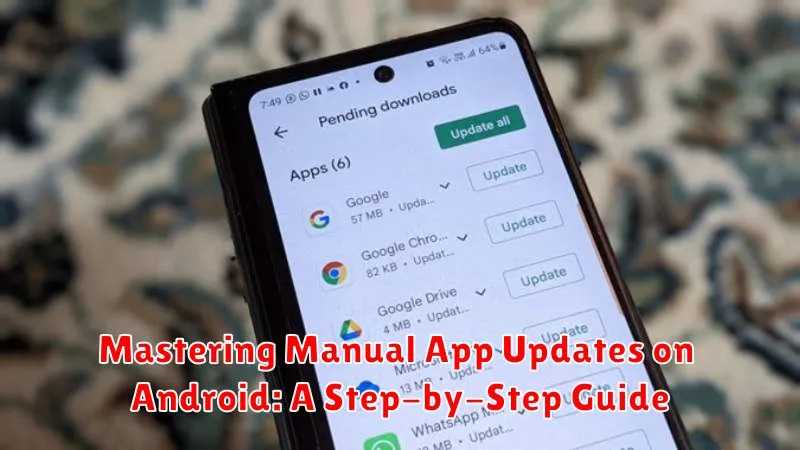
In today’s rapidly evolving digital landscape, staying up-to-date with the latest app versions is crucial for optimal performance, security, and access to new features. While automatic updates are convenient, mastering manual app updates on your Android device empowers you with greater control over when and how your apps are updated. This comprehensive guide provides a clear, step-by-step approach to manually updating Android apps, ensuring you’re always equipped with the latest versions.
Whether you’re experiencing issues with automatic updates, have limited data, or simply prefer a hands-on approach, this tutorial will equip you with the knowledge necessary to update apps manually. Learn how to navigate the Google Play Store, identify available updates, and manage your app updates efficiently. By the end of this guide, you’ll be proficient in manual Android app updates, allowing you to maintain peak device performance and security while staying in control of your app ecosystem.
Why Update Apps Manually?
While automatic updates are generally convenient, manually updating your Android apps offers several key advantages and control over the process. Sometimes, manual updates are necessary to overcome limitations or issues with the automatic update system.
Circumventing Automatic Update Restrictions: In some cases, automatic updates may be disabled due to data restrictions, battery saving settings, or limitations imposed by specific device manufacturers or mobile carriers. Manual updates allow you to bypass these restrictions and ensure your apps remain up-to-date.
Troubleshooting Update Errors: Occasionally, automatic updates might fail due to network issues, insufficient storage, or app compatibility problems. Manual updates provide a way to address these issues directly and retry the update process with more control.
Selective Updates: Manual updates offer the flexibility to choose which apps to update and when. This can be helpful if you have limited data or prefer to test updates on less critical apps before updating essential applications.
Immediate Access to New Features and Security Patches: While automatic updates usually roll out gradually, manual updates give you immediate access to the latest features, performance improvements, and crucial security patches as soon as they become available.
Accessing App Settings
Locating your app settings is the first step towards manually updating your applications. There are two primary methods to access these settings.
Method 1: Through the App Drawer
Most Android devices organize apps within an app drawer. Open your app drawer by swiping up from the bottom of your home screen or tapping the app drawer icon. Locate the “Settings” app, often represented by a gear or wrench icon. Tap the icon to open the Settings app.
Method 2: Through the Notification Shade
Alternatively, you can access settings through the notification shade. Swipe down from the top of your screen to reveal the notification shade. Look for a gear icon, usually in the top right corner. Tapping this icon will directly open the Settings app.
Once inside the Settings app, you can proceed to find the specific settings for managing your app updates.
Finding Available Updates
Once you’ve accessed the app settings, locating available updates is generally straightforward. The process may vary slightly depending on your Android version and device manufacturer, but the core principles remain consistent. Look for an “Updates” or “My apps & games” section. Often, a dedicated tab or button specifically labeled “Updates” will be present.
Within this section, you should see a list of apps with available updates. This list may include details such as the app name, current version, and the size of the update. Some app stores categorize updates, separating “pending updates” from previously updated apps. This allows you to quickly identify apps requiring your attention.
In some cases, the system may automatically check for updates upon entering this section. If not, look for a “Check for updates” button or a refresh icon to manually initiate the process. This ensures you have the latest update information.
Pay attention to any badges or notifications indicating available updates. Some devices and launchers will display a badge directly on the app icon or within the app drawer to alert you of pending updates. This can be a quick way to spot updates without navigating through the app settings.
Initiating the Update Process
Once you’ve identified an app with an available update, initiating the process is straightforward. In most cases, a button labeled “Update” will be clearly visible next to the app’s information. Tap this button to begin.
The download progress will typically be displayed with a progress bar. The download duration depends on the size of the update and the speed of your internet connection. Ensure you have a stable internet connection throughout the download and installation process to avoid interruptions.
After the download completes, the installation process will begin automatically. This usually takes a few moments. Avoid interacting with the device or closing the app store during this process.
Upon successful completion, the “Update” button will be replaced by an “Open” button, or similar indicator confirming the app is now up-to-date. You can then launch the app and enjoy the latest features and improvements.
Troubleshooting Common Update Issues
Occasionally, manual app updates can encounter problems. Here are some common issues and their solutions:
“Insufficient Storage” Error
If you see this error, your device doesn’t have enough free space. Delete unnecessary files or apps to create space. Consider moving some apps to your SD card if your device supports it.
“App Not Installed” Error
This error might arise from a corrupted APK file. Re-download the APK from a trusted source and try again. Ensure the APK is compatible with your Android version.
“Parse Error”
A parse error indicates a problem with the APK file itself. Download the APK again, ensuring the download wasn’t interrupted. Also, verify the APK’s integrity by checking its checksum if available.
Update Download Stops or Fails
This might be due to a poor internet connection. Check your connection stability and try again. Alternatively, consider pausing and resuming the download.
Understanding Update Versions and Changelogs
Before manually updating an app, it’s crucial to understand version numbers and changelogs. App versions follow a specific format, often using a sequence of numbers like Major.Minor.Patch (e.g., 2.1.5). The major number signifies substantial updates with significant feature changes or redesigns. The minor number represents smaller updates with new features or improvements, while the patch number indicates bug fixes and performance enhancements.
Changelogs provide a summary of changes introduced in each update. They detail new features, bug fixes, performance improvements, and any other modifications. Reviewing the changelog helps you understand the scope of an update and decide if it’s necessary for you.
By understanding versioning and reading changelogs, you can make informed decisions about updating your apps and stay on top of the latest improvements and bug fixes.
Best Practices for Manual App Updates
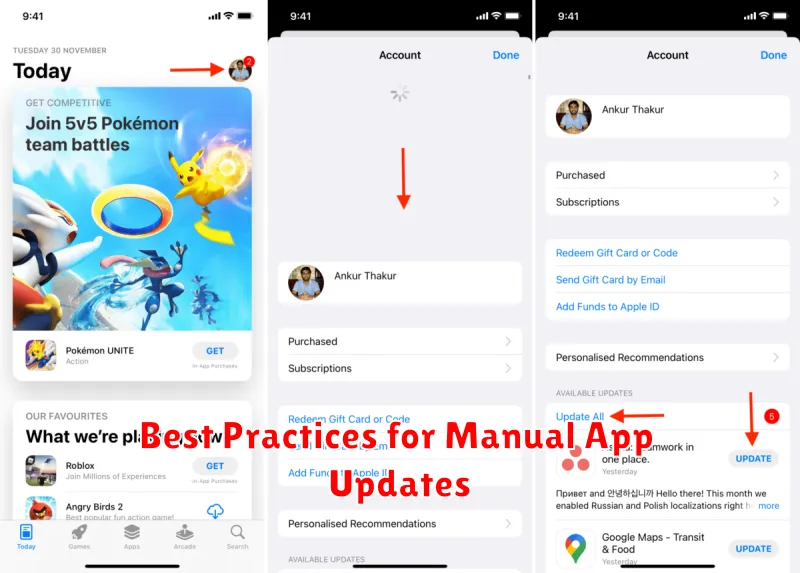
Verify the Source. Always download APK files from trusted sources like the official developer’s website or reputable app stores. Avoid third-party websites, as they may distribute modified or malicious apps.
Check App Permissions. Before installing an APK, review the permissions it requests. Ensure the app’s required permissions align with its functionality. Excessive or unnecessary permissions can be a red flag.
Backup Your Data. While rare, issues can arise during manual updates. Back up your important app data before updating to prevent potential data loss.
Enable “Unknown Sources.” Android, by default, blocks installations from sources outside the official app store. Temporarily enable the “Unknown sources” option in your device’s security settings to allow the APK installation. Remember to disable this setting after the update is complete.
Keep Your OS Updated. An up-to-date operating system ensures better compatibility and security for your apps. Regularly check for system updates and install them when available.
Benefits of Keeping Apps Updated
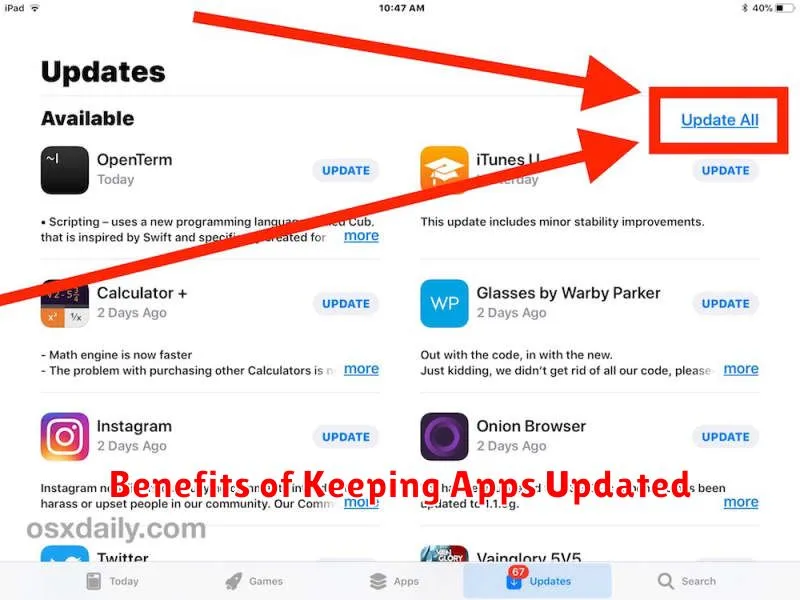
Regularly updating your apps offers a range of benefits that enhance both performance and security. Updated apps often include performance improvements, resulting in faster loading times, smoother operation, and reduced battery drain. Developers constantly work to optimize their apps, addressing bugs and improving efficiency.
Security enhancements are another crucial advantage. Updates frequently patch security vulnerabilities that could be exploited by malicious actors. Staying updated helps protect your device and personal data from potential threats.
Furthermore, updates often introduce new features and functionalities. Developers regularly add new capabilities to their apps, providing users with an enriched experience and access to the latest tools and services. Staying up-to-date allows you to take advantage of these improvements and enjoy the full potential of your apps.
Finally, updates often provide compatibility improvements. As operating systems evolve, older app versions might experience compatibility issues. Updates ensure that your apps continue to function seamlessly with the latest OS versions and other software on your device.
