

Is your phone constantly nagging you about low storage? Do you find yourself deleting precious photos and videos just to make room for more? You’re not alone. Millions of smartphone users grapple with the ever-shrinking availability of phone storage, a frustrating digital dilemma in today’s data-driven world. This article delves into the mystery of the data drain, exploring the common culprits behind why your phone storage fills up so fast. We’ll uncover the hidden data hogs, from sneaky app updates to exploding media libraries, and equip you with the knowledge to understand your phone’s storage consumption.
Understanding how your data storage is used is the first step towards reclaiming control. We’ll provide practical and effective strategies to combat the data drain, offering actionable solutions to free up space and optimize your phone’s storage. Learn how to identify storage-hogging apps, manage your media effectively, and implement best practices to keep your phone storage under control. Say goodbye to the dreaded low storage warnings and regain control of your digital life. This article will empower you with the knowledge and tools to conquer the data drain once and for all.
The Usual Suspects: Common Storage Hogs
Several common culprits contribute to rapidly dwindling phone storage. Understanding these data hogs is the first step to reclaiming valuable space.
Photos and Videos: High-resolution photos and videos are major storage consumers. Modern smartphones capture increasingly detailed media, which translates to larger file sizes. 4K video, in particular, can quickly fill up your device.
Apps: Apps themselves, along with their associated data and caches, take up considerable space. Games, social media platforms, and streaming services are often among the largest offenders.
Downloaded Files: Documents, PDFs, and other downloaded files can accumulate over time, consuming significant storage without you realizing it.
System Files: The operating system itself requires storage space for essential files and updates. This usage can fluctuate, especially after system updates.
Analyzing Your Storage Usage
Before tackling the issue of dwindling storage, it’s crucial to understand what’s consuming it. Most modern smartphones offer built-in tools to analyze storage usage, providing a breakdown of what types of data are occupying your precious space. This analysis is the first step towards effective storage management.
Typically, you can find this analysis within your phone’s settings menu, usually under a section named “Storage” or “Device care.” The specifics may vary depending on your phone’s operating system (Android or iOS) and manufacturer. Look for a feature that displays storage consumption categorized by data type.
Key categories to look out for include photos and videos, apps, audio files, downloaded files, and system data. Some operating systems may offer more granular breakdowns, separating data like cached data and documents. Paying attention to these categories allows you to pinpoint the largest storage consumers and develop a targeted strategy for reclaiming space.
Understanding your usage patterns is also essential. Does your storage primarily fill with photos, or is it a multitude of apps accumulating data over time? This knowledge empowers you to make informed decisions about what to delete, move, or manage differently in the future.
Clearing App Cache and Data
Cached data and temporary files accumulate as you use apps. While designed to speed up performance, they can consume substantial storage over time. Clearing this data can reclaim valuable space without affecting app functionality.
Most phones offer a centralized way to manage app storage. Typically, you can navigate to your device’s settings, find the “Apps” or “Applications” section, and select individual apps to clear their cache and data.
Clearing the cache removes temporary files, while clearing data deletes all app settings, preferences, and saved information. Be mindful that clearing data will essentially reset the app to its initial state. Consider this option for apps you rarely use or those consuming excessive storage.
Managing Downloaded Files and Media
Downloaded files and media, including photos, videos, and documents, often contribute significantly to storage depletion. Regularly reviewing and managing these files is crucial for maintaining free space.
Identify large files: Use a file manager app or your phone’s built-in storage analyzer to pinpoint large files consuming excessive space. Consider deleting unnecessary items or moving them to cloud storage or an external drive.
Streamline media storage: High-resolution photos and videos are major storage consumers. Enable cloud backups for photos and videos to automatically upload them and free up local storage. Alternatively, transfer media to a computer or external hard drive.
Organize downloads: Establish a system for organizing downloaded files into folders. This simplifies the process of locating and deleting unnecessary items. Regularly clear out outdated or unused downloads, such as installation files or old documents.
Offloading Unused Apps
Offloading apps is a valuable tool for reclaiming storage without completely deleting the app and its associated data. This feature removes the app itself, freeing up the space it occupies, but preserves its documents and data. When you decide to use the app again, you simply re-download it, and your data will be restored seamlessly. This is an excellent solution for apps you use infrequently but want to keep accessible.
Most modern operating systems provide a built-in offloading mechanism. On some platforms, you can configure apps to automatically offload if unused for a certain period. This automated approach can be especially helpful in maintaining storage space over the long term.
To manually offload unused apps, locate the app management settings in your phone’s settings menu. From there, you can typically select individual apps and choose the “offload” option. Be mindful that while offloading saves your data, some apps may require re-authentication or re-configuration upon reinstallation.
The Impact of System Updates on Storage
System updates play a crucial role in maintaining your phone’s security and performance. However, these updates themselves can consume a significant portion of your storage space. New features, bug fixes, and security patches often require additional files, leading to an increase in storage usage.
Before an update downloads, your phone often creates a temporary copy of the existing system. This duplication ensures a smooth rollback if issues arise during the update process. This temporary copy can be quite large and contribute to the feeling of your storage suddenly filling up. After a successful update, this temporary copy is usually deleted, freeing up the used space.
The size of system updates varies depending on the operating system (iOS, Android, etc.) and the specific update itself. Major version updates typically require more space than minor ones. It’s essential to have sufficient free space available before initiating any system updates to prevent errors and ensure a smooth process.
Utilizing Cloud Storage Solutions
Cloud storage offers a convenient way to offload data from your device without losing access to it. Services like Google Drive, iCloud, Dropbox, and others provide various plans, often including a free tier with limited capacity.
Uploading photos and videos to the cloud frees up significant space. Most cloud services offer automatic backup features, ensuring your media is safely stored without manual intervention. Consider enabling automatic uploads specifically for media, which often consumes the most storage.
Beyond media, cloud storage can also archive documents and other files. This is particularly useful for items you need to retain but don’t access frequently. Many cloud services integrate seamlessly with productivity apps, allowing you to save files directly to the cloud.
Moving Media to External Storage
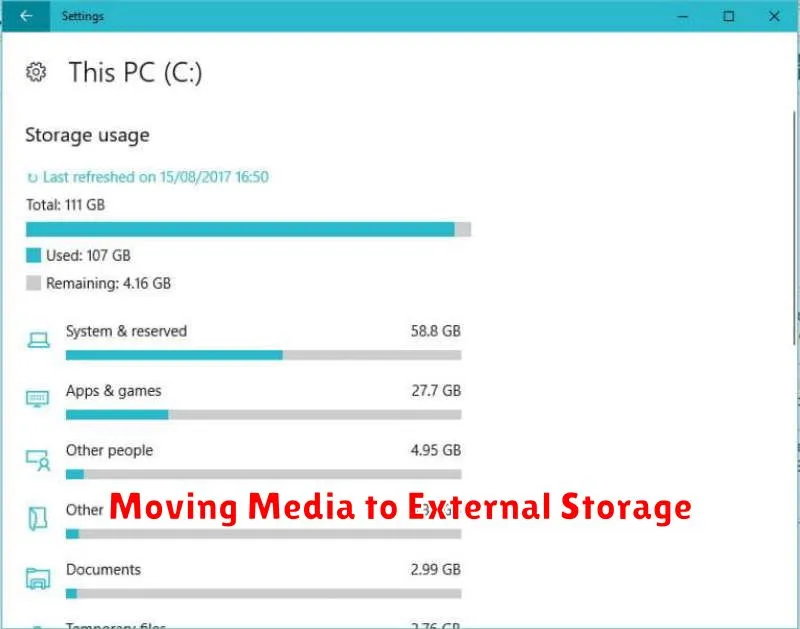
One of the most effective ways to reclaim significant storage space on your phone is by transferring your media files to external storage. This includes photos, videos, and music, which often constitute the bulk of data consumed.
Several options exist for external storage. MicroSD cards are a popular choice for Android devices, providing expandable storage that seamlessly integrates with the file system. Alternatively, external hard drives and USB flash drives offer portable solutions compatible with most smartphones using appropriate adapters. When choosing an external storage solution, consider the storage capacity you need and the transfer speed offered by the device.
Transferring files is usually a straightforward process. Most operating systems offer built-in file management tools that allow you to select and move files to the external storage. Simply connect the external storage device to your phone, locate the media files you wish to transfer, and select the “move” or “copy” option, specifying the external storage as the destination. This frees up valuable internal storage on your device while keeping your media accessible.
Regular Maintenance for Storage Health
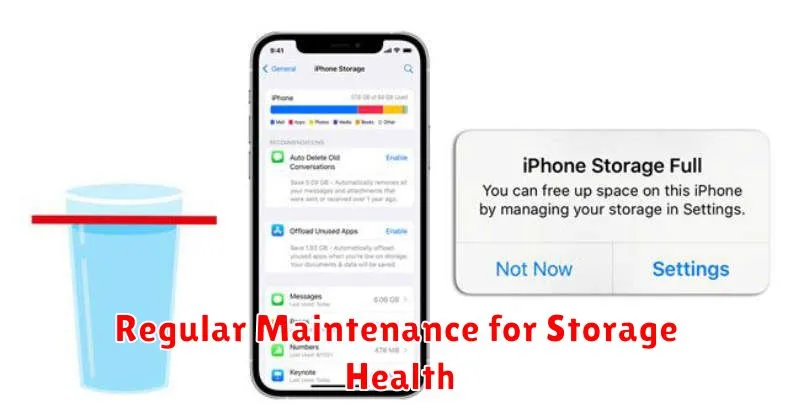
Just like a car needs regular tune-ups, your phone’s storage benefits from routine maintenance. This proactive approach can prevent future storage crises and keep your device running smoothly. Clearing your cache is a simple yet effective first step. Cached data are temporary files stored by apps to speed up loading times, but they can accumulate and consume significant space.
Reviewing and uninstalling unused apps is another crucial maintenance task. Apps, even when not actively used, can store data that takes up valuable space. Identify apps you haven’t used recently and uninstall them to reclaim storage. Similarly, deleting old files and downloads can free up a surprising amount of space. Check your downloads folder, document folders, and other areas where files might accumulate.
Finally, rebooting your device periodically can help clear temporary files and improve overall system performance, indirectly aiding storage management.
Advanced Tips: Identifying Hidden Storage Eaters
Beyond the usual suspects like photos and videos, several hidden culprits can consume significant storage space. Cached data from apps and browsers accumulates over time. Clearing this cache can free up substantial space without deleting important files. Look within each app’s settings to locate and clear its individual cache.
Offline content, such as downloaded maps, music, and podcasts, can also contribute to storage woes. Review your downloaded items and delete any content you no longer need. Streaming services often offer options to manage offline content directly within their apps.
App data itself can grow surprisingly large. Games, in particular, can accumulate gigabytes of data. If you’re not actively playing a game, consider uninstalling it to reclaim the space. You can always reinstall it later if needed.
Finally, explore your phone’s file manager. This utility allows you to browse through all files and folders on your device, often revealing unexpected large files or forgotten downloads lurking in obscure locations.
