
In today’s hyper-connected world, our phones are constantly buzzing with notifications, calls, and messages. While this can be helpful, the constant vibration can also be a major source of distraction and annoyance. Whether you’re in a meeting, trying to focus on a task, or simply want some peace and quiet, knowing how to turn off vibration on your phone is a valuable skill. This comprehensive guide will provide you with step-by-step instructions on how to silence the buzz and manage vibration settings on various devices and operating systems. Learning to control your phone’s vibration settings allows you to regain control over your digital environment and minimize interruptions.
This guide covers everything from completely disabling vibration to customizing settings for specific notifications. We’ll explore how to turn off vibration for calls, texts, and other app notifications, giving you granular control over your phone’s haptic feedback. By the end of this article, you’ll be able to effectively silence the buzz and create a more peaceful and focused mobile experience, tailored precisely to your preferences. Whether you seek temporary respite or a permanent solution to unwanted vibrations, this guide offers practical solutions for all your needs.
Understanding Your Phone’s Vibration Settings
Before diving into how to silence your phone’s vibrations, it’s important to understand where these settings reside and how they function. Most smartphones offer granular control over vibration, allowing you to customize it for different scenarios.
Typically, vibration settings are found within the “Sound & Vibration” or “Sound & Notifications” section of your phone’s settings menu. The location may vary slightly depending on your phone’s manufacturer and operating system (e.g., Android or iOS). Within this menu, you’ll find various options related to vibration intensity, patterns, and specific event triggers.
Familiarizing yourself with these settings is the first step toward effectively managing your phone’s vibration behavior. Understanding the different categories of vibration settings, such as calls, notifications, and haptic feedback, will allow you to tailor your experience and minimize unwanted buzzing.
Pay close attention to the labels and descriptions within your phone’s settings menu. This will help you accurately adjust the vibration settings according to your preferences.
Disabling Vibration for Calls
Incoming calls often trigger vibrations, which can be disruptive in quiet environments or simply unwanted. Most phones offer a straightforward way to disable this feature. The process generally involves navigating to your phone’s sound settings.
Typically, you’ll find a section specifically dedicated to call settings. Within this section, look for an option labeled “Vibrate on Ring” or a similar phrase. Toggling this setting off will prevent your phone from vibrating when you receive an incoming call.
Some devices may offer more granular control. For instance, you might be able to disable vibration for all calls except those from favorited contacts. Explore the available options within your phone’s settings to tailor the vibration behavior to your specific preferences.
Important Note: While silencing vibration for calls can be beneficial, be mindful of missed calls. If relying on vibration for notifications, ensure your ringtone volume is adequately adjusted or another notification method is active.
Turning Off Vibration for Notifications
Constant buzzing from notifications can be distracting and disruptive. Most phones allow granular control over notification vibrations, letting you silence the buzz without missing important alerts. Disabling vibration for all notifications is usually the simplest method. This can typically be achieved through the main Sound & Vibration settings menu. Look for an option labeled “Vibrate on notifications” or similar and toggle it off.
For more refined control, explore your phone’s notification settings. You can often customize vibrations on a per-app basis. This allows you to keep vibrations enabled for essential apps like messaging or email, while silencing less critical notifications from social media or games. Within each app’s notification settings, look for options related to sound and vibration.
Customizing Vibration Patterns for Different Contacts
Personalizing vibration patterns for individual contacts allows you to identify callers without needing to look at your phone. This feature is particularly useful in meetings or other situations where checking your phone is inappropriate.
Most smartphones offer a range of pre-set vibration patterns. You can typically access these settings through your contact list. Select the desired contact, then look for an “edit” or “options” menu. Within this menu, you should find settings related to ringtones and vibration. Choose the “vibration” option to browse and select a unique pattern for that contact.
Some devices even allow you to create custom vibration patterns. This offers greater control over the tactile alerts you receive. Check your phone’s settings to see if this feature is available. The process usually involves tapping the screen in a specific rhythm to record the desired vibration.
Managing Vibration for Specific Apps
In addition to controlling overall vibration settings, many smartphones offer granular control over vibration on a per-app basis. This allows you to prioritize which apps you want to notify you via vibration and which ones you prefer to remain silent.
The process for managing app-specific vibration settings can vary slightly depending on your phone’s operating system and manufacturer. However, the general principle remains the same. Typically, you can access these settings through the “Apps” or “Applications” section within your phone’s main settings menu. From there, you can select the individual app you want to configure and toggle the vibration setting on or off.
For example, you might choose to disable vibration for social media apps during work hours while keeping it enabled for messaging or email apps. This allows you to customize your phone’s behavior to suit your specific needs and preferences without having to constantly adjust global vibration settings.
Silencing Keyboard Vibration
Keyboard vibration, while providing tactile feedback, can be distracting and drain your battery. Most modern smartphones allow you to disable this feature easily within the settings menu. Disabling it can contribute to a quieter and more focused user experience.
Typically, you’ll find the setting for keyboard vibration control within the “Sound & Vibration” or “Sound & Notification” section of your phone’s settings. The exact location might vary slightly depending on your phone’s manufacturer and operating system.
Look for options labeled “Keyboard Vibration,” “Haptic Feedback,” or “Touch Vibration.” Disabling this setting will stop your phone from vibrating each time you press a key on the on-screen keyboard.
Some keyboards, such as Gboard, may have their own independent vibration settings. If you’re using a third-party keyboard application, you may need to check its individual settings menu to control vibration feedback.
Troubleshooting Vibration Issues
Sometimes, you might encounter problems with your phone’s vibration function even when it’s seemingly enabled. Here’s a breakdown of common issues and how to address them:
Vibration Not Working at All
If your phone doesn’t vibrate at all, try these steps:
- Restart your phone: A simple restart can often resolve temporary software glitches affecting vibration.
- Check vibration strength: Ensure the vibration intensity isn’t set to the lowest level or completely off. Look for vibration strength settings within your sound or accessibility settings.
- Test in different modes: Try setting your phone to ring, then silent, then vibrate only. Test if the vibration works in each mode. This helps isolate if the issue is mode-specific.
Vibration Too Weak or Inconsistent
If your phone’s vibration feels weak or erratic, consider these possibilities:
- Low battery: A low battery charge can sometimes impact vibration strength. Charge your phone fully and test again.
- Case interference: Some phone cases can dampen vibration. Remove your case temporarily to see if it improves the vibration.
- Hardware problem: A failing vibration motor could cause weak or inconsistent vibrations. If other troubleshooting steps fail, contact your phone’s manufacturer or a qualified repair technician.
The Benefits of Turning Off Vibration: Battery Life and Focus
Disabling vibration on your phone offers several advantages, primarily concerning battery life and enhancing focus. The vibration motor, while small, consumes power each time it activates. Over the course of a day, these small energy drains add up. By turning off vibration, you can extend the time between charges, particularly noticeable for users who receive frequent notifications.
Beyond battery life, vibration can be a significant source of distraction. The constant buzzing can interrupt your concentration, making it difficult to focus on tasks or conversations. A silent phone allows for a more peaceful and productive environment, minimizing interruptions and promoting better focus.
Improved Battery Life: Turning off vibration contributes to longer battery life by reducing the power demand from the vibration motor.
Enhanced Focus: Eliminating the buzzing interruptions from vibration allows for increased concentration and productivity.
Accessibility Considerations for Vibration Settings
While turning off vibration can be beneficial for many, it’s crucial to consider its impact on accessibility. For some users, vibration is an essential feature for notifications, especially in situations where audible alerts are impractical or impossible to hear.
Individuals with hearing impairments often rely on vibration as a primary notification method. Disabling it could mean missing important calls, messages, or alarms. Consider your own needs and the potential impact on accessibility before adjusting these settings.
Customizing vibration settings can offer a balance between minimizing distractions and ensuring accessibility. Many devices allow you to adjust the intensity of vibration for different notification types. This allows you to prioritize important alerts while minimizing less critical buzzing.
Explore your device’s accessibility settings to find options that suit your individual requirements. Features like visual notifications or flashing LED lights can provide alternative alerts if vibration is turned off.
Quick Guide: Turning Off Vibration on Different Phone Models
While the specific steps may vary slightly, the general process for disabling vibration is similar across most smartphones. Here’s a simplified guide for common operating systems:
Android
Most Android devices follow a similar pattern. Navigate to Settings, then typically Sound & vibration or a similarly named option. Look for Vibration & haptics or Vibration intensity. Here you can usually toggle off vibration for calls, notifications, and touch feedback.
iOS (iPhone)
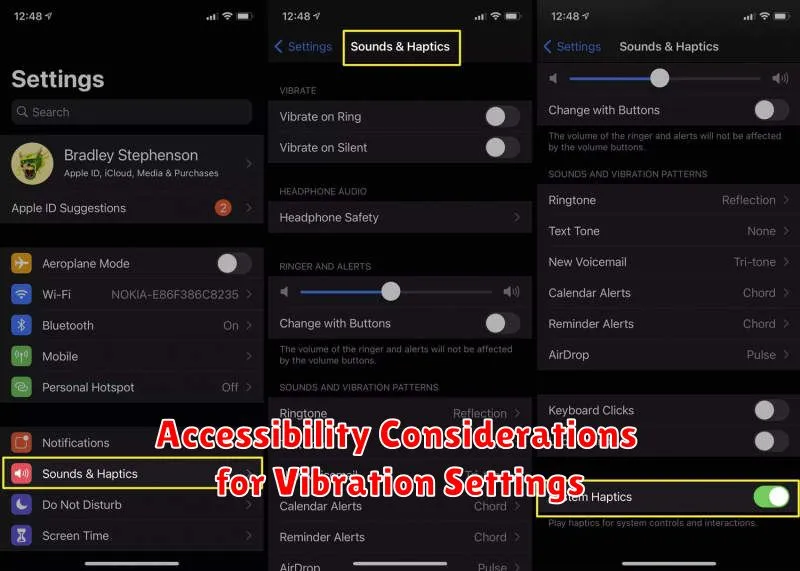
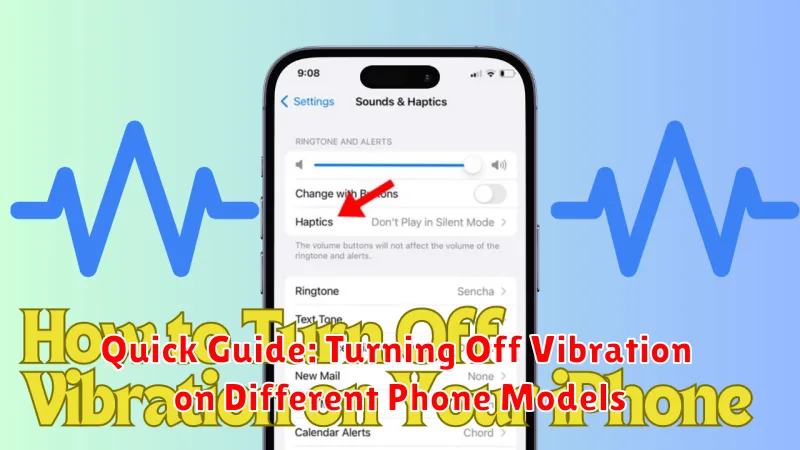
On iPhones, go to Settings, then Sounds & Haptics. You can independently control vibration for Ringtone and Silent mode. Additionally, you can disable System Haptics which controls vibration feedback for actions within apps and the system.
