
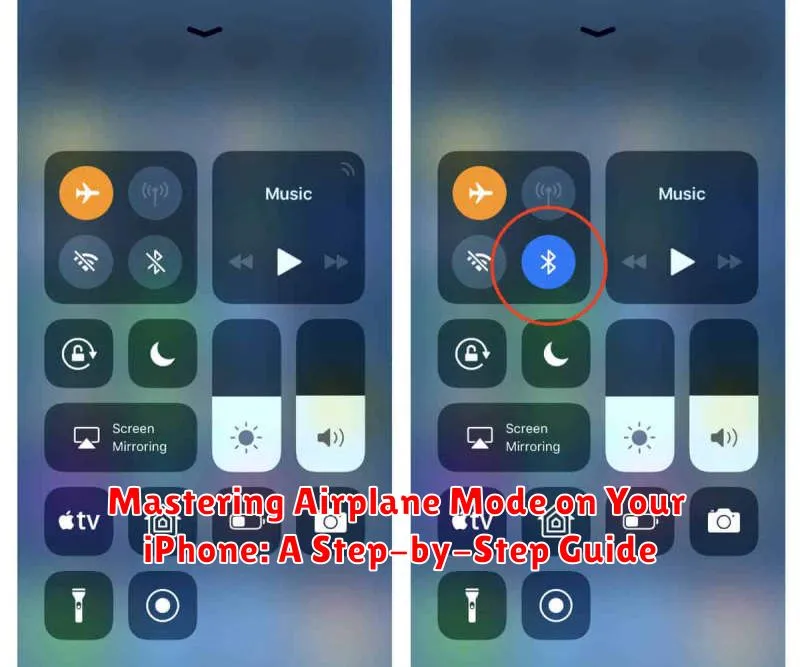
Mastering Airplane Mode on your iPhone can significantly enhance your device’s functionality and your overall mobile experience. This comprehensive, step-by-step guide will equip you with the knowledge to effectively utilize Airplane Mode, covering everything from its basic activation and deactivation to its more nuanced applications for troubleshooting and maximizing battery life. Whether you’re a seasoned iPhone user or new to the platform, understanding the full potential of Airplane Mode is essential for optimizing your device’s performance.
This guide will delve into the practical uses of Airplane Mode beyond simply enabling it for flights. Learn how Airplane Mode can be a powerful tool for resolving network connectivity issues, preserving battery power when you need it most, and even aiding in troubleshooting problematic apps. By mastering Airplane Mode, you can take greater control of your iPhone and tailor its behavior to meet your specific needs, ensuring a smoother, more efficient mobile experience.
Understanding Airplane Mode and Its Functionality
Airplane Mode is a crucial setting on your iPhone that allows you to quickly disable all wireless communication features. This includes cellular data, Wi-Fi, Bluetooth, GPS, and other location services. Essentially, it puts your device in a state where it cannot transmit or receive wireless signals.
The primary purpose of Airplane Mode is to comply with airline regulations that restrict the use of electronic devices during takeoff and landing. These restrictions are in place to prevent interference with aircraft navigation and communication systems.
Beyond air travel, Airplane Mode can be useful in a variety of situations. It can help conserve battery life by turning off power-hungry wireless radios. It can also be used to avoid distractions by temporarily blocking calls, texts, and notifications. Furthermore, it’s a helpful tool for troubleshooting network connectivity issues.
Enabling Airplane Mode via Control Center
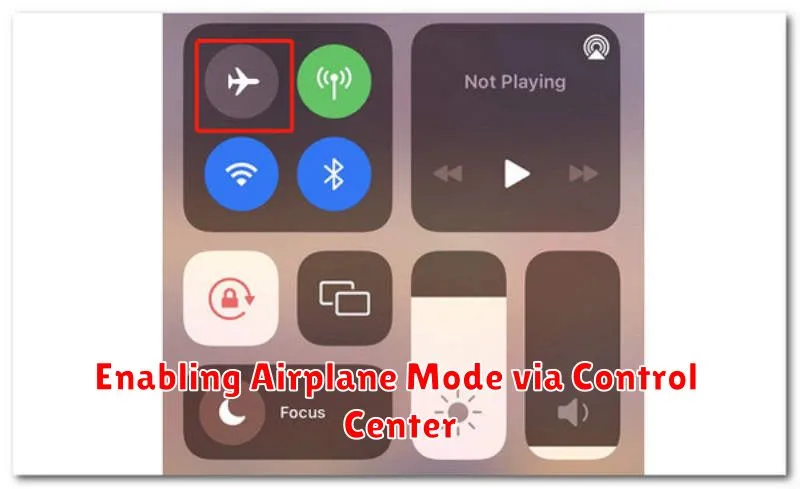
Accessing Airplane Mode through Control Center offers the quickest way to enable this feature. Follow these simple steps:
-
Open Control Center: On iPhones with Face ID, swipe down from the top-right corner of the screen. On iPhones with a Home button, swipe up from the bottom edge.
-
Locate the Airplane Icon: Look for the airplane icon. It’s typically positioned in the top-left group of icons.
-
Tap the Icon: Tap the airplane icon. The icon will highlight orange when Airplane Mode is active.
This instantly disconnects all wireless communication features. You’ll see the airplane icon appear in the status bar at the top of your screen, confirming that Airplane Mode is enabled.
Turning on Airplane Mode Through Settings
Alternatively, you can enable Airplane Mode through your iPhone’s Settings app. This method offers a more detailed view and allows for granular control over connected devices.
Step 1: Open the Settings app on your iPhone. You can usually find this app on your home screen with a gray icon containing gears.
Step 2: Locate and tap on the Airplane Mode option. This is usually near the top of the Settings menu.
Step 3: Toggle the Airplane Mode switch to the right. The switch will turn green indicating that Airplane Mode is now active.
You’ll notice the Airplane Mode icon appear in the status bar at the top of your screen, confirming its activation.
Using Airplane Mode During Flights and Other Situations
Airplane Mode is primarily associated with air travel. Most airlines require passengers to enable Airplane Mode during takeoff and landing, and often throughout the entire flight. This is to prevent interference with the aircraft’s communication systems. By activating Airplane Mode, you disable your iPhone’s cellular, Wi-Fi, and Bluetooth radios, eliminating potential sources of interference.
Beyond air travel, Airplane Mode has several other practical applications. If you’re in an area with weak cellular reception, enabling Airplane Mode and then turning Wi-Fi back on can sometimes improve Wi-Fi performance. This forces your iPhone to rely solely on Wi-Fi for internet connectivity.
Airplane Mode can also be useful for conserving battery life. When enabled, your iPhone stops searching for cellular and Wi-Fi signals, reducing power consumption. This can be particularly helpful if you’re in an area with limited access to charging or need to extend your battery life as much as possible.
Finally, some users employ Airplane Mode as a way to minimize distractions. By temporarily disconnecting from calls, texts, and notifications, you can create a focused environment for work, study, or relaxation.
Managing Connections While in Airplane Mode
Even with Airplane Mode activated, you can selectively re-enable certain connections based on your needs. This offers flexibility without fully disabling the feature.
Wi-Fi: While in Airplane Mode, you can manually turn Wi-Fi back on. This allows you to connect to available wireless networks without affecting the restrictions on cellular data and Bluetooth.
Bluetooth: Similar to Wi-Fi, Bluetooth can be individually re-enabled after activating Airplane Mode. This is useful for connecting to wireless headphones, keyboards, or other Bluetooth accessories.
Cellular Data: Unlike Wi-Fi and Bluetooth, cellular data remains disabled even if you attempt to turn it on while Airplane Mode is active. This restriction ensures compliance with airline regulations and minimizes interference.
Important Note: While re-enabling Wi-Fi and Bluetooth offers convenience, it’s crucial to adhere to any specific regulations in place, such as those during air travel. Always follow crew instructions regarding electronic device usage.
Disabling Airplane Mode: Getting Back Online
Deactivating Airplane Mode is a straightforward process, effectively reversing the steps used to enable it. There are two primary methods to disable Airplane Mode and restore your iPhone’s connectivity.
Method 1: Using the Control Center
Swipe down from the top-right corner of your screen (or swipe up from the bottom on older iPhones) to access the Control Center. Locate the airplane icon and tap it. The icon will revert from orange to gray, indicating that Airplane Mode is now off.
Method 2: Using the Settings App
Alternatively, you can disable Airplane Mode through the Settings app. Open the Settings app, and at the very top, you’ll find the Airplane Mode toggle. Tap the toggle to switch it off. The toggle will turn from green to gray, confirming that Airplane Mode is disabled.
Once Airplane Mode is deactivated, your iPhone will automatically attempt to reconnect to cellular and Wi-Fi networks. This process usually takes only a few seconds.
Troubleshooting Airplane Mode Issues
Occasionally, you might encounter issues with Airplane Mode. Here are some troubleshooting steps:
Airplane Mode Won’t Turn Off
If Airplane Mode is stuck on, try these solutions:
- Restart your iPhone. This often resolves temporary software glitches.
- Check for iOS updates. An outdated iOS version could be the culprit. Go to Settings > General > Software Update.
- Reset network settings. This can resolve deeper network-related conflicts. Navigate to Settings > General > Transfer or Reset iPhone > Reset > Reset Network Settings. Note: This will erase saved Wi-Fi passwords.
Connectivity Problems After Disabling Airplane Mode
If you experience difficulty connecting to Wi-Fi or cellular data after turning off Airplane Mode:
- Toggle Airplane Mode on and off again. A quick reset can sometimes fix connection issues.
- Check your Wi-Fi and cellular settings. Ensure Wi-Fi is enabled and you’re connected to the correct network. Verify that cellular data is activated for the apps you’re using.
- Contact your carrier. If cellular data issues persist, there might be a problem with your service provider.
